Microsoft’s new PowerPoint Agent promises to automate slide creation using AI, but early impressions suggest you should proceed carefully. In this first look, we explore how the PowerPoint Agent works inside Microsoft PowerPoint, what it gets right, and the potential risks around accuracy, control, and over-automation that everyone needs to understand before relying on it.
PowerPoint Agent is Microsoft’s new AI helper inside PowerPoint that can create, rewrite, and improve presentations using natural-language prompts. You can, in theory, ask the Agent to “make a 10-slide pitch deck from this document,” “turn these bullets into a compelling story,” or “simplify this for a non-technical audience,” and it will generate (and iterate on) slides while keeping the look consistent with your theme and brand. Unlike other Copilot features in PowerPoint, the Agent can make or change slides directly.
We like the Excel Agent quite a lot. The Word Agent is OK but not as useful. Both work fine despite the beta “Frontier” tag.
But PowerPoint Agent is a worry. We’ve been trying this feature for a few weeks and have come to this conclusion … Don’t expect much, or anything except perhaps for Microsoft’s error message “Something went wrong” or no message at all, just reset to a blank prompt.
Instead of a full review, this is an early warning about PowerPoint Agent. Give it a try if you have time to spare, enjoy playing with new tech stuff or like repeatedly banging your head against a (virtual) wall.
PowerPoint Agent is only available (for now) in Word 365 for Windows with a Copilot license. Microsoft has announced ‘general availability’ of Agent in PowerPoint on the web between mid-February and mid-March 2026. Has anyone at Microsoft really tested PPT Agent or is it being pushed out to paying customers to satisfy some arbitrary management deadline?
Starting PowerPoint Agent
If PowerPoint Agent is available, it will be under the ‘sliders’ menu with other Copilot options.

With business licences, there’s a choice of sources for the presentation. Select between using only the organizations files “Work” or the public “Web”.
In addition, you can add documents, images and other files to the prompt, as usual, under the + button.
Type in a request for what you’d like in the presentation.

Outline
After the Agent makes a slide deck, it shows an Outline. The deck will probably have sections containing several slides. You move or remove sections but not individual slides.

Add a topic is available also available from the + button.

The AI generated text in our “Apollo 11” test was very bland and general. Neither Cmdr. Armstrong nor Major Aldrin are named (!), no mention of the “1201/1202” alarms nor the low fuel concerns before landing.
Presentation Style
Choose a look or design for the deck. All the Microsoft designs are pretty corny. Maybe just go with “Suggested” knowing that you can change the design later.

Image Sources
Choose between AI generated images and Stock Images.
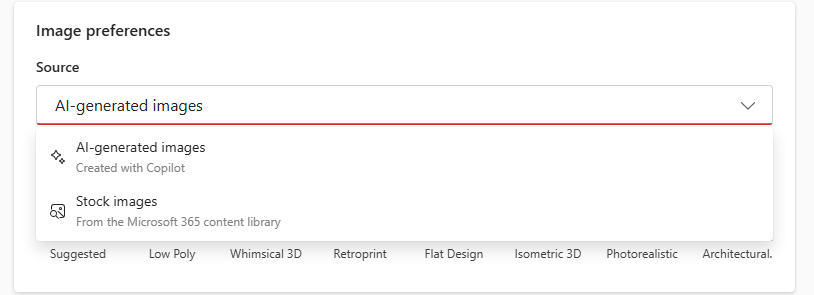
Use the AI generated option with a LOT of care. Some of the images made for our Apollo 11 test were ridiculous e.g. giving the moon an atmosphere or a LEM with color computer screens and huge windows that could see the engines.

Microsoft Word Agent Deep Dive: about the New AI Editor & What You Can Really Do With It
Excel Agent for Microsoft 365: A Deep Dive into Excel’s New Assistant
