How to Fix Excel Copilot “#Connect” Errors
Microsoft Excel’s Copilot() can show #CONNECT “Too many requests” errors if you use the function incorrectly. Copilot() is different from almost every other Excel function because it has limits on how often it can be used. Don’t panic, there’s practical steps you can take to keep Excel’s connection to AI working.
The Copilot() function in Excel has a limit on how often you can use it. Copilot() will return a #CONNECT! error “Too many requests” when it exceeds rate limits.
Copilot() rate limits
Excel can only use Copilot() 100 times (calls) in 10 mins or 300 in an hour.
Go over those limits and you’ll see #CONNECT! in the cell, the pull-down menu shows the reason “Too many requests“
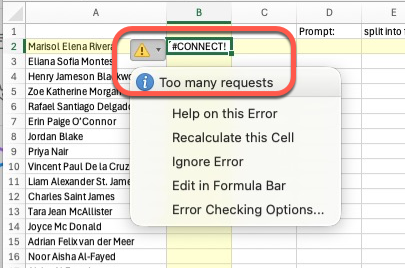
It’s easy to hit those limits because we’re all used to a simple way of copying a formula across many cells. For example, setting up a Copilot() call that (cell B2) works with a single cell input (cell A2) then copying that formula down the column.
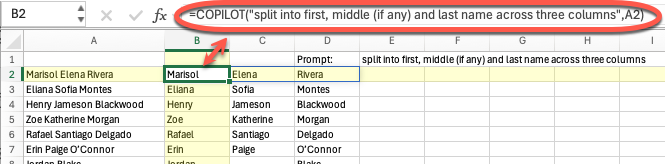
That means there’s a separate Copilot() call for each cell down the column which is many calls to Microsoft’s AI servers.
Copying a formula down (or across) for any other function is OK and quite normal. You can use almost all Excel functions as often as you like, but not Copilot() with its use limits.
Three fixes for Copilot() “Too many requests” errors
Wait
Give it 15-30 minutes or perhaps over an hour. It’s usually a temporary block that time will heal.
Convert to text
Once you have results from Copilot(), convert them into fixed, static cells.
When you have a result from Copilot() there’s usually no need to get it again. In fact, sometimes AI systems like Copilot will give a different response to the same prompt.
That’s why Office Watch wrote a guide to Converting Excel’s COPILOT() Output into Static Cells – Stop Auto-Updates & Preserve Values
Combine into one Copilot() call
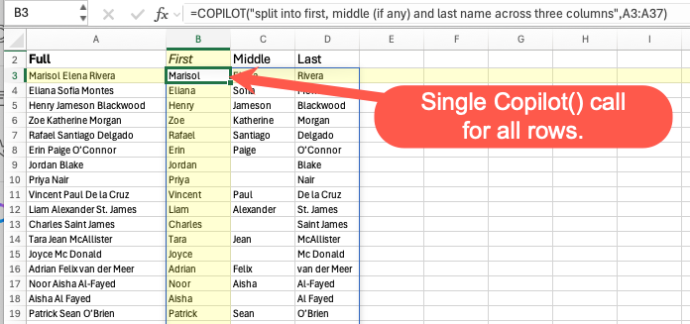
The best solution is to combine many input cells into a single Copilot(). Copilot() returns a dynamic array so one formula can return a lot of cells but only count as one call to the AI servers.
Instead of having a single cell input e.g
=COPILOT("split into first, middle (if any) and last name across three columns",A2)Send Copilot() a range of cells
=COPILOT("split into first, middle (if any) and last name across three columns",A2:A36)As you can see, Copilot() accepts many cells in the ‘Context’ parameter and returns a dynamic array that can spill both across and down.
Other reasons for Copilot() #CONNECT errors
Check the exact reason for any Copilot() #CONNECT error. “Too many requests” is the most common problem, there can be other causes.
Copilot() needs an Internet connection (obviously) so look for something that’s stopping a link to Microsoft’s AI services. This type of problem can appear with one of these labels or something similar.
- We couldn’t connect to the service.
- There was a problem connecting to Copilot.
- Excel can’t connect right now.
- Connection failed.
Discover the COPILOT Function in Excel
Convert Excel’s COPILOT() Output into Static Cells – Stop Auto-Updates & Preserve Values
How to use Copilot() in Excel for analyzing text
Excel’s Copilot() Function Can Be Dangerous in the Wrong Hands
Facts are a slippery thing with the Copilot() function in Excel