Name Parsing: Smarter AI Way to Split First, Middle & Last Names
Struggling to separate first, middle and last names in messy data lists or join first/last names? Traditional Excel tools or Flash Fill often fall short with real-world name complexity, including multi-part surnames and inconsistent formats. The latest AI tools, such as ChatGPT and Microsoft Copilot, can intelligently parse full names into structured columns, handling exceptions that classic methods can’t and letting you copy the results straight into Excel or Word with minimal effort.
For as long as Excel and programming has existed, there’s been talk about how to convert a full name (first, maybe middle and last) into separate columns for each or other name rearrangements. A seemingly a simple task until you use a real-world list of names; not all have middle names, some have two or three part surnames (“de Gaulle” or “ver der Meer”).
Simple parsing by space using Excel’s TextSplit() isn’t enough to cope with these and other names. Excel’s Flash Fill is touted as a solution, but it requires manual intervention and is a ‘one time’ feature which can’t be repeated for new or changed names.
Enter AI, which can split up names or join nicely, taking into account all the exceptions (as us nerds call them) that have plagued generations of programmers.
Any of the ‘usual AI suspects’, we’ll use ChatGPT but Copilot, Gemini or some other system should be able to do the same job.
Full name to first, middle, last names
Simply give the AI a list of full names with a prompt like this
“Change this list into a table with columns for first name, any middle name and last names”

We were surprised and delighted that the AI coped with all the names we threw at it including a five-word name, two different ‘Saints’, a “Mc Donald” and more. Here’s ChatGPT’s response which is typical of our tests.

Not visible in the above images is the Spanish “Ortega y Gasset” which ChatGPT correctly identified as a surname.
The table can be copied into Excel or Word. Larger lists can be uploaded to AI as a document or text file.
Group names in male or female or sorting.
After the above test, it’s no surprise that AI can edit or group full names in other ways:
- Just first and last name, ignoring any middle names.
- Sorting by last name
- Group into male, female names plus any ‘unknown’ or ‘unisex’ names used by both sexes.
“Change this list of names into just first and surname only, ignoring any middle names. Spilt into separate lists for male, female and uncertain. Sort all lists in alphabetical order by surname.”
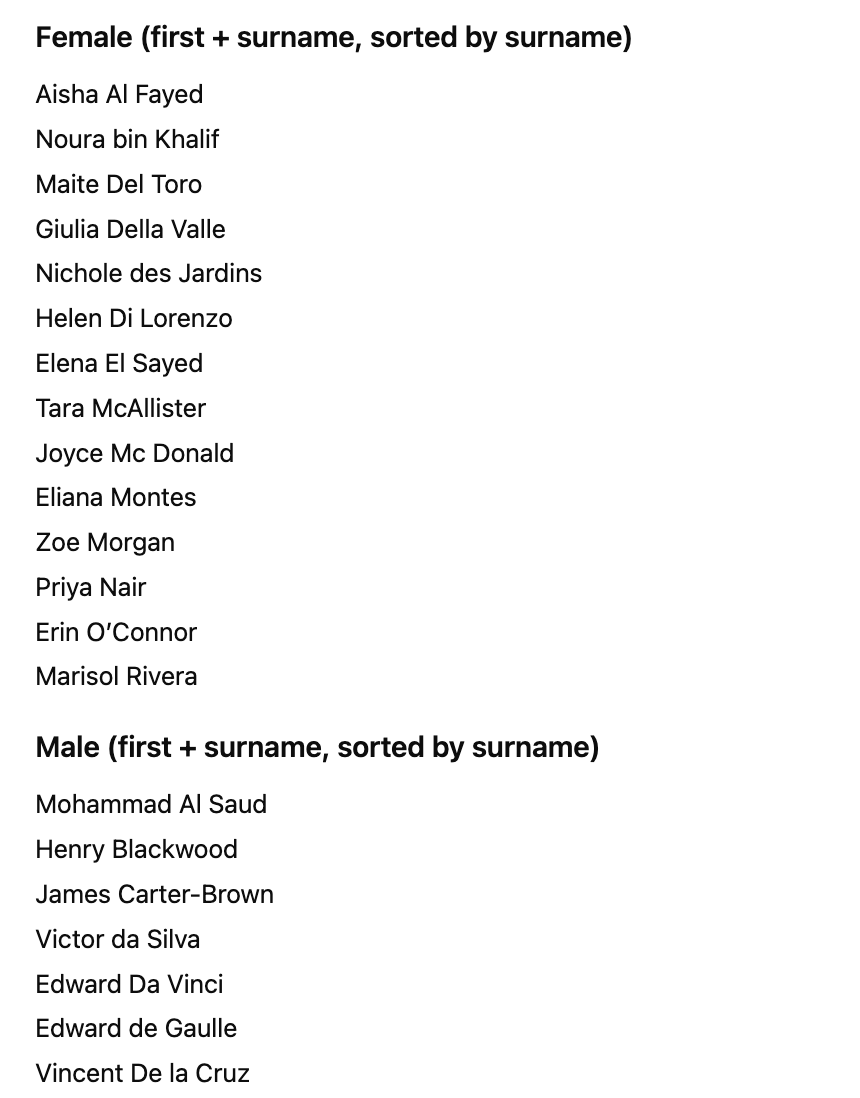
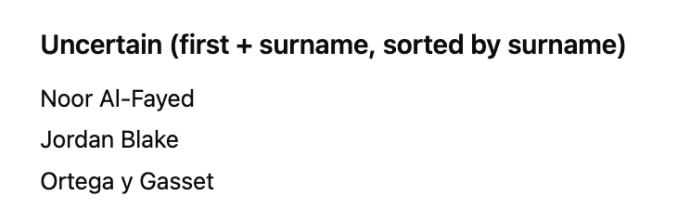
And it correctly picked three ‘unisex’ names used by men and women, for us humans to figure out plus the one ‘surname only’ test name.
Use Copilot Chat or Copilot() in Excel
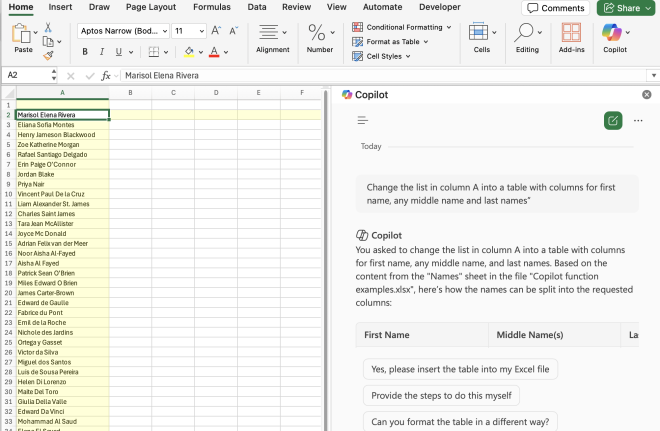
Copilot Chat in Excel can do the same name splitting trick. Put all the names into a column or table, open Copilot Chat (Home | Copilot | Chat) then ask “Change the list in column A into a table with columns for first name, any middle name and last names”. The result can be inserted into the sheet, copy/paste or reformatted in some other way (e.g. sorting.,
The Copilot() function, if available, can do this within the sheet like this:
=COPILOT("Change this full name into first, any middle name, last", “Fred B Dagg”)More likely point to a cell with the name like this:
=COPILOT(“Change this full name into first, any middle name, last”, A2)
Tip: After Copilot() has done it’s thing, Convert Excel’s COPILOT() Output into Static Cells to prevent repeated, unneccessary calls to Microsoft AI servers.