Pasting content from Microsoft Word often leaves behind bloated, broken HTML that causes layout and formatting problems. There’s a faster, cleaner way to remove Word’s unnecessary markup and produce lightweight, web-ready HTML in seconds and without manual cleanup or guesswork.
Anyone who has copied content from Microsoft Word into a website will recognize the problem straight away. Word’s HTML isn’t really designed for the web. It’s packed with unnecessary span tags, Microsoft-specific classes, IF statements, inline styles, and odd mso- properties that make pages bloated, harder to edit, and sometimes unreliable.
Here’s a Word paragraph as it appears when pasted into a HTML editor.
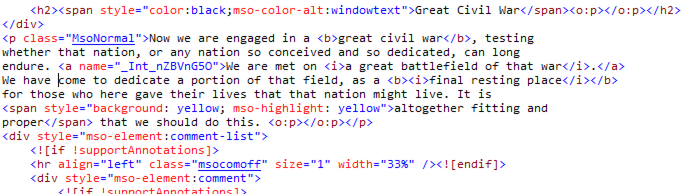
There are specialist ‘clean Word HTML’ features or online services available but there’s a better way using AI
This approach works better than Word’s built-in export tools because Word is focused on reproducing exact visual formatting. That leads to bloated code that loads more slowly, clashes with site styles, and often causes layout problems — especially in email clients.
This is just one of our series about simple and time-saving things that AI can do for you which work for any version of Office – Microsoft 365, Office 2024, Office 2021, Office 2019 or earlier. Mostly with free AI services available to anyone.
- Rearranging Text Instantly with free AI: Smart Tricks for Microsoft Word & Excel
- Ask Excel to Write or Fix Your Formula, Copilot and Beyond
- Collective Nouns – Copilot to the rescue
Clean up Word HTML with AI
Instead of digging through lines of cluttered code or relying on online “HTML cleaners” of mixed quality, you can paste Word-generated HTML into an AI assistant and ask it to convert everything into plain, standard HTML. The result is usually simple, readable code using normal tags such as <p>, <b>, <i>, proper lists, and clean links.
We’ve used ChatGPT for these examples, but Copilot, Gemini and others should also serve.
If you regularly move content from Microsoft Word into websites or newsletters, using AI as an HTML cleaner can save time, reduce errors, and keep your pages lean. AI isn’t replacing proper web development, but it’s excellent at boring cleanup jobs.
A straightforward prompt is often enough:
“Convert this Microsoft Word HTML into standard HTML. Remove all class attributes, span tags, inline styles, and Word-specific formatting. Use simple tags only.”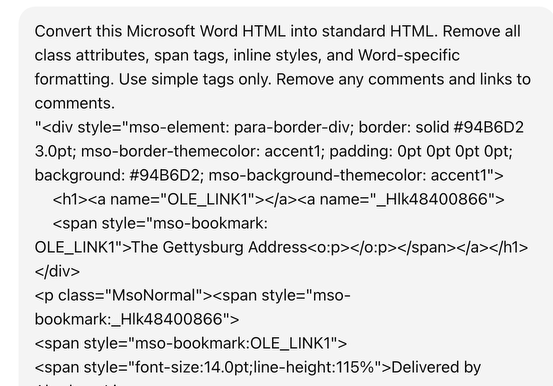
In a few seconds, AI will strip out Word’s nested spans, delete inline fonts and colours, keep real formatting like bold and italics, preserve links, and turn Word-style lists into proper HTML lists. Also those seemingly pointless <o:p></o:p> tags.
What used to take ten or twenty minutes of careful manual editing becomes almost instant.
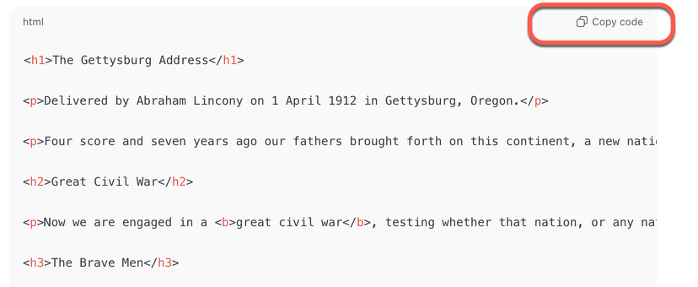
Use any regular AI system, ChatGPT, Copilot, Gemini etc. In most cases, there’s a ‘copy code’ option available to grab the results.
Optional extra prompts
There are more requests you can add to the standard prompt
“Convert this Microsoft Word HTML into standard HTML. Remove all class attributes, span tags, inline styles, and Word-specific formatting. Use simple tags only.”If there are Word comments, the pasted HTML will have many internal links with footnotes at the bottom, get rid of them by adding “Remove all comments and links to comments”.
Highlighted text can be retained or removed. The AI will probably keep highlighting but it’s best to specify what you want. Either “Remove all highlighting but keep the text” or “Keep all highlighted text visible using a SPAN tag”.
Fix image HTML from Word
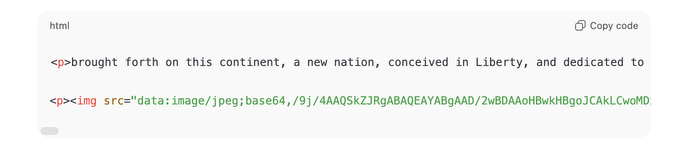
Word HTML adds a lot of code for any included image starting with HTML like this:
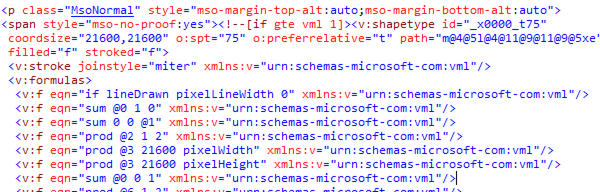
Here are some prompt choices to deal with images in Word HTML:
“Remove all images and image related code”“Replace all images and related code with the words ‘IMAGE GOES HERE’ with H1 style”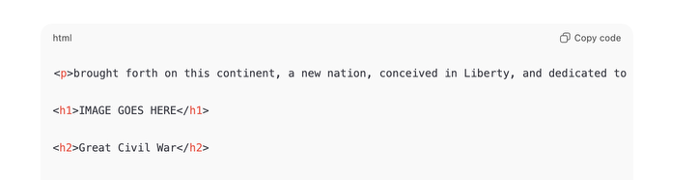
Or
“Replace all images and related code with the words ‘IMAGE GOES HERE’ plus any text in the ALT tag with H1 style”“Keep images / |IMG tags but remove all other image related code” works but any embedded images are rendered as base64 text in the Word HTML so one of the above options might be more practical.
Convert a whole document
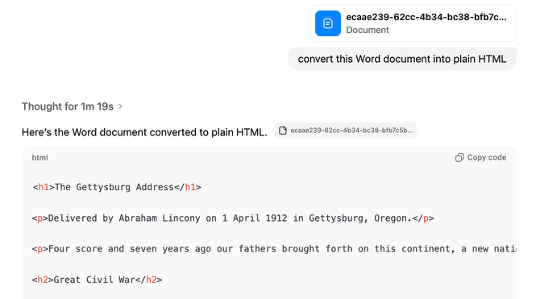
Rather than copy and pasting Word HTML, a whole DOCX file can be uploaded and converted to plain HTML.
AI can also help with other HTML editing tasks that would normally need manual editing or complex regular expressions like removing or changing attributes.
