A “service-side change” in Microsoft Office is Microsoft’s way of quietly changing how Office works, without updating your apps, asking permission, or bothering to tell you first. It’s new terminology so we explain what it is and how to know your computers are up to date. For admins, auditors, and long-suffering users .
The latest MS Office Emergency patch includes this somewhat mysterious sentence:

Customers running Office 2021 and later will be automatically protected via a service-side change, but will be required to restart their Office applications for this to take effect.
From https://msrc.microsoft.com/update-guide/vulnerability/CVE-2026-21509
What is a service-side change?
That unexplained phrase raises two questions:
- What the &$£! Is a “service-side change”?
- It’s not normally what you see with an Office update.
- How can you confirm that a particular “service-side change” has been applied?
- In other words, how to make sure that the new and urgent security bug has been patched?
Usually an update (feature or bug fix) can be confirmed by checking the version and build numbers for the programs. In Office and Microsoft 365 that’s at File | Account.
But that doesn’t work in this case because Microsoft is changing something beyond the Office apps themselves.
Microsoft’s information on this update is very, very poor. In fact, it’s non-existent. The company has just quietly changed users computers. No proper disclosure and no easy way to be sure that the update has been applied or not.
In other words, Microsoft has said “Trust Us” and left it at that.
How to find a service-side change
This information comes by a very backdoor route rather than directly published by Microsoft.
An Enterprise customer asked their Microsoft TAM (Technical Account Manager) who disclosed how to validate that Microsoft 365 and Office 2024/2021 software has been patched for this security bug. Those details were then posted on Reddit.
Here’s a long version of what the Technical Account Manager advised.
1. Close all instances of Office (Word, Outlook, etc.)
2. In Explorer go to
%localappdata%\Microsoft\Office\16.0\WebServiceCache\AllUsers\officeclient.microsoft.comYou can paste the above line into Explorer and it should jump to the right place.
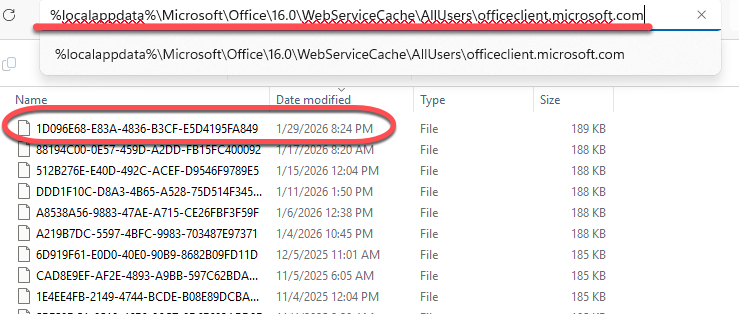
The folder lists the various web service updates over time using a GUID format file name. The information we’re after is in one of the recent entries on or after January 24, 2026 (1/24/26 around 12pm).
If there’s only one file on or after 24 January, you can skip to step 3
If there is more than one file after 24 January, you need to force Office to update the cache folder with a single new file containing the information you need.
- Delete the most recent files in that directory, anything from, say, January 20, 2026 and later.
- Restart Word while online.
3. Open the file with today’s date or after 24 January 2026 in Notepad or other text editor. We use Notepad++
4. Search for the text “ActivationFilter” to find the right line in a large text file.

Do NOT change the file in any way.
5. If the FFDF;b;{EAB22AC3-30C1-11CF-A7EB-0000C05BAE0B} GUID is part of the ActivationFilterGUIDs line then the CVE-2026-21509 security bug has been patched.
On the “ActivationFilterGUIDs” line look along to see this ID
FFDF;b;{EAB22AC3-30C1-11CF-A7EB-0000C05BAE0B}
Alternatively search for the text “EAB22AC3”. If present, make sure it’s on the “ActivationFilterGUIDs” line.
Messy and unnecessarily complicated. All we can say is “Don’t blame the messenger”.
Emergency Office Update: What Every Customer Needs to Know Now
