Why Dragging Images in Microsoft Word Breaks Your Document
Dragging images in Microsoft Word seems quick and convenient, but it’s one of the easiest ways to damage document layout, spacing, and stability as well as raise your blood pressure. Here’s why dragging images in Word is a bad idea and what to do instead.
It’s quite possible to just drag an image to where you want it on a Microsoft Word page. Dragging an image is simple, easy and a straight path to madness.
To move a picture in Word, set its text wrapping to (most likely) “Square” or “In Front of Text” so you can drag it anywhere.
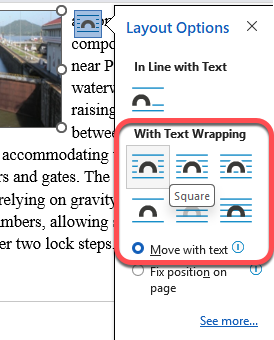
BUT that image position is likely to change in unexpected ways if or when you change the document. That’s because Word will use absolute and very precise position settings that don’t work well when the page formatting changes.
In other words, be careful about dragging images into position. Word will take you literally and probably not as you expected.
Relative to Absolute positioning
Let’s say you have an image that’s nicely placed to the Right of the Margin like this:
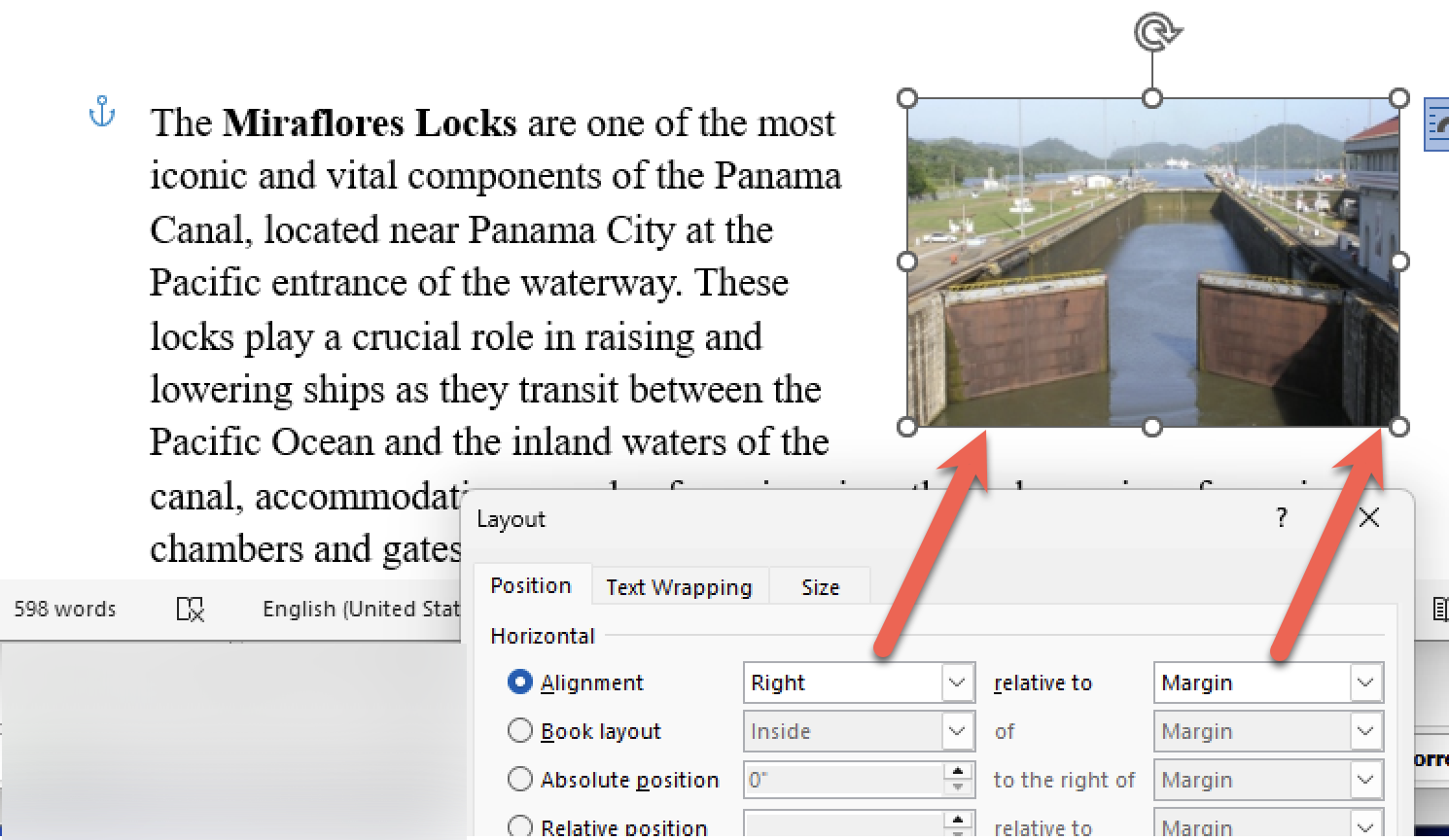
The Layout setting is Right of the Margin and the image will stay in that location even if the page size, margins, font etc change.
Now we drag the image to the center of the paragraph. It’s looks OK but check out the new position setting. Word has changed the horizontal position to be an absolute setting of 1.72 inches to the right of the margin, not Alignment: Center relative to Page.
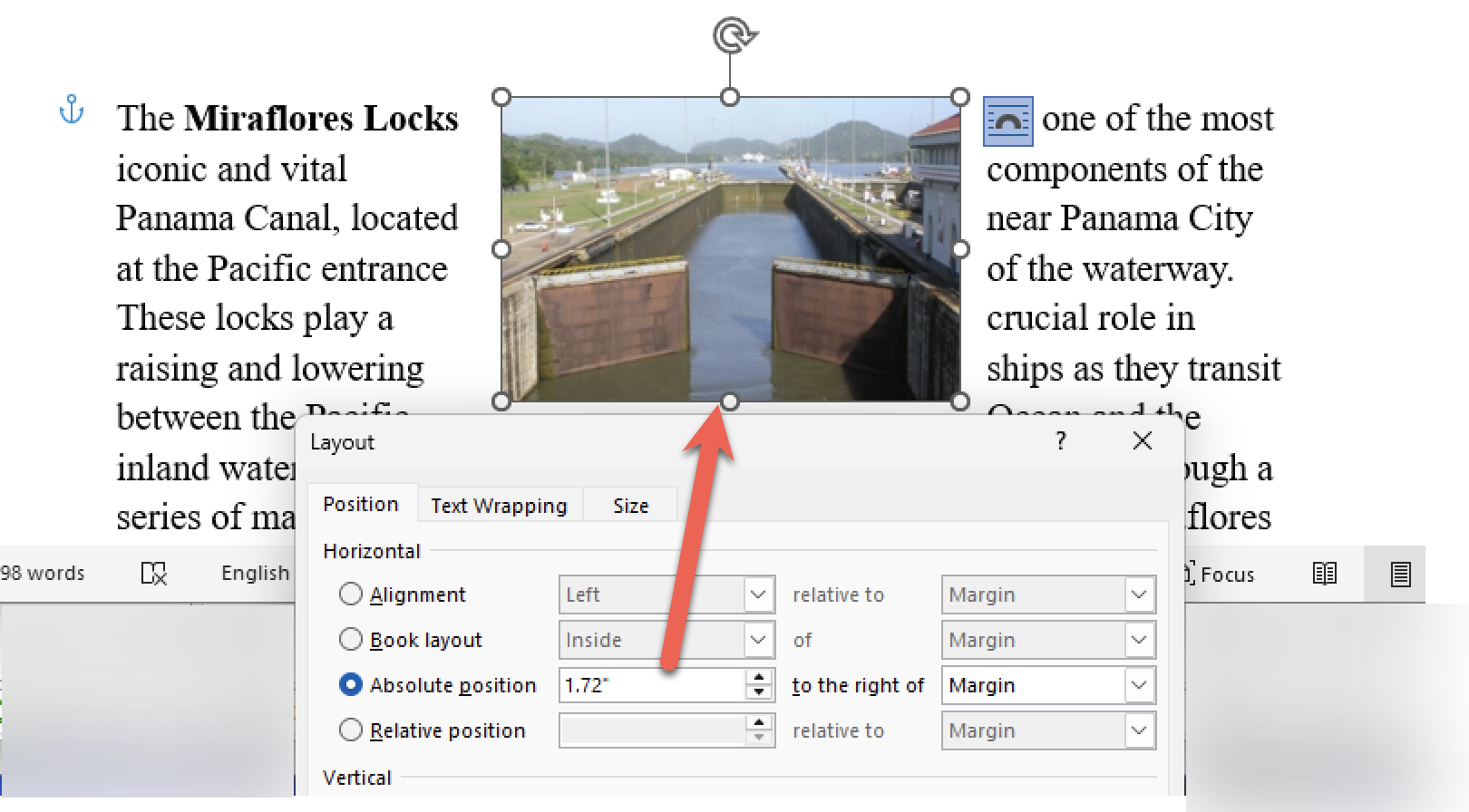
Look what happens if, say, the margins change. The image isn’t centered but stays locked into its “distance from margin” setting.

Any change in the page formatting even the font or font size can move an image from the ‘drag and drop’ position seen on the screen.
Be careful dragging images
There are a few ways to avoid ‘drag and drop’ traps.
Use the guidelines
Make use of the green guidelines when moving an image because they tell you when a picture is aligned against the document not fixed positions.
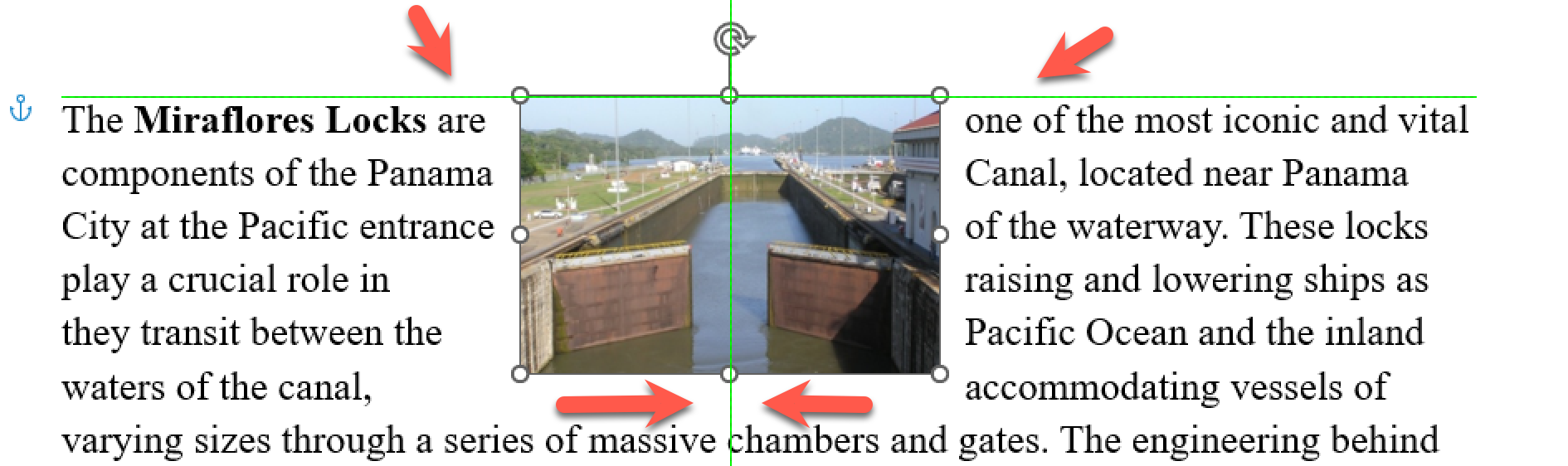
The green horizontal line means the image is aligned to the paragraph.
The green vertical line shows the center alignment of the image.
Always check the real position
Drag and drop of images is a quick and simple way to get the look you want.
Check out the Layout | Position settings (right-click then Size and Position) to see the real Word settings after a ‘drag and drop’ positioning.
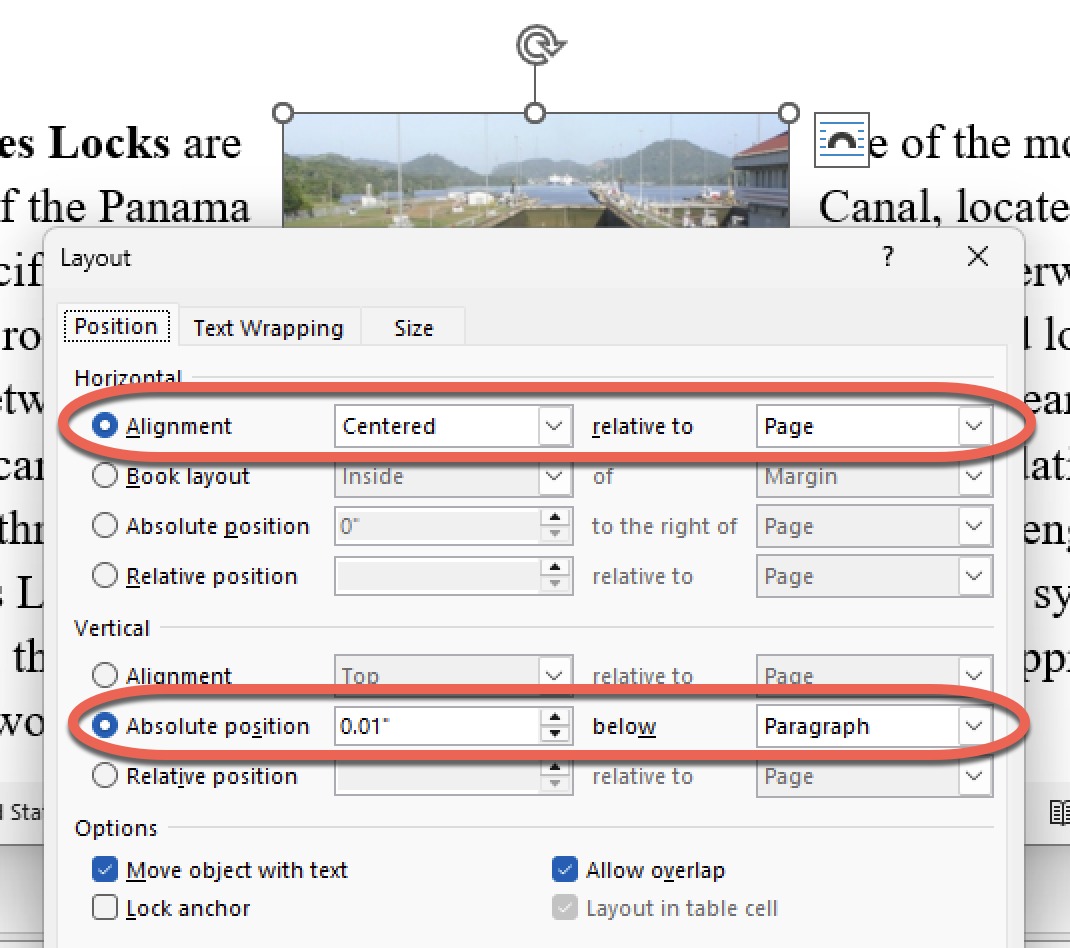
Fix image placement in Word: use this simple layout shortcut
How to add a Picture with Text Wrapping in Microsoft Word – Simple Steps for Text Flow