AI makes hard tasks in Microsoft Office so very easy, not just for typing or formatting, but for writing code, formulas, and automation scripts across Word, Excel, PowerPoint, and Outlook. In this guide, we explore the best AI coding tricks for Microsoft Office, showing how tools like ChatGPT and Copilot can generate VBA, Excel formulas, Python, Word find-replace patterns, regular expressions and more from simple natural-language prompts. Whether you’re a casual Office user or a power coder, these AI tricks help you write, adapt, explain and debug Office code faster and with fewer errors.
AI has made programming in Microsoft Office a LOT easier for almost anyone, especially for those of us who don’t code regularly. By ‘programming’ I mean not just coding but also complex Word find/replace, VBA, Regular Expressions plus all the Excel languages (formulas, M for PowerQuery, Python or Javascript).
This is just one of our series about simple and time-saving things that AI can do for you which work for any version of Office – Microsoft 365, Office 2024, Office 2021, Office 2019 or earlier. Mostly with free AI services available to anyone.
- Rearranging Text Instantly with free AI: Smart Tricks for Microsoft Word & Excel
- Ask Excel to Write or Fix Your Formula, Copilot and Beyond
- Collective Nouns – Copilot to the rescue
Ask AI and yeah shall receive
AI can write code from a description “Write an Excel formula to …”, adapt existing code for new requirements (“change this Excel VBA code to …”), explain or comment existing code (“add comments to this code and explain what it does”) and check for errors (“Why is this code giving a ???? error”).
More generally, AI can explain objects, methods (“Explain the Worksheet object and commonly used methods in Excel VBA”).
Just like people, AI systems do sometimes get confused about the differences in VBA between Word, Excel, PowerPoint and Outlook. Make sure your prompt specifies the app your code will work in.
If using regular expressions for the Office apps, the prompt must include “in Microsoft Word find/replace/VBA” because most Office regex functions use a non-standard Office only version.
Excel formulas made easy
Just one example of ChatGPT writing Excel formulas. Tell AI about your sheet then ask for formulas to show what you need to know.
“In Excel there’s a table called Sales2026 with columns for Month, Product, Category, Region and Amount. Write formulas to show the following:
– Region with highest sales and the amount of those sales
– Top 5 Category with highest sales and the amount of those sales
– A list of the unique products
– Total Sales for each month”
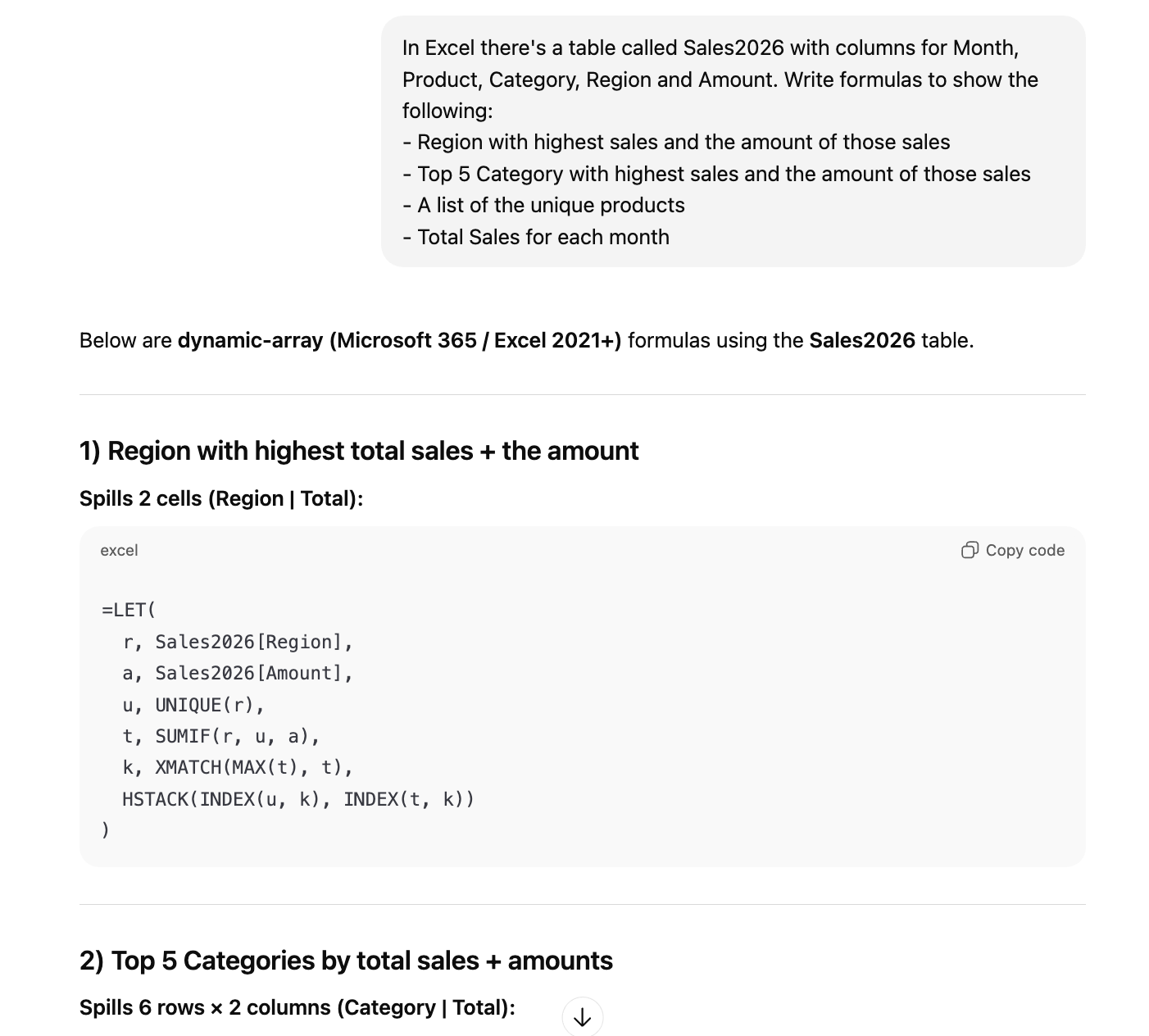
The ChatGPT answers work for the latest Excel releases because we didn’t specify which Excel. It’s best to state the software version, especially with older versions.
Get better results by specifying the format of some data, especially the date format (serial date, text).
There are many other possibilities, such as adding headings to spilled results, filtering out blanks or checking for outlier (high/low) values.
Word find and replace
Microsoft Word has powerful find and replace features but they are hard to understand. Regular Expressions are available but most Office apps use a custom Microsoft-only version which isn’t always the same as standard RegEx releases.
AI can blow past all those difficulties. Just describe what you want to find, what to replace (if anything) and the version of Word.
“In Microsoft Word, how to find numbered links in the form [1] [2] etc.”
ChatGPT gave a comprehensive answer to find, find only as hyperlinks or just highlight the matching results.

Find Emoji
Here’s another example to find emoji in a Word document. A common need these days because some AI (e.g. Copilot) loves adding emoji into longer results.
“In Microsoft Word – find any emoji used in the text” gives three ways. Two “quick and dirty” methods plus a more comprehensive VBA solution.

