GPT 6.1 Sol and Claude Sonnet 5.5 in Copilot: What to Pick and When
Microsoft 365 Copilot now lets you choose two more AI models, OpenAI’s GPT 6.1 Sol and Anthropic’s Claude Sonnet 5.5 across Word, Excel, PowerPoint, Copilot Chat, Cowork, and Copilot Studio. Each model has different strengths, and picking the right one can save you time and give you better results. Here’s what’s changed, which model suits which task, and what to do if Claude doesn’t appear in your model picker.
Sonnet 5.5 or Sol 6.1 added to Copilot model list
This is the second model drop in a month. Earlier in September, Claude Opus 5.5 and GPT 6 Sol were added to Copilot’s model choice, and now Microsoft is extending that lineup with Claude Sonnet 5.5 and GPT 6.1 Sol.
Both are fresh releases. OpenAI released GPT 6.1 Sol on September 29, just one week after replacing the earlier GPT 6 Sol baseline. On the Anthropic side, the company says Sonnet 5.5 produces output more than 30% faster than Sonnet 5 and can be up to 30% cheaper per task because it uses fewer tokens. (A token is roughly three quarters of a word; it’s how AI companies measure and charge for text.)
GPT 6.1 Sol vs Claude Sonnet 5.5: Which should you pick?
It depends on the job, and the differences are smaller than the marketing suggests. Early independent testing gives some useful pointers:
Quality and speed: Artificial Analysis rates Claude Sonnet 5.5 better at 56 on its intelligence index versus 52 for GPT 6.1 Sol. For speed, Sonnet at 139 tokens per second against 64 for GPT 6.1 Sol, roughly twice as fast to finish a response.
Careful versus quick work: in DataCamp’s hands on test, GPT 6.1 Sol built the more careful app, while Sonnet reached the finish faster and in fewer turns.
Cost: Cost matters to Microsoft for use with flat-fee Copilot (now called USL). But it’s a factor for customers on usage-based billing (UBB) for Cowork and Copilot Studio. GPT 6.1 Sol is cheapest per task, at $0.13 on its low setting compared with $0.59 for Sonnet 5.5 on medium effort.
Our practical suggestion
Leave Copilot on Auto for routine tasks. When a result disappoints, rerun the same prompt with the other model before rewriting your prompt. Switching models is often the faster fix.
When and where you’ll see them
The rollout comes in two waves, and which one applies to you depends on how your company pays for Copilot.
- Cowork and Copilot Studio: available now with usage based billing (UBB) , meaning your organization pays per use on top of the license.
- Word, Excel, PowerPoint and Copilot Chat: rolling out in phases over the coming week as part of the regular Copilot flat-fee user subscription license (USL).
To use either one, pick it from the model selector in any supported Copilot. The menu shows what models are currently available and should soon update.
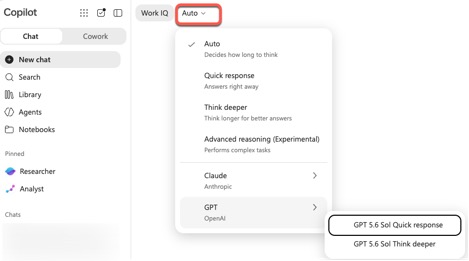
What does Microsoft 365 Copilot’s Auto model setting actually do?
For most people, nothing changes unless you go looking. Copilot’s Auto setting still picks a model for you. The new models are there for when you want to choose deliberately, for example running a tricky spreadsheet analysis through a model you trust more, or comparing two drafts of the same document.
Or, if offered, choose one of the vague options like “Quick response” or “Think Deeper”.
These “Auto” options are OK for simple prompts but can be a worry for more complex tasks where it’s best to know what model is being used. Copilot “Auto” could use Microsoft’s own MAI models to cut their costs without the paying customer knowing.
There are vague usage limits. Heavy users of the premium models will get rationed. Plan your big jobs accordingly. Microsoft says the limits are designed for broad everyday use and it doesn’t expect the vast majority of users to hit them. If you do, you’ll get a warning as you approach the limit, and you can switch to Auto or pick a different model to keep working.
Can’t see Claude? Blame the Anthropic switch
Claude Sonnet 5.5 only works if the Anthropic subprocessor is enabled in your organization. A subprocessor is an outside company allowed to handle your organization’s data, and Microsoft makes admins opt in before Copilot sends your work to Anthropic’s models. It’s an admin setting under Copilot | Settings | User Experiences.
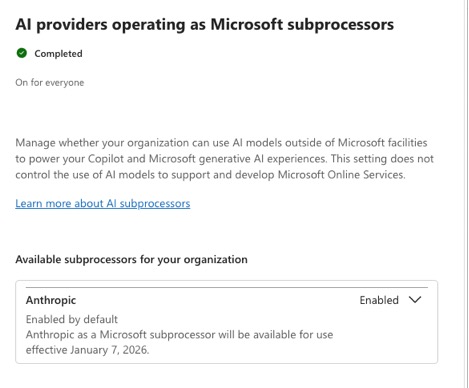
If your admin hasn’t flipped it on (or deliberately turned it off), Claude Sonnet 5.5 simply won’t appear, and neither will Opus 5.5. GPT 6.1 Sol has no such hurdle since it runs on Microsoft’s own Azure infrastructure.
If you want Claude and can’t see it, ask IT whether the Anthropic subprocessor is enabled. Don’t expect a quick yes; some organizations have real data residency or compliance reasons for leaving it off.
Copilot model choices across Microsoft 365
The model choice works differently in each app. We’ve written separate guides for Which Copilot Model Should You Use in Word? Auto, Claude or GPT, Which Copilot Model Should You Use in Excel? Auto, GPT or Claude, and Which Copilot Model Should You Use in PowerPoint? Auto, GPT, or Claude Opus, each with task-specific recommendations.
Microsoft recently added another outside model to the lineup. Grok AI in Microsoft 365: What Copilot Users Need to Know Before Turning It On covers the privacy trade-offs and admin settings you should understand before enabling it.
When Anthropic released Opus 5 earlier this year, the jump in quality was noticeable. Claude’s Opus 5 model in Microsoft 365 apps explains what changed and which tasks benefit most.
If your organization is moving to usage-based billing, model cost matters more than ever. Microsoft Copilot’s New Pay-Per-Use Pricing: What USL, UBB and FinOps Mean for You breaks down how the new pricing works and what it means for your Copilot spending.