Excel Linked Picture: The Hidden Trick Behind Pro Dashboards
Excel’s Linked Picture turns any block of cells into a live picture you can drop anywhere in your workbook. Change a number in the source cells and the picture redraws instantly, colors, conditional formatting and all. It’s the hidden trick behind most polished Excel dashboards, and it’s already in your copy of Excel 365, Excel 2024 and every version back to Excel 2007, for Windows and Mac. Here’s where to find it (it’s not where you’d expect), a formula bar trick almost nobody knows, and the traps to check before you rely on it.
Linked Picture takes a range of Excel cells and drops a live snapshot of them anywhere in your workbook. It looks like an image, it floats above the grid like an image, and you can move, resize, rotate and border it like an image. The difference is that it is not static. Change a number in the source cells and the picture redraws instantly with the new value, the new color, the new conditional formatting bar, everything.
If you’ve wondered how Excel experts make those fancy dashboards, Pictures and especially Linked Pictures are their secret.
Paste Picture vs Linked Picture
The Picture options are tucked away on the bottom row of Excel’s Home | Paste menu.
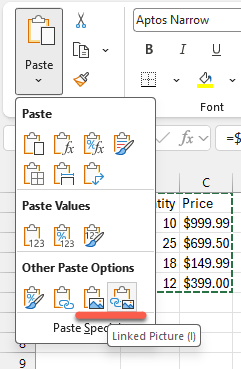
There are two Picture related options under the Paste menu.
They have been in Excel for Windows and Mac for well over a decade, from Microsoft 365 and Office 2024 back to at least Office 2007. Before that there was similar feature called Camera which does the same job and is still in Excel, just hidden.
Excel on the web and mobile apps can’t make linked pictures but should show the last updated image.
Picture
Picture pastes an image of the current selection, like a screenshot of a worksheet. The image doesn’t change after pasting.
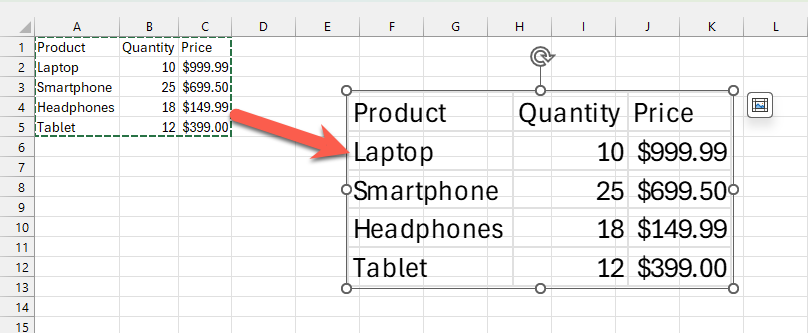
Use Paste Special | Picture for ‘point in time’ unchanging snapshots. For example, at the end of a month or financial period.
Linked Picture
Linked Picture also pastes an image, but it’s linked to the source. Any changes to the source cells are automatically reflected in the image.
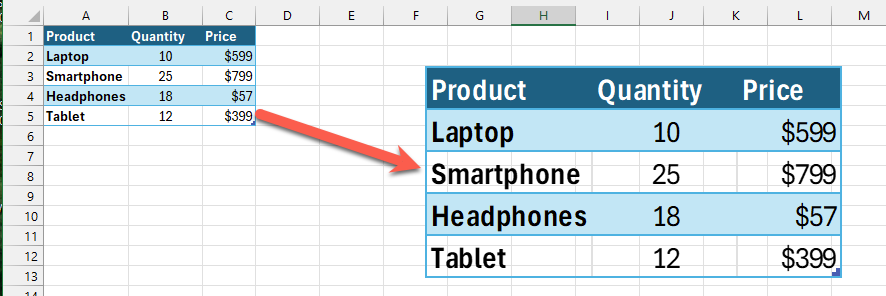
Think of it as a window onto another part of your workbook.
Linked pictures are great for dashboards
A major use of Paste Special’s Linked Pictures is in Dashboards.
It solves Excel’s most annoying layout problem: every table on a sheet has to share the same column widths and row heights. Linked Pictures break free of the grid, so you can put tables with completely different layouts side by side and they all stay current. The image can be positioned and resized in ways not possible with a standard linked paste of cell.
Make dashboard blocks
Build each dashboard block on its own worksheet with whatever column widths suit it, then paste a linked picture of each block onto a clean dashboard sheet and arrange them like tiles. Every tile stays live.
Because it’s a picture, you get all the image formatting options to give a more professional look or at least something a little different. Change the style, color, border, shadow and other effects.
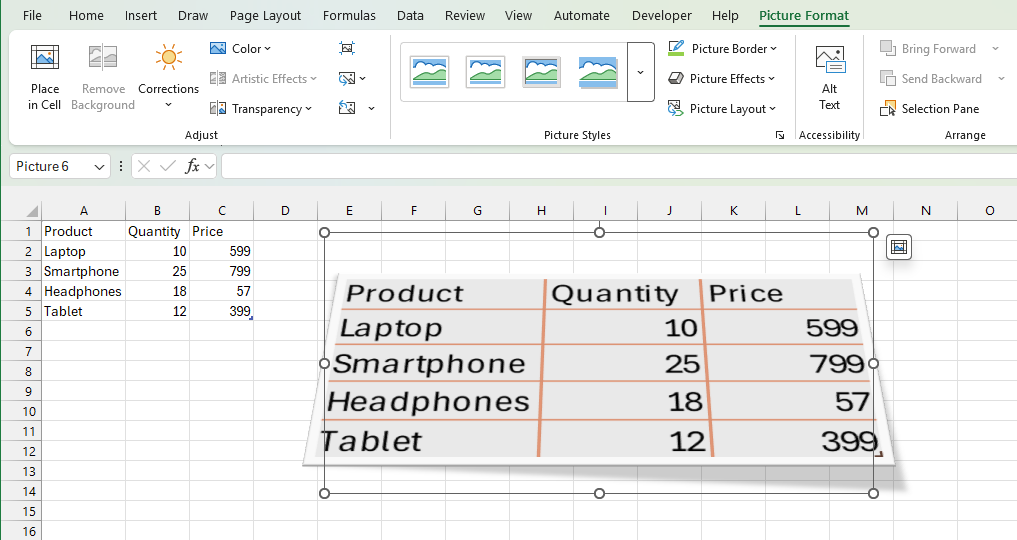
Other genuinely useful Linked Picture tricks
Printing. Put a summary table from sheet 3, a chart from sheet 7 and a totals block from sheet 1 on a single printed page. All without touching the source sheets.
Watching a distant range. Keep a linked picture of your key totals pinned at the top of the sheet you are actually working in. It beats Excel’s Watch Window because you see the real formatting, not a bare list.
Repeating headers or a logo block across many sheets, where editing the original updates all copies.
Rotating a table 90 degrees for a sideways label strip, using Picture Format | Rotate. You cannot do that with real cells.
Live updates. Change a number on the source sheet and the picture changes too. No refreshing, no recopying.
Everything visual comes along. Fonts, fills, number formats, conditional formatting, data bars, icon sets and sparklines all appear in the picture.
Charts sitting on top of the source range are captured too.
Free positioning and sizing. Drag pictures anywhere, overlap them, group them with shapes and text boxes, and line them up with the tools on the Picture Format tab under Align.
Protection from fiddling. Anyone viewing the dashboard sees pictures, not cells, so nobody can accidentally type over a formula. Keep the calculations on a hidden, protected sheet.
Where to find Linked Pictures
Select the cells, press Ctrl/Cmd + C, to copy into the clipboard.
Click the target cell, go to Home and click the arrow under Paste. Under Other Paste Options (the bottom row), choose the last icon, a picture with a chain link.
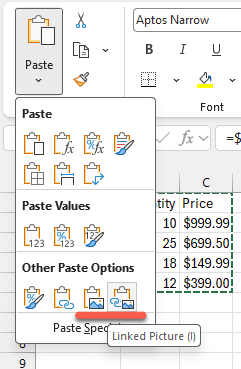
In Excel for Mac, the Paste Special options are more obvious with clear text labels:
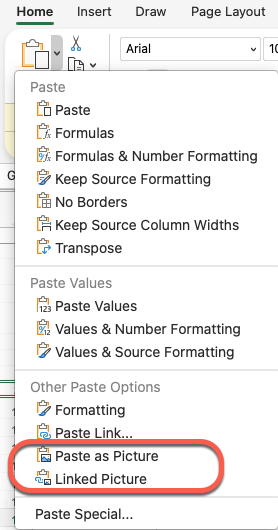
Or right click the target cell, then pick the same icon from the paste options row.
Keytip: Alt, H, V, I. That is the fastest way once you have done it twice.
Ctrl + Alt + V Won’t Find Linked Picture.
Ctrl + Alt + V, the classic Paste Special dialog, does not contain Linked Picture. That dialog’s “Paste Link” button creates ordinary cell formulas, which is a completely different thing. Linked Picture lives only in the Paste gallery.
The secret formula bar trick
This is the part almost nobody knows, and it is where the real power is.
Click once on a linked picture and look at the formula bar. You’ll see the reference to the picture’s source range e.g =$A$1:$C$5.
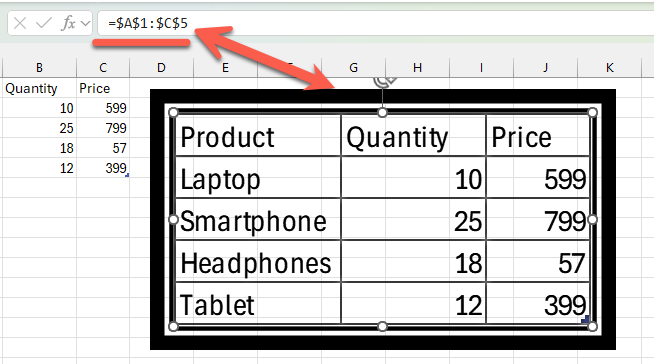
That is an editable formula. You can:
- Point the picture somewhere else by typing a new range and pressing Enter. No need to delete and repaste.
- Use a defined name instead, such as
=SalesSummary. If that name is dynamic, your picture grows or shrinks with the data automatically. - Fix a broken link after someone moves things around.
The formula must resolve to a cell range or a name that refers to a range. Structured table references such as Table1[#All] can be unreliable, so create a defined name pointing at the table’s range and use that instead.
What shows in the linked picture
The picture shows whatever is visible on screen in the source range at that moment:
- Values, fonts, fill colors, borders, number formats
- Conditional formatting, data bars, icon sets and sparklines
- Charts, shapes, slicers and images that sit on top of the source cells
- Gridlines, if gridlines are switched on for the source sheet. Turn them off on the source sheet or your picture will have gridlines running through it.
Hidden rows and columns are excluded, so the picture shrinks. Apply a filter to the source and the picture reflows to match. Change a row height and the picture changes shape.
Linked Picture downsides
It is a picture, so it is read only. You cannot click into a cell inside it, select a value, sort it, filter it or copy a number out of it. Find and Replace will not see the text. Neither will most screen readers, so add alt text (right click | View Alt Text) if anyone else uses the workbook.
Text can look fuzzy. Linked pictures render at screen resolution. On a high resolution laptop display, or when you resize the picture away from its original 100% size, text goes soft. Keep pictures at their natural size wherever you can, and always do a test print or PDF export before sending anything out. Printed output is often noticeably blurrier than the screen suggests.
They slow Excel. Excel redraws every linked picture on every recalculation and scroll. A handful is fine. Twenty of them on a busy model may make the workbook sluggish.
Cross workbook links are fragile. You can paste a linked picture from another workbook and it will work while both files are open, but the moment the source workbook is closed you are looking at a stale or blank image. If you need data from another file, bring the data in properly with Power Query or a formula link, then take a linked picture of that.
Delete the source and you get a mess. Removing the source sheet turns the formula into #REF! and the picture goes blank. Renaming a sheet is fine, Excel updates the reference.
Not available in Excel for the web. You cannot create a linked picture in the browser version. Existing ones should show the last updated image, but do not treat them as reliable there.
More Ways to Build Smarter Excel Dashboards
Linked Picture is just one of the paste tricks hiding in Excel. Excel Paste Special with math operations shows how to add, subtract, multiply or divide a whole column with a single paste. If pasting in Office 2024, 2021 or 2019 has been failing lately, Excel Copy Paste Bug: Is Your Office Version Fixed Yet? tells you whether your version has been repaired.
A linked picture only looks as good as its source cells. Sparklines make simple graphs for Excel puts a tiny chart inside a single cell, and Make simple bar charts with Conditional Formatting adds data bars without a chart in sight. To make a picture grow automatically with your data, Named Ranges and Objects in the Excel Name Box explains the names that make it happen.
Sometimes you just need to keep an eye on a few numbers rather than show them off. Watch Window finally in Excel for Mac explains Excel’s own monitoring pane, which is now on both Windows and Mac. Once your dashboard is done, Lock up and stop editing of Excel worksheet or cells! shows how to protect the sheets doing the real work so nobody overwrites a formula.
Want pictures inside cells instead of floating on top? A smarter way to add pictures into Excel covers the IMAGE() function. Three choices to add images to Office and emails explains the important difference between inserting and linking images in Word, Excel and PowerPoint.