Two Microsoft 365 Licenses on One PC: Use Work and Personal Plans Together
Paying for Microsoft 365 at home while your employer gives you another plan at work? You don’t need a second copy of Office, or a second computer, to use both. Microsoft 365 for Windows can hold two or more Microsoft 365 licenses in the same installation and switches to the matching plan when you change accounts. Setup takes a couple of minutes from File | Account | Switch License. Before adding a personal plan to a company laptop, check your employer’s IT rules, because some managed PCs block personal accounts.
It means you can use your work account at home or log in to your personal Microsoft 365 plan with a work computer.
Instant Account Switching
Usually activating two licenses isn’t necessary because modern Office and Microsoft 365 have instant account switching. Look in the top right to see the current Microsoft account and add other logins.
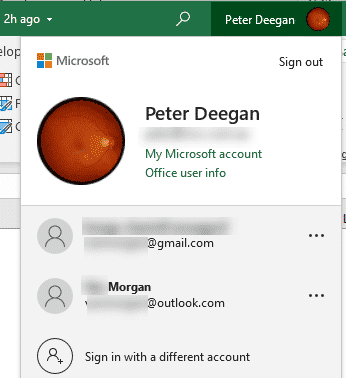
Microsoft 365 for Windows logins are NOT linked to the Windows account login. Office and Windows can use different Microsoft accounts, or Windows can use no Microsoft account at all.
Two Microsoft accounts on the same software
You can activate two or more Microsoft 365 plans into the same Microsoft 365 for Windows installation. You do not need to install a second copy of the Microsoft 365 desktop apps to add a second Microsoft 365 license.
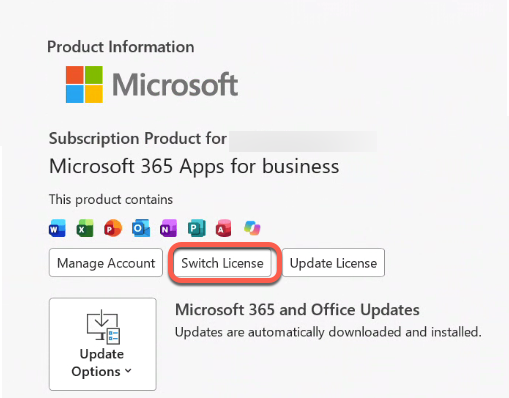
Open Word, Excel or PowerPoint for Windows and go to File | Account then Switch License.
The initial box offers to change to another license linked to the current Microsoft account. Instead, click the link “Use a different account”.
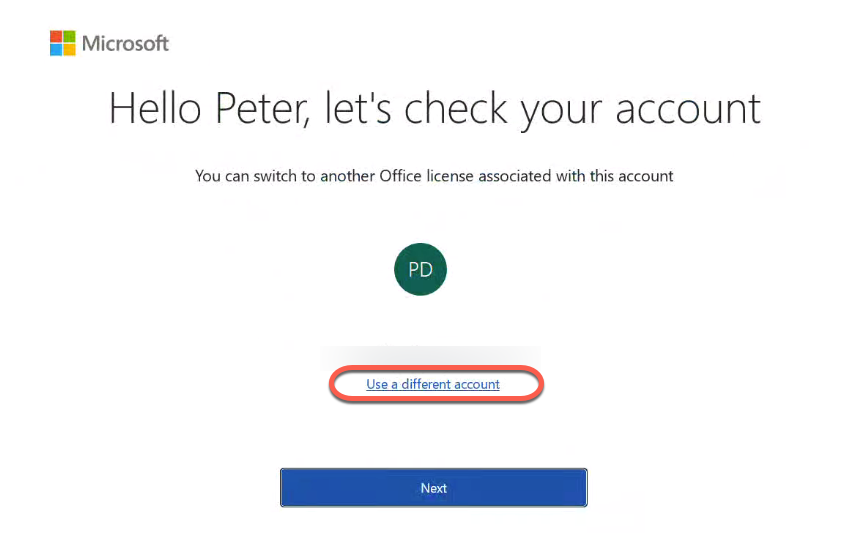
Log in to another Microsoft account and, if necessary, choose the linked Microsoft 365 license you want to use.
Restart the Microsoft 365 app so the additional license takes full effect.
Return to File | Account | Product Information then click the link “Show additional licensing information” to reveal the extra license activations.
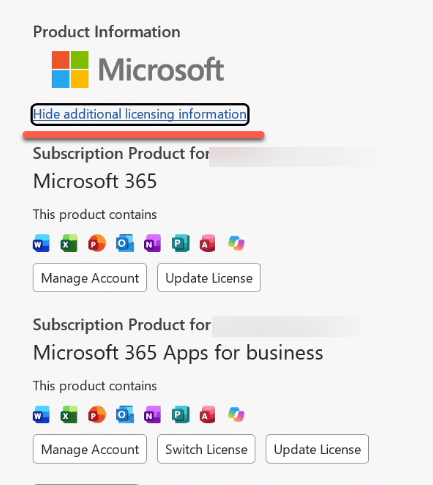
How to switch between subscription products
Change subscription products via the Instant Account Switching menu at top right. The app will switch to the Microsoft 365 license that matches the current login.
The active subscription product appears at the top of the Product Information list, but only if you switch away from the Account pane and back again (i.e. the Account pane doesn’t automatically refresh).
Get More From Multiple Microsoft 365 Plans
Adding a second license is only half the story, because Switch Microsoft Accounts in Word, Excel and PowerPoint Without Signing Out shows how each app can run under a different login at the same time. The same trick works in your browser too, as explained in Fast account switching now in Office on the web.
Your files and chats need the same treatment. How to add many OneDrive accounts to a single device keeps work and personal storage apart, while Add more accounts to your Teams has a handy profile photo trick so you always know which Teams login you’re in.
Not sure which plan is which? Microsoft 365 which email address am I using? shows exactly where to find the account that owns your license. How Microsoft 365 counts your sign-ins, not installs explains the five device limit before it signs you out somewhere unexpected.
If licenses start misbehaving, Hidden Microsoft 365 License details revealed digs out information Microsoft doesn’t show on the Account pane. When Office picks the wrong one, Fixing extra licence problems in Office and Solving Unlicensed Product errors in Microsoft Office get things working again.
Outlook plays by its own rules, and Outlook Profiles, important, useful but little known is the cleanest way to keep work and home mailboxes completely separate on one computer.