Secret shortcuts in Microsoft Designer
Microsoft Designer has secret key shortcuts to quickly insert shapes and text boxes without jumping to the side menus.
All you need to do is press a single letter key to insert one of these shapes:
R – Rectangle (inserts a square)
C – Circle
L – Line
T – Text
Each of these shortcuts adds a simple shape or text box to the design,

That’s a lot easier than hunting around on the Visuals menu. Each of those shortcuts inserts a small version of a rectangle, circle or line that you can resize, color and move.


More than one Circle or Rectangle
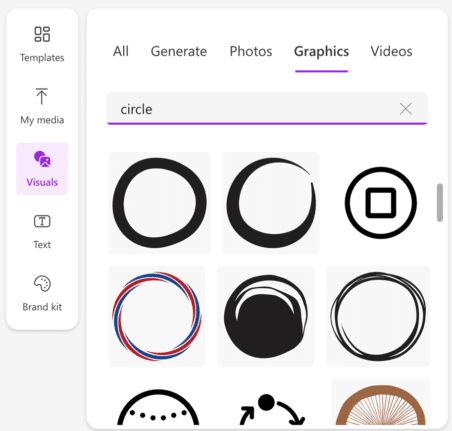
Keep in mind that Designer has a wide-range of options for each shape. At Visuals | Graphics and search for ‘Circle’ to see over 40 choices. There’s a similar range of choices for other shapes.
A modest proposal for more shortcuts.
We’re obliged to an Office-Watch reader ‘VM’ for this intel. He also suggests some more single-press keys that Microsoft could add.
S – Square (so that “R” shortcut can insert a true rectangle)
3 – Triangle (3 sides)
5 – Pentagon (5 sides)
6 – Hexagon (6 sides)
8 – Octagon (8 sides)
P – add a Page to the design

Designer home page changes are a welcome improvement
Designer gets a big AI image boost