Microsoft is now embedding Copilot Chat directly inside Word, Excel, PowerPoint apps, giving users a conversational AI interface right next to the doc, sheet or slide. Ask questions, summarise, rewrite, explore ideas, and get help with your open document or spreadsheet without leaving the app. No need to switch to a separate browser or Copilot app. Copilot Chat uses web knowledge plus the content of your current file to generate relevant, context-aware responses, while still letting you copy results back into your document with a click.
You may be surprised to see a Copilot icon appear in your Microsoft 365 versions of Word, Excel and PowerPoint. Here’s why it’s appeared and what you can do with it.
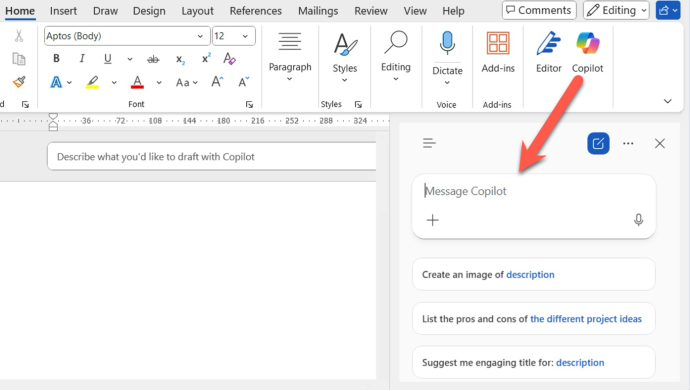
The Copilot chat pane is much like Copilot in a browser window. You might find it easier to use https://copilot.microsoft.com/ because it’s a bigger window and some more options to choose the type of AI model and response wanted (text, image, quiz, research etc).
Copilot Chat in Word/Excel uses as it’s sources:
- Public web data and
- The open document’s content for relevance,
The difference from Copilot in other places (app, web page) is the access to the currently open document.
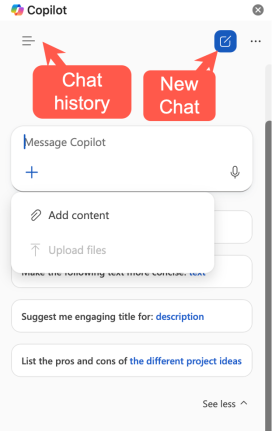
In Word, the top-left button opens a Chat History for that Microsoft account across all devices. The ‘three dots’ mostly has a Settings choice which mainly allow control of Copilot Agents (if available).
Shortcut
There’s no direct keyboard shortcut to open the Copilot Chat pane, except for Alt, H, FX using ribbon keytips. The Office shortcut Alt + I opens Copilot in the document while Win+C opens Copilot in Windows.
Add to Doc or Copy/Paste
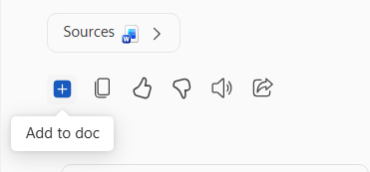
The pane offers some suggestions for what it can do. It’s merely a sidebar in Word that you can type, copy and paste to or from. At the bottom of any response there’s an “Add to doc” option.
To directly edit a document or sheet with AI use the more advanced Word Agent or Excel Agent.
Within a Word document, you could ask for more information on a topic to then copy (with changes) into the doc. Or some analysis like “pros and cons’ of pasted in text.
Rewriting is also possible, just paste in some text with style request, see AI Writing & Rewriting Made Easy: How Anyone Can Get Better Text with Modern AI and Create Your Own AI Writing Style Prompts, a Step-by-Step Guide
Confusing Naming
Microsoft has itself in a terrible tangle about labelling parts of Copilot It’s difficult to keep track of the subtlety different names for various manifestations of Copilot. Sometimes Copilot itself can’t give a straight answer on the subject!
Us mere paying customers can be forgiven for not following each Copilot naming change.
Copilot in Word/Excel/PowerPoint is a chat-style pane that can work with or summarize your document. It appears as a right-side pane.
Microsoft 365 Copilot Chat – looks the same but appears for enterprise/work licenses. It can access organizations files on OneDrive for Business or SharePoint.
For this article, we’ve focused on the Copilot in Word for Microsoft 365 consumer plans (Personal plus owners of Family and Premium plans owner).
A better interface – please!
The current version of Copilot in Word has an awful display bug. After a response from Copilot, it adds some suggested follow-up prompts. Those suggestions take up a lot of screen space and can’t be hidden.
The result is like in this example (from a regularly sized Word window with minimized ribbon) with the response you want to read squeezed into a tiny two-line gap between the other ‘compulsory’ parts of the Copilot pane.
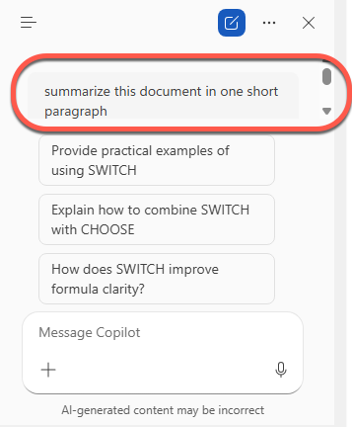
The over-sized suggested prompts, part of Microsoft’s effort to sell Copilot to customers, is given higher priority than what the customer wants to see.
Did this interface get any usability testing? Or is Microsoft so fixated on pushing Copilot that even basic interface commonsense is thrown out the window?
At the very least, the list of follow on prompts should be collapsible or hide when there’s limited screen space in favor of showing Copilot in action.
Who gets it and how
Copilot in Word (or Excel or PowerPoint) is the Copilot Chat feature.
To get it you need all these things
- A Microsoft 365 Personal plan or be the owner (not sharing) of a Microsoft 365 Family plan. A Microsoft 365 Premium plan gives unlimited access without the monthly AI credits quota.
- The latest version of Microsoft 365 which should automatically update or force an update via File | Account | Update Options.
- Enough AI credits left for that calendar month (Family owner and Personal plans). Owners of Microsoft Premium plans don’t need to worry about the AI credits limit.
Turn Copilot Chat off!
Copilot Chat alone can’t be turned off, but it only appears when asked unlike some other parts of Copilot in Microsoft 365.
All you can do it turn Copilot off completely, see Turn Copilot Off in Microsoft 365: How to Guide for Word, Excel, PowerPoint & Outlook
Is Microsoft using your data to train Copilot AI – the facts
