Turn Copilot Off in Microsoft 365: How to Guide for Word, Excel, PowerPoint & Outlook
If you’re finding Microsoft 365 Copilot intrusive or just prefer a cleaner Office view, you can turn AI off across your desktop app, including Word, Excel, PowerPoint and Outlook. Users who don’t want Copilot help can disable it on both Windows and Mac. In this guide, we walk through how to switch off Copilot completely so it stops appearing and offering suggestions.
Microsoft is pushing their AI service, Copilot, into Microsoft 365 in any way they can think of. Some people don’t want any AI help or more understandably resent the intrusion into their workplace. Things like the “Describe what you’d like …” offer on top of new documents or the Copilot icon that appears in Word and Excel near wherever you’re working, these are understandably thought as more annoying than helpful.

And there’s the Copilot icon on each Home tab, which at least doesn’t get in the way of what you’re doing.
No finer controls
Microsoft doesn’t offer many finer, more granular, controls over Copilot features and where they appear. All you can do is turn Copilot totally off or on with nothing in between.
A (sole?) exception is Excel. The Copilot icon menu has an option “Hide until I reopen this document”.
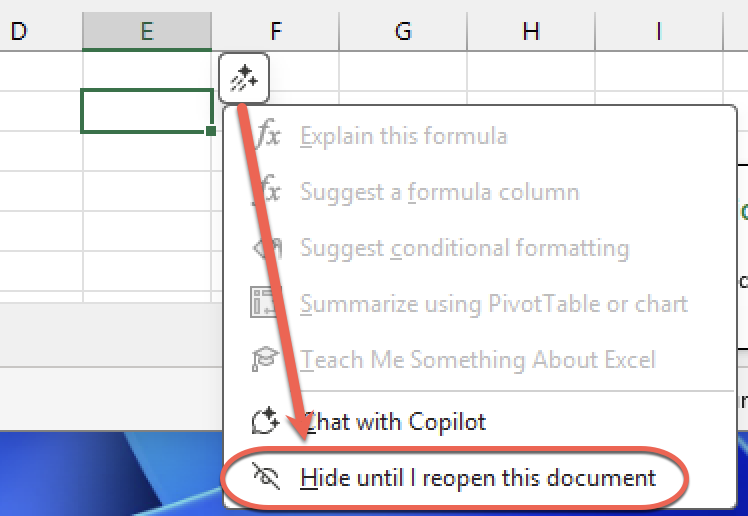
There’s no equivalent in Word or PowerPoint, let alone per-document/sheet options or choices to hide Copilot unless asked for.
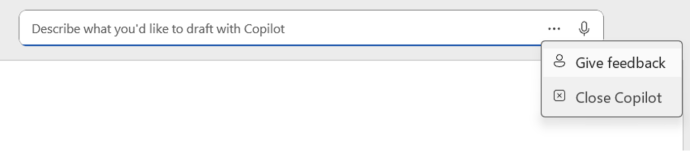
Word’s blank document “Describe what you’d like to draft with Copilot” header, now has a ‘Close Copilot’ option but only for that time.
The lack of proper controls is partly because Copilot has been hurriedly pushed into the desktop apps but mostly because Microsoft is desperate to sell their AI to customers. They think the best way to do that is force Copilot into the faces of every customer. A counter productive “like it or lump it” marketing strategy.
We can only dream of a Copilot that’s totally unseen until asked for.
Having the Copilot icon on the Home tab or other places does no harm and doesn’t send any info to Microsoft. You have to click a button to open the Copilot pane or menu. In other words, you can leave the Copilot button on the ribbon or elsewhere and just ignore it.
Disable Copilot
Be warned, this ‘global’ disables Copilot in all the Office apps (Word, Excel, PowerPoint and classic Outlook). There’s no ‘per app’ choice to, say, have Copilot in Excel but not in Word or PowerPoint.
Windows desktop apps
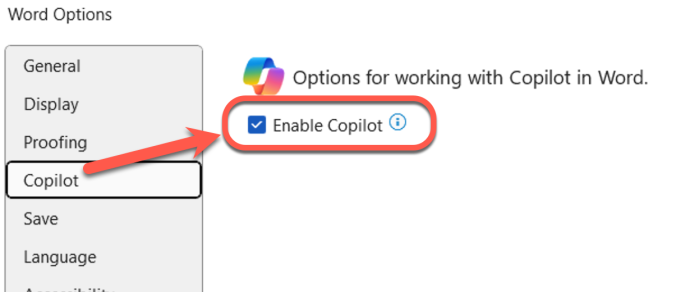
Go to File | Options | Copilot and uncheck “Enable Copilot”.
Mac desktop apps
In the macOS apps for Microsoft 365 go to <app> | Preferences | Copilot to choose “Enable Copilot”.

Or give Copilot a chance with some simple AI tricks
Microsoft Word Agent Deep Dive: about the New AI Editor & What You Can Really Do With It
Excel Agent for Microsoft 365: A Deep Dive into Excel’s New Assistant