Microsoft’s new Excel Agent—part of the Copilot AI suite—is already available in Excel on the web, even before its full rollout to Windows and Mac in December 2025. This step-by-step guide explains exactly how to find and enable Excel Agent through Excel Labs, so you can start automating formulas, managing data, and enhancing productivity directly in your browser.
Excel Agent is a new Copilot tool, see Excel Agent for Microsoft 365: A Deep Dive into Excel’s New Assistant for an complete description.
It’s coming to Excel 365 for Windows and Mac in December 2025 but it’s already in Excel on the web, if you know where to find it.
Finding Excel Agent in the browser
Go to Excel on the web – the browser based version of Excel. Make sure you’re logged in with a Microsoft account that has a Copilot enabled Microsoft 365 plan.
Open the workbook you want to use with Agent, or make a new one.
On the right of the Home tab, look for the Excel Labs button. It might be under the … ribbon extension or select from the Add-ins.
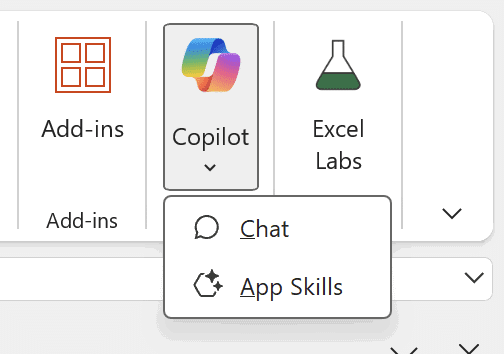
That opens the Excel Labs pane. Find Agent mode (Frontier) and choose Open. Click “Make Default” if you wish.
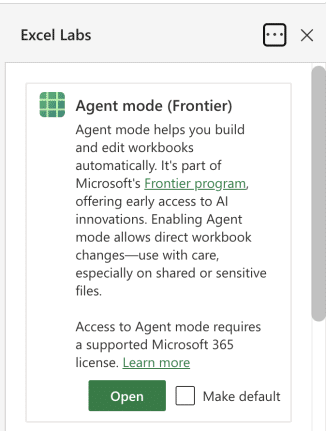
There’ll be a warning that Agent is a ‘Frontier’ or ‘work in progress’ feature.
Now you have your very own Excel Agent to play with … enjoy!

You’ll have to repeat some of these steps for each workbook you open.
In December 2025, Excel Agent will lose its ‘Frontier’ status and become a full part of Copilot in Excel. When that happens, the Copilot ‘App Skills’ option will disappear and Agent will be more easily available.
Use in Excel desktop
Once you’ve setup sheets, formulas, charts etc with Agent in the browser version of Excel, those sheets will work fine in Excel 365 for Windows or Mac – even if that Excel does not have Copilot access.
In other words, Agent makes an Excel sheet which can work on any modern desktop version of Excel.
Microsoft 365 Premium: Copilot AI, new Features & Pricing Explained
