PowerPoint 365 with Copilot now hides a useful choice that most people never notice: separate AI image models for making slide graphics. Tucked below the main model selector are four options, GPT-Image-2, GPT-Image-1.5, MAI Image 2.5 and Flux.2 Flex, each with real strengths and weaknesses. Picking the right one means sharper text on slides, faster results or pixel precise branding. Here is what each model does best and which one to choose.
In PowerPoint 365 with Copilot, there are separate image creation models available. Look for them below the main model selection.
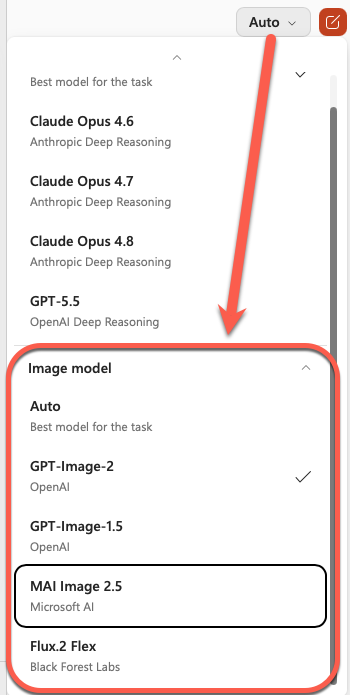
PowerPoint 365 AI Image Models
These choices are only available in PowerPoint 365 with Copilot. You won’t find them in other Copilot places that can make images like the web site, Copilot app or Microsoft Designer.
GPT-Image-2
A hyper-fixated graphic designer. It understands prompt nuance incredibly well, so you can dump a messy sketch of a flow chart into it and get a clean slide background out. Just don’t expect it to look like fine art; it’s unashamedly built to churn out corporate marketing banners and clean presentation layouts. Thankfully, it can actually spell things correctly on the first try without bizarre typographic anomalies.
Best for: Slide titles, text overlays, and multi-word diagrams
GPT-Image-1.5
It is much faster and finally understands that if you ask to change a single icon or executive’s tie color on a slide, it shouldn’t completely mutate the rest of the image into a dystopian landscape. It’s a solid, predictable workhorse for building standard slide graphics. But its visuals can still occasionally look a little too “stock photography” if you don’t write a detailed prompt.
Ideal for: simple visuals or slide backgrounds. Quick edits to existing images.
MAI Image 2.5
Microsoft’s homegrown attempt to keep you inside their ecosystem and not use external AI technology. It’s a work-in-progress. It is good at inanimate corporate objects. It performs decently well but if you try to make it render a complex paragraph or an intricate multi-layered diagram, it will absolutely choke and start dropping details. Also, it still occasionally gives humans a terrifying eleventh finger.
Best for: short three-word slide headings, clean product shots and sleek slide backgrounds. Or seeing how Microsoft’s in-house AI models are progressing.
Flux.2 Flex
The control-freak’s model of choice. This is a sluggish, premium asset from Black Forest Labs that treats your presentation like a high-end graphic design project. It supports HEX color codes, meaning you can force it to use your exact, pedantic corporate branding colors instead of “vaguely corporate blue,” and it lets you adjust the actual generation steps to prioritize surgical precision over speed. It is a time hog, and will make you wait, but if you have the time, this is the one.
Best for: ultra-precise infographic or a pixel-perfect image
Which one to choose?
The Auto default is the easiest and usually the best choice. Microsoft’s system seems pretty good at figuring out which model is ideal for a prompt or chat.
Flux.2 Flex is very good at photo-realistic images but takes some time to do its thing. Get a faster result from either of the GPT models especially GPT-Image-2.
By all means, try Microsoft’s new MAI model for simple things, but don’t expect too much.
Copilot Model Choices Explained: Which One to Pick and Why
Best Copilot AI Model for Excel: A Plain English Guide
Best AI for Spreadsheets: Why Claude and ChatGPT Beat Gemini and Copilot
What Is Microsoft Scout? The AI That Runs Office Tasks Without Being Asked
Copilot “Move to Ribbon” Finally Works in Windows (With One Big Catch)
