Microsoft’s Copilot ‘Move to Ribbon’ Arrives, But Not as Promised
Microsoft’s much hated Copilot button finally has a way to get out of your way, and we’ve found the first real world example running on a live machine. The promised “Move to Ribbon” choice has arrived in Word, Excel and PowerPoint, but it’s not quite what Microsoft pledged. Instead of a proper ribbon button you get a “Move to upper corner” option that parks Copilot in the top right corner for every document, sheet and slide. Here’s exactly what changed, what’s better than Microsoft’s first attempt, and the one control that’s still missing.
Microsoft copped a strong backlash from their original “Dynamic Action Button” which appeared over the workspace. The ‘Dock’ option didn’t totally remove this annoyance and the whole button reappeared for the next doc, sheet or deck. In other words, a Copilot “sales tool dressed up as a design upgrade”.
Promising a “Move to ribbon” option was Microsoft’s response but we’ve waited to see how it was really deployed.
One of our test machines (Microsoft 365 for Mac) now has the changed interface. It’s not exactly what Microsoft promised but still an improvement.
It hasn’t appeared on any Microsoft 365 for Windows “Insiders” build, so far. We’ll report on the Copilot button in Windows as soon as we can.
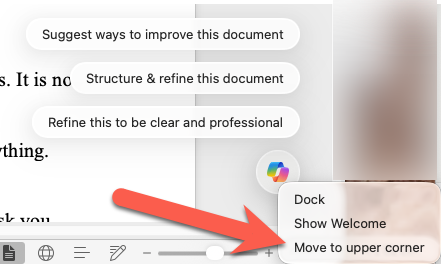
“Move to upper corner” not “Move to Ribbon”
There’s now a “Move to upper corner” option, not the promised “Move to Ribbon”. That’s an important difference.
The Copilot button is not part of the standard Ribbon interface, instead. it floats over the top-right of the Home ribbon.
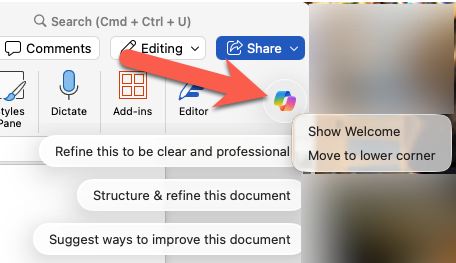
That seems to be a deliberate decision to keep the Copilot button visible, however narrow or wide the app window is. Here’s the narrowest Word 365 window with the Copilot button still in the corner.
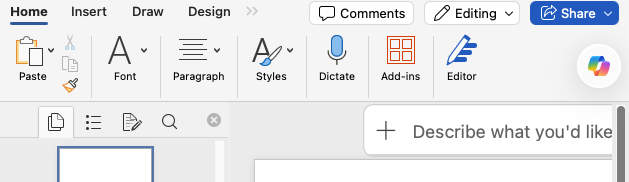
Click on the Copilot button (officially a “Dynamic Action Button” or DAB) to open the side-pane or choose “Show welcome”.
The good news
The Copilot button stays on the ribbon (upper corner) for all future documents.
There was a fear that Microsoft would make the change a ‘one off’ that only applied for a session or document. A reasonable concern given Microsoft’s policy of pushing Copilot relentlessly.
Thankfully, wiser heads have prevailed this time. Or maybe executives finally listened to the complaints of paying customers.
Copilot suggestions
The suggestions continue to appear when hovering over the button. These are supposed to be ‘context aware’, a feature that sounds great but seems quite bland and context UNaware in our test. The suggested prompts might improve over time but at the moment they are more hype than useful.
What’s missing
There’s no choice to completely turn off the Copilot Dynamic Action Button. Microsoft continues to force Copilot on their paying customers.
The Copilot button isn’t on the ribbon which means customers have no control over where or if it appears.
Copilot Floating Button Now Hovers Over Word, Excel and PowerPoint
Windows 11 Can Now Uninstall Copilot, but Only If You Meet 3 Rules
Why Copilot Doesn’t Know Your Microsoft 365 Version
KeyTips Explained: The Fastest Microsoft Office Keyboard Shortcuts You Already Have
Word 365’s New ‘Overpaste’ Trick Makes Hyperlinks in One Step