Copilot Model Choices Explained: Which One to Pick and Why
Copilot in Word, Excel and PowerPoint lets you pick which AI model handles each task, but the menu is confusing and changes all the time. So what is an AI model, why does Microsoft offer several, and which Copilot model should you actually choose? This plain English guide explains the model options and how to decide between fast, cheap answers and slower, smarter ones.
An AI model is a program that has been trained on vast amounts of data to recognize patterns, make decisions, and solve specific problems without being explicitly coded for every single scenario. Think of it like a digital brain.
Some AI models work very quickly and use fewer resources (CPU, memory & power) but might not give a complete or even accurate answer for more complex questions. Other models are slower, cost more to run but give a better response.
In Copilot, you can choose from different models and those choices change. What models are available depends on many factors:
- The app – Excel has more options than Word. PowerPoint has a separate selection of image making models.
- Time – the choices change as AI improves and Microsoft’s contracts with other AI companies change.
- Copilot license – organizations might get more choices than consumers.
- Frontier – Microsoft’s name for their insiders or beta test option with an early look at new Copilot features.
- Your horoscope 😎 – the model choices change so often and without reason that your birth sign might turn out to be a factor.
Word AI model choices
In Microsoft Word 365 with Copilot the model choices are simple, if not simplistic. Choose from the Copilot side-pane.
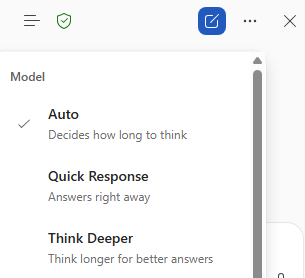
Auto – let Copilot choose the model.
Quick Response – for small matters like rewriting some paragraphs.
Think Deeper – choose for larger tasks like making a whole document using many sources.
Write better & faster with any AI is our plain-English guide to getting useful drafts, rewrites, summaries and full documents from ChatGPT, Copilot, Claude or Gemini. All while keeping your own judgment and voice.
Excel and PowerPoint have a wider selection of AI models. PowerPoint has a separate selection for making images.
In all three apps, the “Auto” and default option is the easiest and often best. In later articles, we’ll explain how to choose the right AI model for tasks in Excel and PowerPoint.
Best AI for Spreadsheets: Why Claude and ChatGPT Beat Gemini and Copilot
What Is Microsoft Scout? The AI That Runs Office Tasks Without Being Asked
Why Copilot Doesn’t Know Your Microsoft 365 Version
Copilot “Move to Ribbon” Finally Works in Windows (With One Big Catch)
Windows 11 Can Now Uninstall Copilot, but Only If You Meet 3 Rules