Copilot in Word Now Cites Its Sources, Here’s How to Use It
Microsoft’s September 2026 update brings two Copilot upgrades to Word 365: citations that show where Copilot’s answers come from and the ability to rearrange images by typing a prompt. Neither feature has appeared on our test machines yet, but here’s what Microsoft promises and how to get the most out of both when they arrive.
Microsoft has added two practical upgrades to Copilot in Word in its September 2026 update. Copilot’s answers should now include citations, so you can see where information came from, and Copilot is supposed to arrange and modify images and shapes in your document on request.
Both features supposedly rolled out in September but we’ve yet to see them on any test machine; that includes Word 365 Insiders with Copilot Frontier. This isn’t the first time Microsoft’s boasts are ahead of the reality for paying customers. We can only tell you what to look for, not what each feature really does.
Microsoft’s own announcement gives each feature just a couple of sentences. Here’s what they promise for Word 365.
Citations: see where Copilot gets its “facts”
Copilot’s responses in Word 365 will show the sources behind its answers, with citations to relevant web and work content appearing directly in the response.
This should have been there from day one. Copilot, like every AI tool, can state wrong facts with total confidence. Until now you had to either trust it or go hunting for the source yourself. Now you can click the citation and check.
Web content means public websites. Work content means material stored in your organization’s Microsoft 365 account, such as files in OneDrive or SharePoint, emails and meeting notes, depending on what Copilot is allowed to search.
Microsoft’s announcement implies that citations will appear automatically and as Word-formatted footnotes.
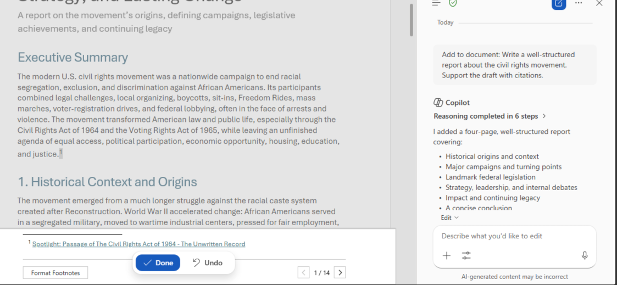
Until that happens, citations are only added when asked for, e.g., “Support the text with citations” or “Add citations to the draft”. Even then only as regular text, not proper Footnotes.
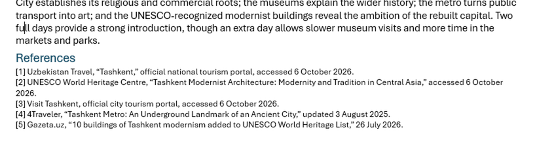
A citation is not a guarantee. The source could be outdated, misread, or simply not say what Copilot claims it says. Treat citations as a shortcut to checking, not a replacement for it.
- Ask for sources explicitly. For example: “Write a one page summary of our Q3 sales results and cite your sources.”
- Check the citations behind numbers, dates and names, especially anything you’ll pass on to a boss or client.
- Watch for old files. A work citation might point to a superseded draft rather than the final version.
- Don’t expect a bibliography. Copilot doesn’t automatically produce academic-style citations. These are links back to sources, not APA or MLA references.
Better citations are promised
A related feature called deep citations is on Microsoft’s roadmap. Deep citations link straight to the relevant part of the source, starting with Word and PowerPoint files, with meetings, web pages and PDFs to follow. The dates keep slipping: general availability has moved from June to November 2026, and the preview from May to October 2026.
Image modifications: tell Copilot to move or resize pictures
Users can now arrange and modify images and shapes directly within their Word documents. Microsoft’s example shows a Word document with a coffee cup picture and Copilot chat being asked to resize the image.
We have one Word 365 for Windows machine that has this feature working and we’re not at all impressed.
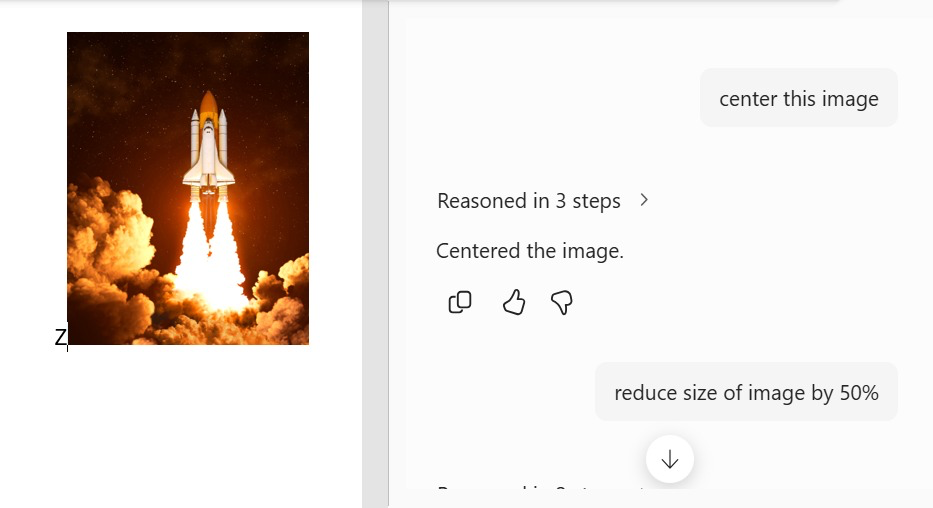
Slow, painfully slow
Image positioning is one of Word’s oldest frustrations but using Copilot is slow, painfully slow.
Even a simple ask like “Center this image” or “Reduce size of image by 50%” takes a lot longer than doing it manually.
Image prompts to try
Try prompts like these with a selected image.
- Align image with start of section
- Make the picture half its current size.
- Move the logo to the top right corner of the first page.
- Line up the three icons in a row and space them evenly.
- Put the chart beside the text instead of above it.
Be specific about which image you mean, especially in documents with several pictures. Select the image (best), describe it by what it shows or where it sits.
Microsoft hasn’t published a list of exactly what Copilot can and can’t change, presumably because that would be too helpful to customers <sigh>.
So expect some trial and error. If Copilot makes a mess, Ctrl/Cmd+Z is your undo friend. Save a copy first before letting it loose on an important document with a carefully set layout.
Who gets these features?
Good question, but don’t expect a straight answer.
You need Copilot in Word 365 but it’s not clear which releases. Microsoft’s announcement is insultingly thin on useful details like which version/build is required or even if the feature is available for both Word for Windows and Mac.
As we’ve mentioned, both these features were supposed to roll out in September 2026 but a week into October and only one has appeared. Even stranger, the Copilot release notes (linked from announcement) don’t mention the two Word / Copilot improvements.
Our best guess is that both features are for Word 365 Windows and Mac. Just keep an eye on Copilot in Word and eventually Microsoft’s “September 2026” features will really appear.
More on Copilot in Word and Microsoft 365
Citations aren’t the only choice Copilot now asks you to make. Word lets you pick which AI model runs behind the scenes, and the difference matters more than Microsoft lets on — we break down the options in Which Copilot Model Should You Use in Word? Auto, Claude or GPT. If you also use PowerPoint, the same decision applies there too: Which Copilot Model Should You Use in PowerPoint? Auto, GPT, or Claude Opus.
Microsoft just added two more models to the lineup. If you’re wondering whether GPT 6.1 Sol or Claude Sonnet 5.5 is worth switching to, GPT 6.1 Sol and Claude Sonnet 5.5 in Copilot: What to Pick and When walks through the real-world trade-offs. And if the whole Copilot pricing situation has you confused, you’re not alone — Microsoft’s Copilot Super App: What’s New, What It Costs and What to Do Now explains the new pay-per-use billing that could quietly raise your bill.
Before you let Copilot rearrange images in your documents, it’s worth knowing what Microsoft embeds in AI-generated pictures. Microsoft AI Images Can Carry Your Personal ID Tag reveals a hidden per-user tracking code stitched into every image Copilot creates. For a broader look at what Copilot can and can’t be trusted to do well, 9 AI Mistakes to Avoid in Copilot, ChatGPT and Gemini is a useful sanity check.