How to Extract, Merge, Encrypt and Compress PDFs in OneDrive
Microsoft 365 subscribers can extract pages, merge files, add password encryption and compress PDFs directly in OneDrive — no Adobe Acrobat needed. These built-in PDF tools work in the browser version of OneDrive and are available with Microsoft 365 Basic, Personal, Family and business plans. Here’s how to use each one.
We’ve already explained what anyone can do with PDFs in OneDrive PDF Editor: Free Tools You Didn’t Know You Had but there’s more for anyone with a paid Microsoft 365 plan.
Which Microsoft 365 subscriptions get extra PDF tools
Paying adds the two tools most people actually go looking for. Microsoft says these premium PDF features come with Microsoft 365 Basic, Personal and Family subscriptions. Work and school users get them too, provided SharePoint is included in their plan.
Even Microsoft 365 Basic, the cheapest paid plan, is enough for extract and merge. You don’t need a more expensive Microsoft 365 plan for these.
Open a PDF in the browser version of OneDrive to see the extra options available at top-left.
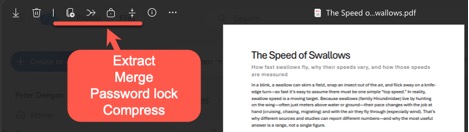
Of course, you can upload a PDF to OneDrive just to make changes using the tools available then download the changed PDF.
Extract pages into a new PDF
This is handy for sending someone just the signed page of a contract or one chapter of a report.
- Open the PDF and select the Extract icon near the top of the screen.
- Tick the pages you want, then select Extract.

- Choose a folder, rename the file if you want, and save.
Your original PDF stays intact, even extracting a single page creates a new PDF.
Another way to extract PDF pages is using “Print to PDF” (available in both Windows and Mac) however that loses all the hidden data like machine-readable text and clickable links.
The OneDrive Extract keeps all the data from the original pages, both seen and unseen.
Merge PDFs into one file
Good for combining receipts for an expense claim or bundling several scanned forms.
- Open any PDF and select Merge.
- Pick the PDFs to merge. It’s easiest if all the PDFs are in the same folder but you can select from any OneDrive folder. The originally open PDF does NOT have to be selected for the merge, though it usually is.
- Drag and drop the PDFs to change the order.
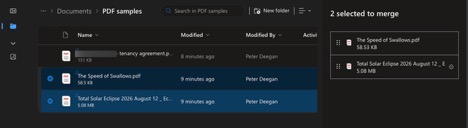
- Select Next, choose a save location and name, then save.
The result is a new file. Your source PDFs aren’t changed.
Merge only works with complete PDF files. To merge selected pages from a PDF, use Extract first to make a file with only those pages, then use merge.
Encrypt with Password
An open PDF can be secured by Encrypt with Password.
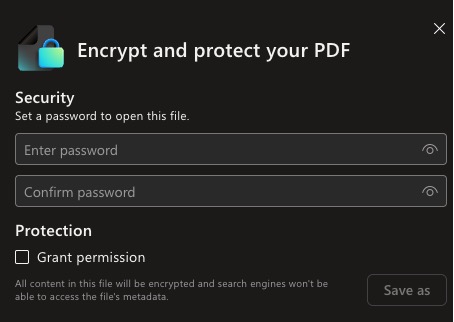
Add a password to open the PDF with the option to grant access permissions to allow printing, changing content, document assembly, copying or commenting/filling in form fields.
The encrypted PDF is saved as a separate file from the source PDF.
OneDrive uses AES-256 encryption which is great because that can be better than the method used in Microsoft Word. Word for Windows is supposed to be AES-256 however our testing for this article only got AES-128 encryption. AES-128 is more than enough for most purposes but if you want the stronger encryption, run a PDF through the OneDrive service.
Compress
OneDrive can shrink a PDF file size but frankly the results aren’t good so only use if desperate. The PDF file size is reduced by compressing any images in the PDF and that results in a loss of quality. In our tests, even the “Light” compression option produced grainy images.
The compression options are:
Light – 25% reduction in image quality
Medium – 50%
Heavy – 75%
Obviously, the file size reductions will vary. If the PDF has no images or very few, there’ll be little advantage.
Only use Compress if a PDF needs shrinking so it can be shared by email with limited attachment size. Most other sharing methods allow large file sizes.
Coming soon for work accounts
There are more PDF features coming to OneDrive, for Microsoft work accounts initially but hopefully consumers later.
Page Thumbnails
Page thumbnails are newer, look for a thumbnails icon at top-left.
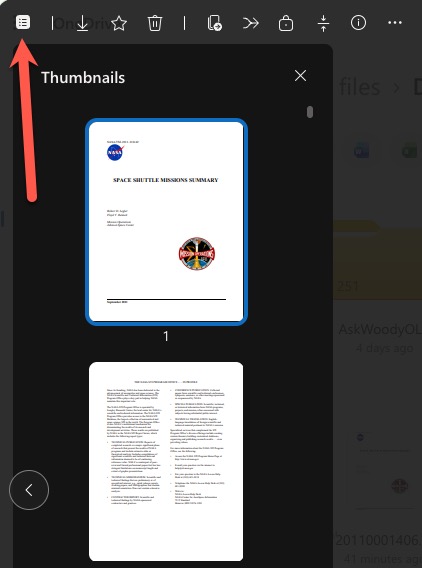
Microsoft rolled out a thumbnail pane in the OneDrive and SharePoint web PDF viewer during August 2026, turned on by default, so you can browse pages visually and jump to one. Microsoft announced this for work accounts, so it may reach personal accounts later.
Jump around long documents – Table of Contents
A Table of Contents panel might appear on the left of the PDF viewer … the stress on the word “Might”.
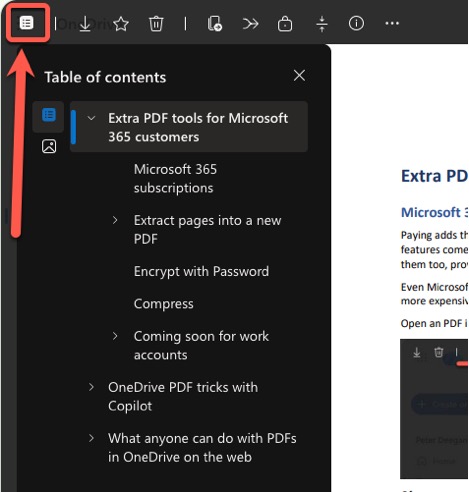
The PDF itself must contain embedded Table of Contents data, the navigation outline/bookmarks. A visible “Contents” page alone isn’t enough. If the necessary data is missing, OneDrive can’t show the TOC icon or pane. When available, the clickable entries appear on the left.
PDFs exported from Word will have a ToC based on Headings or Levels by default. Technically and confusingly PDF calls the same thing Bookmarks.
If the PDF has no table of contents data, the icon doesn’t appear at all. Many scanned documents and cheap PDF exports won’t have it.
According to Microsoft, Table of Contents view is available to all users however in our tests we only found it in Microsoft 365 Business plans. We could not get a ToC to appear for free accounts and Microsoft 365 consumer plans. Try it and maybe you’ll have better luck?
Commenting
Proper commenting is on the way. Microsoft is adding anchored comments to the web PDF viewer in OneDrive and SharePoint, so you can comment on specific spots or text, reply and @mention people, with rollout planned from mid October to mid November 2026. That’s a big improvement over sticky notes for team reviews. Microsoft hasn’t said when, or if, personal OneDrive accounts will get it.
PDFs, OneDrive and File Security
If you don’t need the paid tools, What anyone can do with PDFs in OneDrive PDF Editor: Free Tools You Didn’t Know You Had covers the free highlighting, annotation and rotation features that every Microsoft account gets.
When it’s time to create the PDF in the first place, Word has settings most people never touch. Hidden Word Options That Make Better PDF Files shows you how to add navigation bookmarks, shrink file size and even password-protect — all before you upload to OneDrive. And if you’d rather skip OneDrive entirely, Free PDF Merge and Split on Windows or Mac walks through the built-in tools on both operating systems.
Before you save your next PDF from Word, check for the Word Save As PDF Bug Silently Saves Files to Wrong Folder, How to Fix It — a confirmed bug in version 2609 that quietly drops files into a hidden cache folder instead of where you told it to save. And if you’re deciding between Save As and Print to PDF, PDF Save As or Print: Best Methods Explained compares the two so you pick the right one.
Need to pull data out of a PDF rather than mark it up? How to Import PDFs into Excel and Auto-Refresh Data Using Power Query turns static PDF tables into live, refreshable Excel data — no retyping required.
If you’re using OneDrive’s encryption to protect sensitive files, it’s worth understanding what OneDrive itself does and doesn’t secure. OneDrive Personal Vault Explained: What It Protects and What It Doesn’t clears up the common misunderstandings about Microsoft’s extra-security folder.