Microsoft quietly added KeyTips to Office for Mac, giving users the same faster, keyboard-driven access to the Ribbon that Windows users enjoy. The long-awaited feature brings Mac users a little closer to parity with Word, Excel, OneNote and PowerPoint on Windows.
It’s another “About Bloody Time” late innovation from Microsoft. Office for Windows has Keytips since Office 2007, it’s only taken Microsoft over 15 years to do the same for their paying Mac customers.
Keytips in Office for Mac works much the same as in Windows, however on a Mac the keytips are an choice that has to be turned on. So many Mac users don’t know it’s even available!
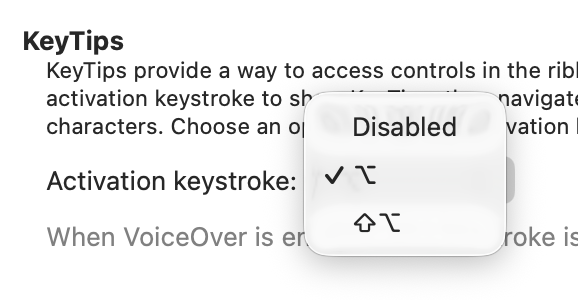
The starting key is Option or Shift + Option (your choice) Press Option (instead of Alt) then next keys to press appear as tips on the screen beside their labels or buttons.
The keystrokes are the same, making it easier to switch between Office for Windows and Mac.


For example: Option, N, I opens the Insert | Link dialog in Word, Excel, PowerPoint and OneNote.

See our guide to Office KeyTips for the complete lowdown.
Leave keytips
Cancel out of KeyTips by:
- Mouse clicking somewhere on the screen OR
- Pressing
Optionbutton again OR - Press
Esc, a significant difference from Office for Windows, see below.
Turn Keytips on
Keytips is an option in Office for Mac that is off by default. Turn on from <app> | Preferences | Accessibility | Keytips.
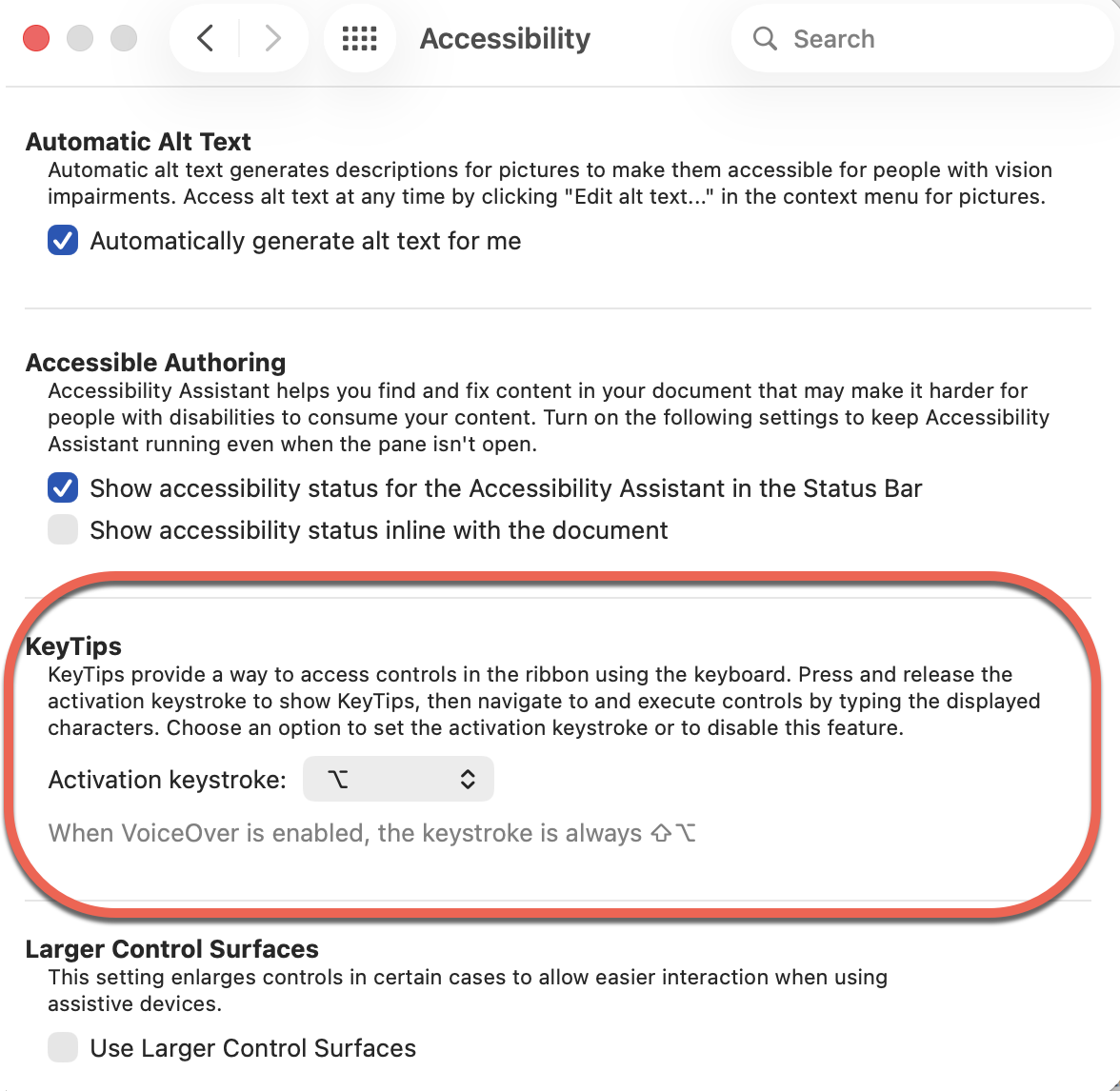
Choose the starting or activation keystroke, can be either Option or Shift + Option.
Differences to Office for Windows
According to Microsoft
“You might be familiar with KeyTips on your Windows PC, and they function the same way on a Mac.”
That’s not entirely true, there are some key differences in Office for Mac.
- The Esc key cancels out of keytips completely instead of going back one step. That appears to be a deliberate choice by Microsoft, though it’s hard to understand why.
- Outlook for Mac (not even the ‘new’ Outlook) don’t get keytips.
- It’s NOT possible to combine the first level keys in Office for Mac. In Office for Windows you can press both Alt and a letter together (e.g.
Alt + NorAlt, Nwork for Insert) but not in Office for Mac. That’s understandable because manyOption + lettercombos are macOS system level shortcuts (e.g.Option + Ninserts a tilde ~)
KeyTips are your way to faster Microsoft Office
Fast highlighting using two keyboard shortcuts in Word
Paste Text Only gets a Word shortcut and confusion
