Word Compatibility Mode change could rearrange your old documents in December
If you keep older Word documents, some of them could rearrange themselves this December. Microsoft is retiring some of the Word Compatibility Mode settings that keep files created or last saved in Word 2010 or earlier laid out the way they were made. Word for Windows gets the change from early December 2026 and Word for Mac in early 2027, and it happens automatically. If an old contract, form or template has to look exactly right, check it and convert it before then.
Microsoft is removing some of the legacy compatibility settings that keep older Word documents looking the way they did when they were made. The rollout for Word for Windows begins early December 2026 and is expected to finish by late December 2026. The documents most at risk are those created or last saved in Word 2010 or earlier that use the affected settings.
The symptoms will be familiar to anyone who has opened a file on someone else’s computer: text reflow, changes in spacing or page count, or images and shapes moving to another page.
Microsoft says no action is required for the change to take effect. That’s true in the narrowest sense: the change happens to your documents whether you do anything or not. If the layout of an old document matters to you.
What is Compatibility Mode
When you open an older document in modern Word you’ll often see a “Compatibility Mode” message. That appears for any .doc file, and for .docx files last saved in Word 2007 or Word 2010.
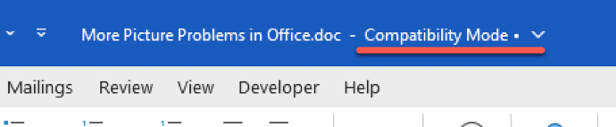
Compatibility Mode in the title bar can make a difference to much older documents. This mode turns off new or enhanced features so earlier Word versions can still edit the file, and it preserves the document’s layout.
Sometimes Compatibility Mode turns on an old feature, for example getting old-School WordArt Back in Modern Microsoft Word.
To be clear, Compatibility Mode itself is not going away. Your old files (.doc or .docx) will still open and still be editable. What’s going is some of the fine print that tells Word to lay them out the old way.
After the change, older documents might not appear exactly as they should. No data is lost, all the words, images etc are still available but they might not look as nice as before.
Both .doc and .docx files can be in Compatibility Mode
A common misunderstanding is that only old .doc extension files have Compatibility Mode. That’s not true.
.docx files and other modern formats can also be in Compatibility Mode, if saved in older versions of Word or explicitly saved with compatibility settings.
Which documents are at risk
Old .doc files and .docx files saved in Word 2010, Word 2007 or earlier might not appear in Word 365 exactly as they did originally.
They’ll still open and can be saved to a newer format, but check the formatting for any conversion glitches.
Newer files made in Word 2013, Word 2016 and later are safe, at least for the moment.
When it happens
| Platform | Rollout starts | Expected to finish |
| Word for Windows | Early December 2026 | Late December 2026 |
| US government clouds (GCC, GCC High, DoD) | Late December 2026 | Early January 2027 |
| Word for Mac | Early 2027 | Not given |
The notice, MC1551147, was published November 13, 2026 and covers the Word desktop app only.
Microsoft’s stated reason is to “simplify how Word handles document layout and provide a more consistent experience across platforms”. That’s standard Microsoft blather, which doesn’t make sense for this change. To give customers a “more consistent experience”, Microsoft would be improving document compatibility not removing it.
The simple and obvious truth is that Microsoft doesn’t want the cost of maintaining layout quirks from more than 15 years ago, which probably only affect a small percentage of customers.
Microsoft won’t say which settings are going
This is the annoying part. Microsoft has not disclosed exactly which options will disappear. So “review your important documents” is harder than it should be, because you can’t easily check whether a document actually uses the doomed settings.
You can see the kind of thing involved. In Word for Windows, go to File | Options | Advanced, scroll to the bottom to Compatibility options for, and expand Layout Options. You’ll find relics like “Do full justification the way WordPerfect 6.x for Windows does” and “Suppress extra line spacing at top of page like Word 5.x for the Mac”. WordPerfect 6 was a 1990s rival, so it’s easy to see why Microsoft wants to tidy up.
Don’t assume those particular two are on the chopping block; nobody outside Microsoft knows yet.
What does the compatibility change mean for me?
For most people, probably nothing you’ll notice. If your documents were all made in Word 2013 or later and saved as .docx, you can stop reading here.
You should pay attention if old documents need to look exactly right:
- Contracts and legal documents where page numbers are cited (“see clause 4 on page 12”)
- Forms built to fit on one page or line up with preprinted stationery
- Templates and letterhead made years ago and still in daily use
- Manuals, theses and reports with tables of contents or page cross references
- Archived records that need to match the printed original
A single extra page can throw off a table of contents, push a signature block onto its own page, or wreck a carefully fitted form.
What to do before December
- Find the old files. Open the document and look for Compatibility Mode in the title bar. To see which mode a file uses, select File | Info, then in the Inspect Document section select Check for Issues | Check Compatibility, then Select versions to show.
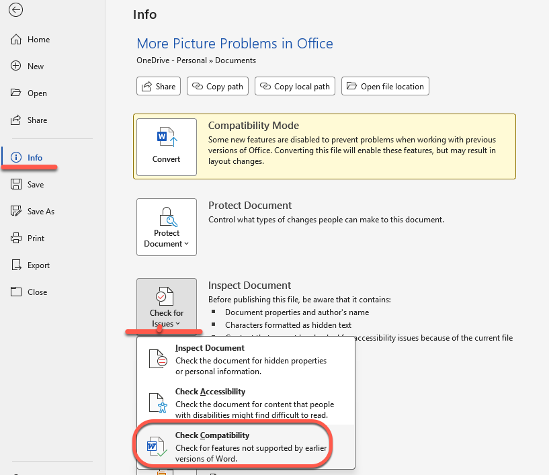
- In Word for Mac, go to File | Convert.
- Make a PDF snapshot. Microsoft’s own advice: export important documents to PDF before the change to keep a copy of how they look today. Use File | Save As and pick PDF as the file type.
- We do NOT AGREE with Microsoft’s advice, which seems aimed at giving a simple solution rather than a good and practical answer.
- BETTER: convert to a modern Word document. Save the older document to the newer format via File | Info | Compatibility Mode | Convert
- By all means save a PDF copy too, but it’s better to have a fully editable version.
- Keep the original document, just in case.
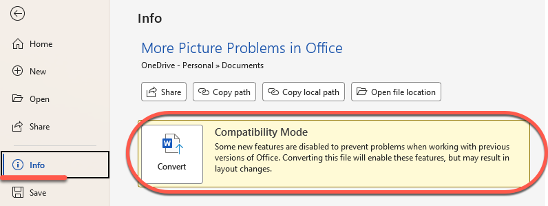
- Convert on your own schedule. Rather than let Word rearrange things at some random moment in December, convert important files now while you’re paying attention.
- Fix old templates. If brand new documents keep appearing in Compatibility Mode, an old template is usually to blame. Convert the template once and every future document benefits.
- Check who still uses old Word. Converting has one catch: people on earlier versions may be unable to work with parts of the document created with newer features. If someone in your office still edits in Word 2010, which stopped getting security updates in October 2020, that’s a bigger problem than formatting glitches.
Another way to handle this change is to keep a copy of Office 2021 or Office 2024 on a machine (or virtual machine). Those versions of Word & Office will keep the older Word doc compatibility features so you can use it to convert any older docs that later appear.
For IT admins
Some organizations use the Group Policy setting Set default compatibility mode on file creation, which controls the compatibility mode Word uses for new documents. If yours forces Word 2003, Word 2007 or Word 2010 mode, staff are creating fresh documents in Compatibility Mode every day. Microsoft’s wording doesn’t say whether those count as affected, but this is a good excuse to retire that policy too.
What Microsoft hasn’t said
Microsoft’s announcement of this reduction in Word compatibility doesn’t exactly glisten with clarity. It leaves way too much unanswered.
Which settings are being retired? There’s no detail at all. One obvious change could be dropping the old WordArt module for .doc files.
Word for Mac date. “Early 2027” is vague and gives Microsoft a window of up to six months.
Who exactly gets it. A strict reading of Microsoft’s announcement might suggest that the changes only apply to government and defense customers (GCC , GCC High and DoD). So it’s unclear whether personal and other enterprise customers are included.
Our advice: assume the compatibility changes apply to all Word 365 customers, regardless of Microsoft 365 plan, for Windows or Mac.
Perpetual licenses like Office 2024 aren’t mentioned at all. Office 2021 stopped getting updates on October 13, 2026..