Classic Outlook is getting a new look, and you can’t turn it off
Classic Outlook for Windows is getting a new look from mid-November 2026, with new icons and tweaked spacing and alignment in mail and calendar. Nothing moves and no features are removed, but there’s no way to switch the redesign off, and Microsoft hasn’t shown what it will look like. A monthly What’s New pop-up is also coming back, and that one you can turn off. Here’s what’s changing, who gets it first and what you can do about it.
Alongside the refresh, Microsoft is reviving the What’s New dialog. It pops up no more than once a month to explain recent changes.
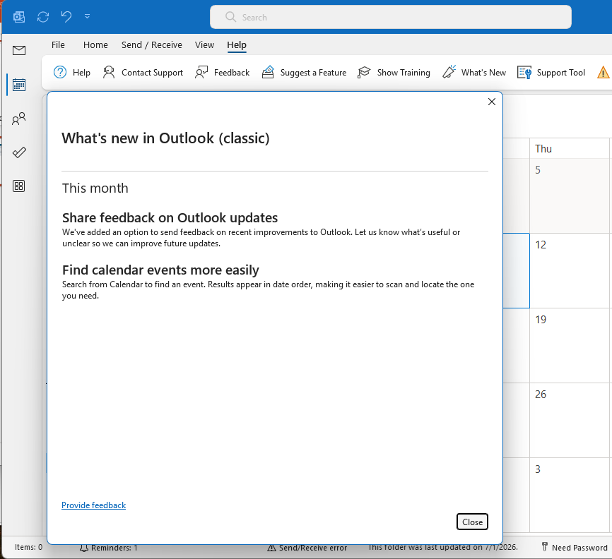
The Help tab has a “What’s New” button to reopen the dialog at any time.
Our view: Microsoft is changing an app many people stare at all day, and hasn’t shown anyone what the changes will look like. An explanation is the least it can do, but don’t hold your breath.
What’s changing and when
The changes are cosmetic: icons, spacing and alignment across the familiar mail and calendar screens. Microsoft insists you will do everything the same way you do now.
Don’t expect a preview. Microsoft hasn’t released any screenshots or details of the changes except to say:
We’re making updates across Microsoft Outlook experiences to improve clarity and consistency across endpoints. The first updates focus on visual details such as icons, spacing, and alignment, while maintaining familiar ways of working.
After all, why properly inform paying customers of changes to software they use every day? From Microsoft’s point of view, it’s easier just to dump changes on customers.
The changes will simply appear on your Outlook screen one day, with no way to opt out.
To make things worse, the changes will be in pieces that arrive separately, so you and the person at the next desk may see slightly different versions of Outlook for a couple of weeks. That’s normal, not a fault.
For admins tracking it, the reference is message center post MC1506730.
Who gets the classic Outlook changes
Only classic Outlook on Current Channel for now. That’s the default for Microsoft 365 consumer subscriptions and many business plans.
To check your channel, go to File | Office Account and look under About Outlook. The channel name appears next to the version number.
Microsoft is also “tuning” new Outlook, Outlook on the web and Outlook for Mac to reduce the differences between them.
The What’s New box: helpful or a nag?
Microsoft says it brought the dialog back because people asked for more information about what’s changing. It’s meant to be unobtrusive and pops up on its own no more than once a month on Current Channel. You can close it whenever you like and bring it back later with the What’s New button on the Help tab.
During the rollout, leave it on. After that, a monthly pop-up becomes one more box people close without reading.
How to turn off What’s New (but not the new look)
Warning: this setting only hides the dialog and its ribbon button. It controls the What’s New experience and does not stop the visual updates. There is no kill switch for the redesign itself.
The setting lives in the registry:
- Key: HKEY_CURRENT_USER\Software\Policies\Microsoft\Office\16.0\Outlook
- Value name: DontShowWhatsNew
- Type: REG_DWORD
- Data: 1
To add it, open an elevated Command Prompt (right-click Command Prompt and choose Run as administrator) and run: reg add "HKCU\Software\Policies\Microsoft\Office\16.0\Outlook" /v DontShowWhatsNew /t REG_DWORD /d 1 /f
One catch: the change goes into the profile of whoever runs the elevated Command Prompt. If Windows asks for a different account’s password when you choose Run as administrator, the setting lands in that account, not yours. On a work PC, ask IT instead.
For IT departments, Microsoft recommends adding the Office Administrative Template files (ADMX/ADML) to the Group Policy Central Store and setting it centrally, rather than editing each machine’s registry.
Why Microsoft is really doing this
Classic Outlook is being made to look more like new Outlook, while new Outlook is being dressed up to look like classic. Both are being pushed toward the middle so the eventual switch feels like less of a jump. Microsoft says this refresh doesn’t mean classic Outlook is being replaced, and that’s true for now. But the phase where new Outlook becomes the default for enterprise users starts in March 2027, and Microsoft has said existing classic Outlook installations will be supported until at least 2029.
The key phrase in Microsoft’s notice is “first updates.” This is described as the start of an ongoing series, and Microsoft promises extra warning before larger changes that affect navigation or workflows. In other words, more is coming.
Look at what’s happening on the other side. Microsoft has started rolling out a “Classic Outlook” theme for new Outlook and Outlook on the web, announced in MC1458476. It’s off by default for most people, but Microsoft will switch it on automatically for some users moving over from classic Outlook.
We think Microsoft is fixing the wrong problem. People who refuse to leave classic Outlook do so because of missing features, controls and privacy concerns in new Outlook, not because of how it looks.
More Outlook changes you didn’t ask for
Microsoft is also changing new Outlook to look like the old one. New Outlook’s Classic Style Setting: What It Changes (and What It Doesn’t) shows how to turn on that look and what stays missing underneath.
The redesign isn’t the only change arriving without an opt-out. Outlook’s Prioritize My Inbox Is Going Away, Save Your Settings Before It’s Too Late explains how to save your Copilot priority instructions before Microsoft removes them. Text Predictions Now Off by Default in Word and Outlook shows where to switch the gray suggested text back on if it has vanished.