Copilot Notebooks Is Now Workspaces and Projects: What Changed and What to Do
Microsoft is replacing Copilot Notebooks with two new features: Copilot Projects for personal work and Copilot Workspaces for teams. Your existing Notebooks will convert automatically, but the split changes how you organize your AI work. Here’s what’s different and what you need to know.
If you already use Copilot Notebooks, you don’t need to do anything. Each notebook becomes a workspace on its own and keeps everything in it. Notebooks you shared stay shared. Private ones stay private. Microsoft says no Notebooks features are going away and old links should keep working, with a redirect if the address changes.
The real change is a split in how Microsoft wants you to organize Copilot work: Projects for yourself, Workspaces for your team.
Why Microsoft is renaming Copilot Notebooks
Yes, Microsoft is at it again, continuing their messy and poorly planned Copilot release.
The Copilot ‘Notebooks’ name is changing, which is good because Microsoft already has a ‘Notebooks’ feature in OneNote.
However, the change means Microsoft now has two features called “Workspaces”, in Copilot and Loop.
The split between personal/home (Projects) and work/school (Workspaces) is welcome, but why wasn’t that done in the first place?
It’s all more evidence of how Microsoft is very much making up AI development as they go along with little or no forward planning or consideration.
Projects or Workspaces: which should you use?
We like the existing Copilot Notebooks feature, with reservations, especially the ability to limit AI to using supplied information (docs, sheets, web pages) instead of any public or made-up data.
Notebooks is being split into two similar products, the rule of thumb is simple:
- Copilot Projects are for individuals. A project gathers your chats, Cowork tasks, files, instructions and results in one place. Once released, Projects will replace Notebooks in the navigation pane of the Copilot app or web page Home view.
- Copilot Workspaces are for group work. A workspace gives a team one shared place to keep context, members and working files, and to work with Copilot on something ongoing.
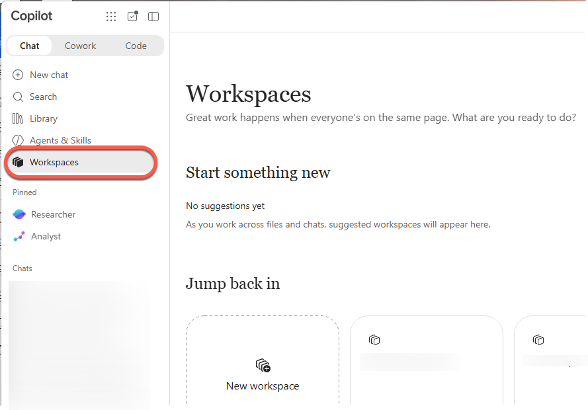
A practical example: you’re preparing next year’s budget proposal. Start a project to collect your spreadsheets, research chats and draft summaries while you work things out privately. Once you’re ready to involve colleagues, set up a workspace for the budget review, invite the team, and share the finished pieces there.
Microsoft says you’ll eventually be able to bring a file or other item from a project into a workspace but don’t count on it being there on day one.
What Copilot Projects actually do
Copilot Projects is the more useful addition for most people. Three things stand out:
- Copilot looks at the project first. When you ask a question inside a project, Copilot answers from the project’s own files, instructions and chats before it reaches into your wider Microsoft 365 data like email, meetings and other files. That should mean fewer off topic answers.
- Nothing is stored “in” the project. Your files stay in OneDrive with the same permissions, sensitivity labels and retention rules as before. Any Word, Excel or PowerPoint file Copilot creates in a project is saved to your OneDrive too. Think of a project as a smart view of your files, not a new place to lose them.
- Cowork tasks live there too. Cowork is Copilot’s feature for handing off multistep jobs, such as “pull these three reports together and draft a summary.” Running them inside a project keeps the results next to the source material.
Projects works in the Copilot app on Windows, Mac and the web, in Microsoft’s main supported languages first. Mobile support is coming later.
What’s new in Copilot Workspaces
Copilot Workspaces keeps everything Notebooks did and adds proper teamwork:
- Several people can work across different documents in the same workspace at once.
- Live cursors show who is working where, just like coauthoring in Word. Remember that works both ways: your teammates can see what you’re up to.
- Everyone shares the same files and pages, and Copilot works from that shared context.
To invite people, choose the invite option when creating a workspace, or click Invite at the top right of an existing one. To rename a workspace, click the arrow next to its name, choose Rename, type the new name and click Save.
The new team features appear in the Copilot app first. Copilot Workspaces inside OneNote will get them “over time,” with no firm date.
Copilot Workspaces and Projects: things to watch out for
Rollout is messy, The change to Projects/Workspaces is haphazard. In our tests for this article, Workspaces are available to a work account but a personal account on the same machine is still showing the old Notebooks.
Check what’s in a workspace before you invite anyone. The whole point of a workspace is that members see the same files and pages. An old notebook you filled with personal reference material becomes visible to anyone you invite.
Cowork may cost money. Access to Cowork depends on your organization’s Microsoft 365 Copilot license and its usage-based billing setup, meaning some tasks may be metered. If you’re planning to throw a pile of big jobs at Copilot, ask IT first. See Microsoft Copilot’s New Pay-Per-Use Pricing: What USL, UBB and FinOps Mean for You
Features vary by license. Not everyone with access to Workspaces gets the same set of features. If a colleague has something you don’t, licensing is the likely reason.
Your screen may not match the help pages. The new Copilot Home view, which combines Chat and Cowork, is still rolling out. Microsoft itself warns that what you see may differ from its own documentation.
The naming is a muddle. Dropping “Notebooks” does fix the old confusion with OneNote notebooks. But Copilot now has Projects, Workspaces and Pages, and if your organization uses Microsoft Loop, it already has its own “workspaces” that are a different thing entirely. Expect some puzzled questions from colleagues.
Keep Up with Microsoft’s Fast-Moving Copilot Changes
Workspaces and Projects grew out of Copilot Notebooks, and Copilot Notebooks explained: what they are and who gets them now covers the original feature in detail, including what it can do with your files and where its limits are.
The Notebooks split is part of a bigger Copilot redesign. Microsoft’s Copilot Super App: What’s New, What It Costs and What to Do Now explains the merged app that Workspaces and Projects now live inside, and Two Copilot Apps Become One: What Changes on Your PC and Phone walks through what happened when Microsoft combined its two separate Copilot apps.
If the article’s mention of Cowork billing caught your eye, Microsoft Copilot’s New Pay-Per-Use Pricing: What USL, UBB and FinOps Mean for You breaks down the metered pricing that can affect what Workspaces tasks actually cost. And Microsoft 365 Pro vs Premium: Is $1,200 a Year Worth It? helps you figure out whether the higher-tier license is justified for the extra Copilot features.
Copilot keeps gaining new capabilities alongside these reorganizations. What Are AI Agents in Microsoft Copilot? What You Can Do Right Now covers the agents that can run multi-step tasks on your behalf,