Outlook’s Prioritize My Inbox Is Going Away, Save Your Settings Before It’s Too Late
If the priority arrows have vanished from your Outlook inbox, Microsoft has started removing Prioritize My Inbox, the Copilot feature that sorted email into high, normal and low priority. The rollback began on October 26, 2026 and will finish by March 2027 with no opt-out. Here’s what’s changing, what you lose and what to do before it’s gone.
It’s a quick reversal. When Microsoft unveiled the feature in April 2025, a senior product manager said it “revolutionizes email” and all the Redmond fanboys piled on the praise.
Just 18 months later and Microsoft is dropping “Prioritize my Inbox” saying that the removal lets the company simplify the Outlook Copilot experience and focus on its ongoing investments. Translation: not enough people used it, or it didn’t work well enough to justify the cost of upkeep.
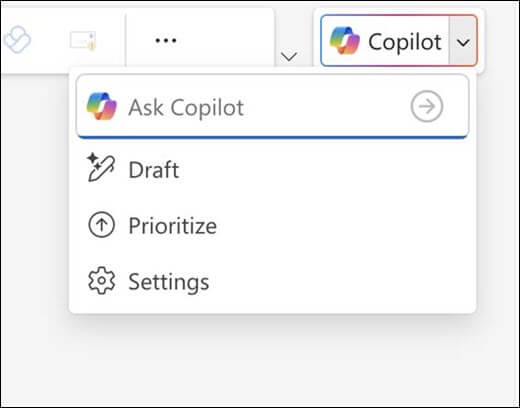
Most Outlook users won’t notice a thing. Prioritize was part of Microsoft 365 Copilot, the paid business add on, and only users who currently have access to Copilot Prioritize are affected. You also had to switch it on yourself; Copilot walked you through setup and needed at least one high priority instruction to get started.
If you did use it, here’s what goes:
- The up arrow on emails Copilot rated as high priority, plus the optional down arrow for low priority mail
- The brief AI summary that replaced the first line of each email in your message list
- The few lines of reasoning in the reading pane explaining why Copilot thought a message mattered
- The option to filter your inbox to high priority only, or sort it into high, normal and low groups
- Your custom priority instructions
Don’t confuse it with other “priority” features. The red exclamation mark a sender adds (Importance: High), Flag or Pin a message and Focused Inbox are separate features and aren’t part of this retirement.
Timing is vague. Expect the feature to disappear without warning sometime. Microsoft originally said removal would be complete by mid-November 2026, then updated the notice on October 22, 2026 with a new timeline stretching to March 2027.
Save your priority instructions now
Before it disappears, go to Settings | Copilot | Prioritize and copy your instructions into a note or Word document. That’s where you told Copilot which people, companies, topics or projects mattered to you.
That list is useful. It’s a ready-made blueprint for setting up rules or writing Copilot prompts. Microsoft hasn’t mentioned any way to export it, so once the setting is gone, so are your instructions.
Alternatives to Prioritize my Inbox
Outlook already has other ways to arrange emails by importance. Many require a Microsoft hosted mailbox to work.
Focused Inbox
Focused Inbox is built into every version of Outlook (Microsoft-hosted mailboxes only), and not going anywhere. It splits your mail into Focused and Other tabs based on who you actually deal with. It’s nowhere near as clever as Prioritize, but it’s reliable.
- Classic Outlook: View tab | Show Focused Inbox
- New Outlook and Outlook on the web: Settings | Mail | Layout | Focused Inbox
After a little training to separate “Focused” emails from “Other”, this feature works remarkably well.
Rules
Take your saved Prioritize instructions and turn them into rules. “It’s from my manager” becomes a rule that flags the message or adds a red category. Rules are dumb but predictable: they do exactly what you tell them, every single time, and they don’t get retired on Microsoft’s whim.
- Classic Outlook: Home | Rules | Create Rule
- New Outlook: Settings | Mail | Rules
New Outlook rules only work on Microsoft-hosted mailboxes, including Outlook.com
Ask Copilot directly
If you’re keeping your Copilot license, try asking Copilot Chat in Outlook something like “Which emails from today need a reply from me?” Microsoft has added plain English commands for email triage, such as pinning, flagging, archiving and marking messages read. Its newer agent features can surface important messages and create inbox rules from plain English requests.
That’s clearly where Microsoft is putting its effort. The catch: you have to remember to ask. Prioritize worked quietly in the background; the replacement is a chat box.
Copilot giveth and taketh away
This isn’t a one-off. There’s been plenty of Copilot retreats lately, including Microsoft removing the COPILOT function from Excel or Teams losing its Copilot chat list shortcut.
Our advice: don’t build your daily routine around a brand new Copilot feature until it’s been around a while. Keep the basics (rules, folders, Focused Inbox) working underneath, so when Microsoft changes its mind, you aren’t left scrambling.
Keep Your Inbox Under Control
If you’re replacing Prioritize with old-fashioned rules, Outlook Email Rules Explained: How to Automatically Sort, Flag and Manage Your Inbox walks you through every step, from triggers to actions, across all versions of Outlook. Before you start, check Which New Outlook Rules Features are Missing (And What That Means for You) so you know what classic rule actions no longer work in the new app.
Rules aren’t the only automatic sorting tool Microsoft has buried in Outlook. Beyond Outlook Rules: 8 Hidden Features That Manage Your Email Without You Knowing covers Sweep, Quick Steps, retention policies and other features that quietly manage your mail.
Focused Inbox is the closest built-in alternative to Prioritize, and it gets better with training. Outlook Focused Inbox Explained: How to Train It, Control It, or Turn It Off shows you how to teach it which messages matter and how to switch it off if it doesn’t.