How to Get Old-School WordArt Back in Modern Microsoft Word
Miss the classic WordArt from Word’s glory days — the arched text, the rainbow slopes, the wavy headlines that screamed “1990s”? Those old gallery styles are still alive inside every modern version of Word, including Word 365 and Word 2024. They’re just well hidden. Here’s the simple compatibility mode trick that unlocks all the retro WordArt designs
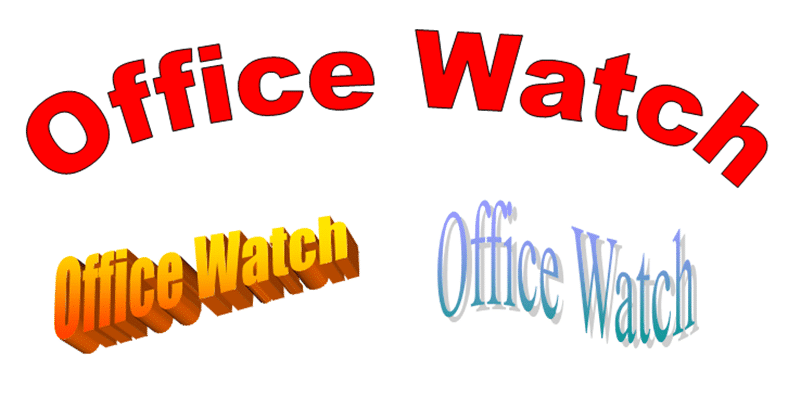
At the time, WordArt was a big step for Microsoft Word. It was a quick way to add fancy text, not possible before. Alas, like many Office design features, it was overused, especially the defaults. So, lots of documents looked the same with the arch, slope or wavy text like this.
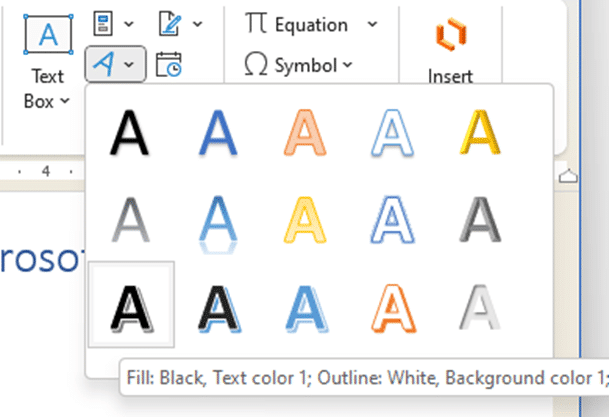
If you go to Insert | Text | WordArt, there’s a quite different and more flexible tool available. There are the usual Gallery options available then a lot more choices beyond that. Click on one of those letters to get started.
Retro WordArt
Buried inside Word is the old WordArt and it’s easy to make it appear once you know the trick for Word 365, Word 2024, 2021, 2019 and earlier.
In short: make an old .doc file triggering Word’s compatibility mode and forcing the older WordArt to appear.
Make a .doc file
Create a temporary document using the old .doc format. Open a blank document then Save As. From the file type list choose ‘Word 97-2003 Document (*.doc)’
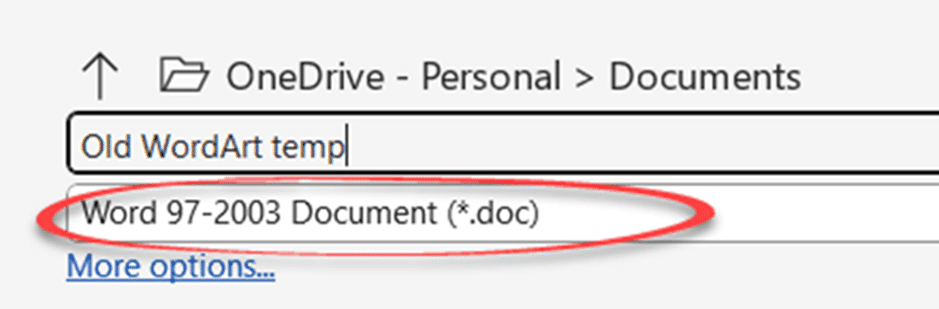
Now have a look at Insert | Text | WordArt. All the old Gallery choices appear.

Choose a design that’s nearest what you want, type in some text (you can change it later).

That drops a Word 97-2003 WordArt object into the document. The WordArt tab has options including some that weren’t available in the original WordArt.

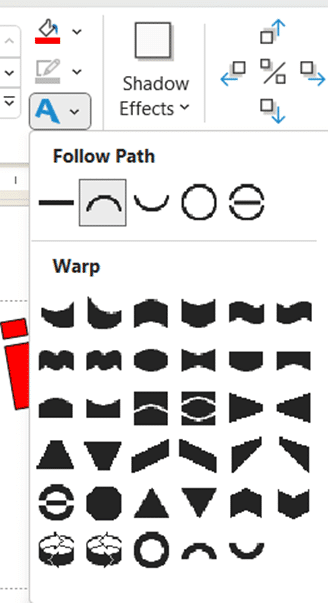
Follow Path and Warp
One handy choice that’s somewhat hiding is Follow Path and Warp under WordArt | WordArt Styles
Moving to a modern document
In theory, you can copy the older WordArt object into a newer .docx document and it looks and works the same. The reality is quite different. Here’s the three examples from above, copied into a modern Word document.

As you can see, they are similar but not the same look at all.
Copy the same retro look
To maintain the original look, take a screen-shot from the old .doc file (Insert | Illustrations | Screenshot) and paste it into the modern document. If necessary, keep a separate .doc with the retro WordArt objects.
Do NOT share or send the older .doc files. See Why Old Office documents should be banned
Thanks, Ron!
We’re much obliged to one of our regular informants “RonS” for this tip.
Make Fancy Text with OpenType Ligatures in Word
Two Ways to Add Gradient or Rainbow Text or Background Effects in Word
Many Ways to Flip, Reverse and Mirror Text in Microsoft Word
How to Set Text on Its Side, an Angle or a Curve in Word
Two Ways to Make Diagonal Text in Word