Stop Microsoft’s “Stay signed in?” prompt coming back
Ticked Don’t show this again on Microsoft’s Stay signed in? prompt, only to see it again days later? Your answer is saved in a browser cookie, not your Microsoft account, so clearing cookies, switching browsers or using another PC wipes it. Here’s why it happens, how to make Edge, Chrome and Firefox remember your answer.
The catch is that “Don’t show this again” isn’t saved to your Microsoft account. It’s remembered by a cookie in one browser on one computer for just one Microsoft account. Clear the cookies, switch browsers or sign in on another PC, and Microsoft has no idea you ever answered.
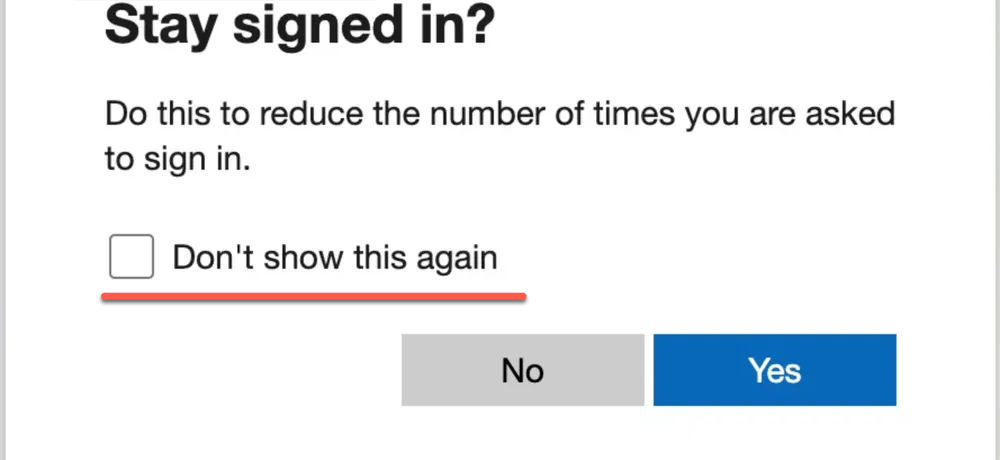
Quick choices to stop “Stay signed in?”
If “Don’t show this again” keeps failing, the cause is almost always cookies being cleared or blocked, or switching browsers, profiles or account types. Your answer was never saved to your Microsoft account in the first place.
On your own PC, choose Yes, tick the box and add Microsoft’s three sign in addresses to your browser’s keep list, see below. On a shared PC, always choose No and live with the prompt.
Juggling several Microsoft accounts? Give each one its own browser profile, and check the email address at the top of the box before you answer. Details below.
Admins can remove the prompt for everyone with one Entra switch, but expect more sign ins, not fewer.
The checkbox lives in your browser, not your account
Microsoft says remarkably little about this checkbox. Its own Entra documentation only says it works separately from the main “Stay signed in?” process. Microsoft 365 expert Tony Redmond explains that it controls whether the prompt appears on that device for future sign ins.
So “Don’t show this again” really means “don’t show this again in this browser, until the cookies go.” Microsoft should label it that way.
Two separate choices on one screen
- The checkbox only decides whether you see the question again.
- Yes creates a sign in cookie that lasts up to 90 days, even if you close and reopen the browser.
- No gives you a temporary cookie that expires after 24 hours or when you close the browser.
That means you can tick the box, choose No, never see the question again, and still have to type your password every time you open the browser.
What Microsoft could do
Microsoft could end the confusion with more honest wording in the “Stay signed in?” dialog.
Instead of “Don’t show this again”, make it clear that it means “in this browser, for now.” and “for this Microsoft account only”.
Why the prompt keeps coming back
Your browser is clearing cookies
This is the most common cause. Anything that deletes cookies deletes your answer too:
- The option in Edge, Chrome or Firefox to clear cookies when the browser closes
- Cleanup tools such as CCleaner
- “Privacy” features built into some antivirus and security suites
It’s been known since the prompt arrived in 2017 that deleting the Microsoft sign in cookies brings it back.
A different browser, profile or private window
Each browser keeps its own cookies, and so does each profile inside a browser. Ticking the box in Edge does nothing for Chrome, or for your second Edge profile. InPrivate and Incognito windows throw their cookies away when closed, so they’ll ask every single time.
Work and personal accounts are separate
Work and school accounts sign in at login.microsoftonline.com. Personal accounts, such as Outlook.com, Hotmail and Microsoft 365 consumer plans, sign in at login.live.com. Each address has its own cookies, so answering for one type of account doesn’t count for the other.
Sometimes Microsoft just asks again
Even when cookies are working, Microsoft will ask again when it wants to recheck your session for security reasons.
Outlook has no setting to turn the prompt off for good.
Annoying, but out of your hands.
More than one Microsoft account on the same computer
Plenty of people juggle a personal Microsoft account, a work account and maybe a second work account for a client or a school. That’s where the “Stay signed in?” prompt gets really confusing.
Check which account the box is asking about
The prompt does tell you which account it means. Look for the email address in small gray text just under the Microsoft logo, above the words Stay signed in? Check it before you click, especially on a family or shared PC.
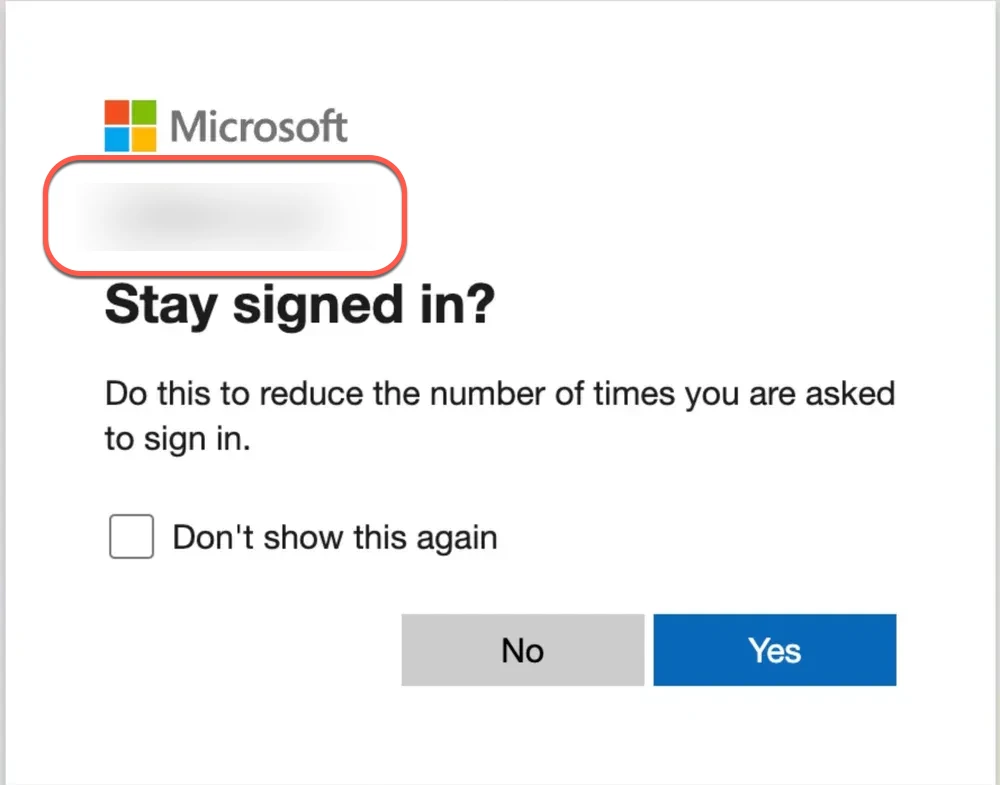
It’s far too easy to miss. With several accounts in play, Microsoft should put that address front and center, not in the small print.
Each account type needs its own answer
As covered above, personal accounts and work or school accounts sign in at different addresses, so answering for one doesn’t count for the other. Two work accounts from different organizations can behave differently too. Each organization’s IT admin decides whether its people see the prompt at all.
Several accounts in one browser can make the prompt vanish
Here’s the twist. Microsoft hides the prompt when it decides a browser might be shared. It doesn’t say how it decides, but users have reported since 2017 that signing in with a different account in the same browser can trigger it.
No “Stay signed in?” prompt means there’s no chance to say Yes. You get temporary cookies instead, and you’re signed out every time you close the browser.
The prompt stops appearing once a different account has signed in on the same browser.
The prompt comes back after you clear cookies, or perhaps after a few days of using just one account. Microsoft’s current documentation still says the prompt is hidden when it detects a sign in from a shared device.
Being signed in with several Microsoft accounts is another reason your choice isn’t remembered.
The fix: one browser profile per account
Give each account its own browser profile. Each profile keeps its own cookies, so each account gets its own Stay signed in? answer, and Microsoft stops seeing a “shared” browser.
- Edge: click your profile picture at the top left of the window, set up a new profile and sign in with the other account. Each profile keeps its own tabs, favorites and logins. Then turn on Automatic profile switching at edge://settings/profiles/multiProfileSettings, so Edge offers to open work links in your work profile.
- Chrome: click your profile picture at the top right of the window, add a new profile, then sign in to Microsoft 365 with the other account in that profile.
- Firefox: click the account icon in the toolbar, choose Profiles, then + New profile. If you don’t see Profiles, type about:profiles in the address bar instead… Mozilla’s free Firefox Multi-Account Containers extension is a lighter alternative
One catch: browser settings belong to each profile. Add Microsoft’s three sign in addresses (listed below) to the keep list in every profile you use, following the steps below.
How to make your answer stick
On your own computer
- Tick the box and choose Yes. On a PC only you use, Yes is the right answer. Fewer sign ins, less nagging.
- Tell your browser to keep Microsoft’s sign in cookies. Steps for Edge, Chrome and Firefox are below.
- Check your cleanup tools. Add the same addresses to the exclusions list in CCleaner or your security software.
- On shared or public computers, choose No. Put up with the prompt. That’s exactly what it’s for.
The three addresses to protect
Whichever browser you use, these Microsoft sign in addresses need to keep their cookies:
- login.microsoftonline.com for work and school accounts
- login.microsoft.com, another work and school sign in address
- login.live.com usually for personal Microsoft accounts
On a company PC, IT may have locked these browser settings. If they’re grayed out, that’s a question for your IT department.
Edge: keep Microsoft’s sign in cookies
- Open Settings | Privacy, search, and services and find the option to choose what to clear every time you close the browser.
- Look at Cookies and other site data. If its switch is off, Edge isn’t deleting your cookies and you can stop here.
- If it’s on, click Add next to Don’t clear.
- Add login.microsoftonline.com, login.live.com and login.microsoft.com, one at a time.
- Close Edge, open it again and sign in. Tick Don’t show this again and choose Yes.
Chrome: keep Microsoft’s sign in cookies
Google has moved this setting, so older guides that send you to a “Cookies” page are out of date. The option that wipes cookies when Chrome closes now lives under Site settings.
- Paste chrome://settings/content/siteData into the address bar and press Enter. Using the menus, it’s the three dot menu | Settings | Privacy and security | Site settings | Additional content settings, then the site data entry near the bottom.
- Look at Default behavior. If it says Allow sites to save data on your device, Chrome isn’t deleting your cookies and you can stop here.
- If it says Delete data sites have saved to your device when you close all windows, or that sites can’t save data, carry on.
- Under Customized behaviors, find Allowed to save data on your device and click Add.
- Type login.microsoftonline.com and click Add. Do the same for login.live.com and login.microsoft.com.
- Close every Chrome window, open Chrome again and sign in. Tick Don’t show this again and choose Yes.
Firefox: keep Microsoft’s sign in cookies
- Paste about:preferences#privacy into the address bar and press Enter. Using the menus, it’s the three line menu | Settings | Privacy & Security.
- Scroll down to Cookies and Site Data and click Manage Exceptions.
- In Address of website, type https://login.microsoftonline.com and click Allow. Type the whole address, including https://, as Mozilla’s support volunteers advise.
- Do the same for https://login.live.com and https://login.microsoft.com, then click Save Changes.
Now check the History section on the same page. Two settings there can quietly undo your exceptions:
- Never remember history means Firefox is in private browsing mode all the time, so the prompt returns every session. Change Firefox will to Remember history or Use custom settings for history.
- Clear history when Firefox closes can wipe your exceptions list. If that box is ticked, click its Settings button and untick Site settings, because that’s where Firefox keeps your exceptions.
Then close Firefox, open it again and sign in. Tick Don’t show this again and choose Yes.
Saying No now costs more in Teams
Microsoft announced that from late June 2026, Teams for the web follows your Stay signed in answer. Choose No, or ignore the prompt, and Teams clears its saved sign in data when you close the browser. Next time, you sign in again.
If you use Teams in a browser on your own PC, that’s one more reason to choose Yes.
For IT admins: the real off switch
The checkbox only works one browser at a time. To switch the prompt off for everyone, open the Microsoft Entra admin center, go to Entra ID | Users | User settings and set Show keep user signed in to No. Full details are in Microsoft’s instructions.
Warning: this is a blunt instrument. Everyone gets temporary cookies, which means more sign ins, not fewer. Microsoft also warns that some SharePoint Online features rely on users staying signed in, so people may see other unexpected prompts.
A better option if you have Entra ID P1 or P2 is Conditional Access persistent browser session controls let you make the stay signed in decision for chosen groups. The prompt disappears for them, and nobody else’s sign in changes.
More fixes for Microsoft sign in headaches
If you’re juggling work and personal accounts, Switch Microsoft Accounts in Word, Excel and PowerPoint Without Signing Out shows how to flip between them inside Office without signing out and back in. Two Microsoft 365 Licenses on One PC: Use Work and Personal Plans Together explains why your Office login can be a different account from your Windows login, and how to make both plans work on one computer.