Office 2016 – like it or not
Microsoft has released a little information about how they are releasing Office 2016/Win into the wild for consumers. Very little info indeed, just one sentence (see below).
We’ll tell you what we know, can find out and how to stop Microsoft forcing Office 2016 on you.
Office 2016 for consumers
The release of Office is the first time a large % of users will have a subscription rather than a ‘one time’ purchase. With the annual fee for renting Office comes the streaming ‘Click to Run’ installation that Microsoft can update in the background (and often does).
This means that existing Office 2013 users can have Office 2016 installed automatically. Possibly without warning or a choice! Microsoft thinks of automatic version upgrades as an absolute good with no downside. They seem to be ignoring customers who prefer to stick with what they know.
Microsoft’s only statement is that:
For Office 365 Personal and Office 365 Home users, you can start installing 2016 apps on September 22nd from office.com, and automatic updates will begin rolling out in October.
Hopefully there’s more to it than that.
Some years ago, when Click to Run and subscriptions started, we asked Microsoft about how major version upgrades would be handled. Back then, we were assured that upgrades would be done on a gradual basis. Customers would be offered the new version but would have many months (a year was mentioned) before the change would be required.
All those reassuring words seem to have come to nothing.
Patience, Grasshopper
The method of upgrading is different, the same caution applies as for any major Office switch.
Canny Office users don’t upgrade on Day One. They let other people be the guinea pigs. While Office 2016 has been in preview for some months, there’s bound to be teething troubles because there always are with such a big and complex system.
Stopping Office 2016 – for now
We’re not against Office 2016/Win at all but we know that many people want to update software on their timetable, not Microsofts.
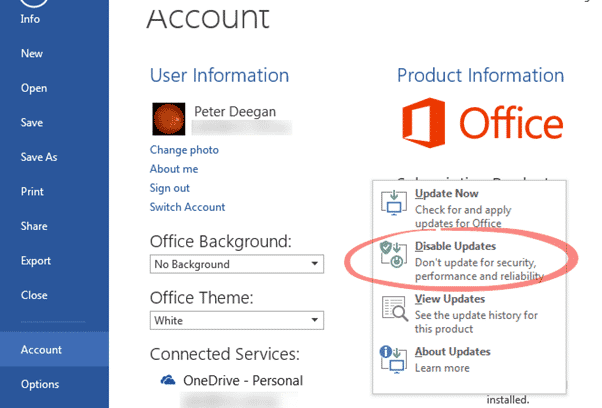
If you don’t want Office 2016 pushed to you or until more is known about the exact process. Maybe the safest option is to disable updates for a little while. In Office 2013 go to File | Account | Update Options and choose ‘Disable Updates’. (If there’s no Update option then you don’t have a ‘Click to Run’ install).
After the User Account Control prompt you’ll see a change on the Account pane:
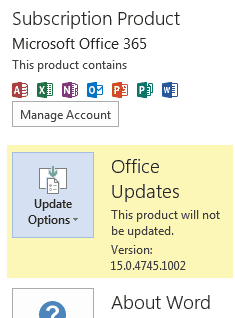
That will also stop any minor bug/security updates so it’s not a good idea for the long term.
This only applies to Office 2013 ‘Click to Run’ installations. It doesn’t apply to earlier versions of Office nor Office 2013 installed from a DVD or single download.