How Multi-level Lists really work in Word
Multi-level lists in Microsoft Word look simple on the surface but hide a lot of complexity underneath. Whether your numbered headings keep resetting for no obvious reason, or you just want to understand why linking list levels to Heading styles makes everything more reliable, this guide cuts through the confusion. You will learn exactly how Word’s multi-level list system is structured, what the link between list levels and paragraph styles actually does, and how to set it up or troubleshoot so it works the way you need it to every time.
This is one of the most confusing corners of Microsoft Word, and it trips up even experienced users. Here is what is actually happening with Multi-Level lists under the hood, and why it matters.
Word’s Multi-level lists and Heading styles (Heading 1, Heading 2, Heading 3, etc.) are two separate but linked systems.
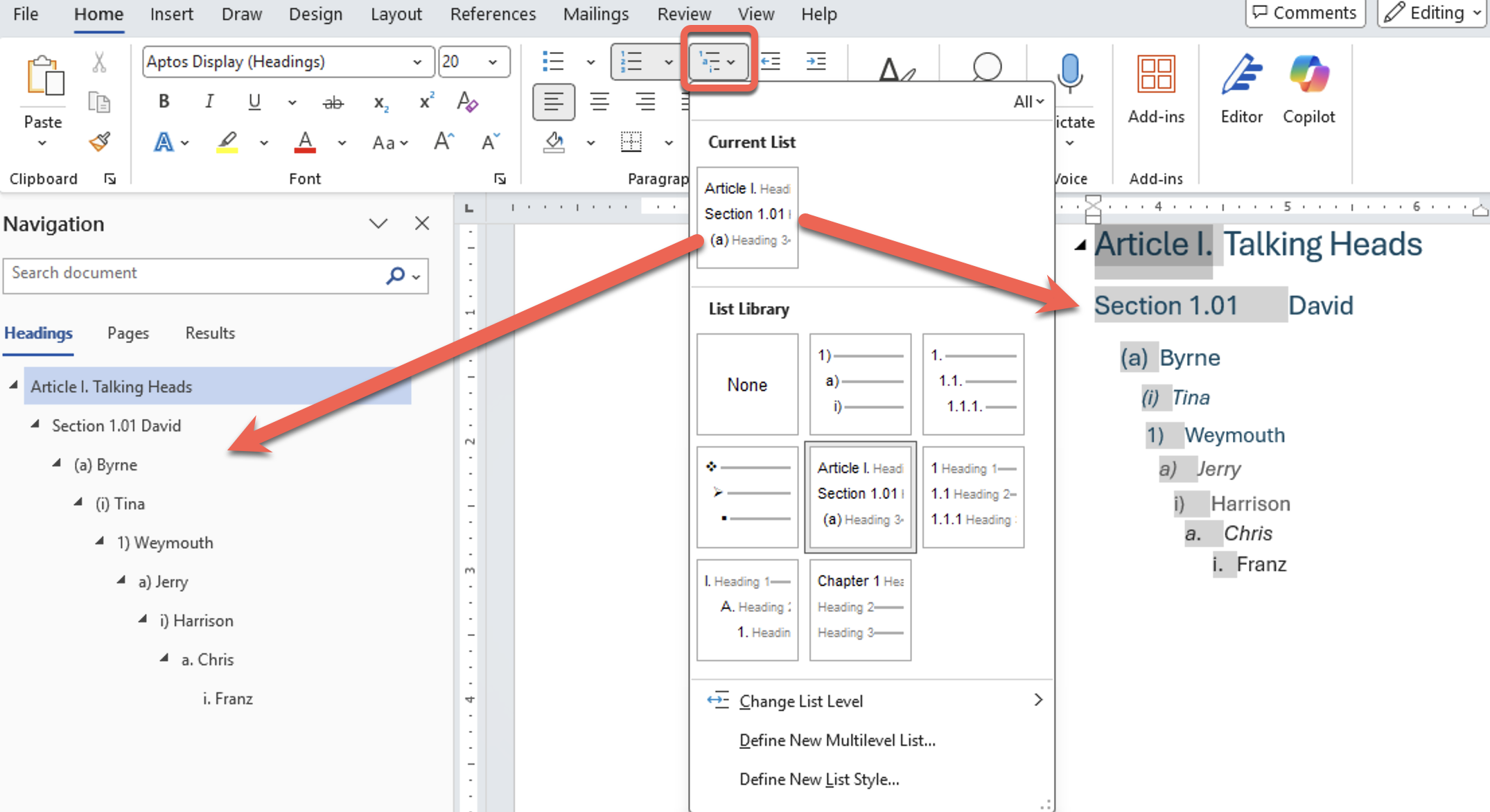
The above shows a multi-level list as it appears in the document (right) as headings but also in the Navigation Pane (left) using the Outline Levels.
Heading styles have (usually) matching Outline Levels see Understanding Headings vs. Outline Levels
What a Multi-level List Actually Is
A multi-level list is made up of linked Word elements:
- Numbering definition which is linked to a …
- Style – usually a Heading style which has as a setting the …
- Outline Level (sometimes called Link Level or just Level), defined in the style.
A numbering definition that you see on the page and in the List Library thumbnails
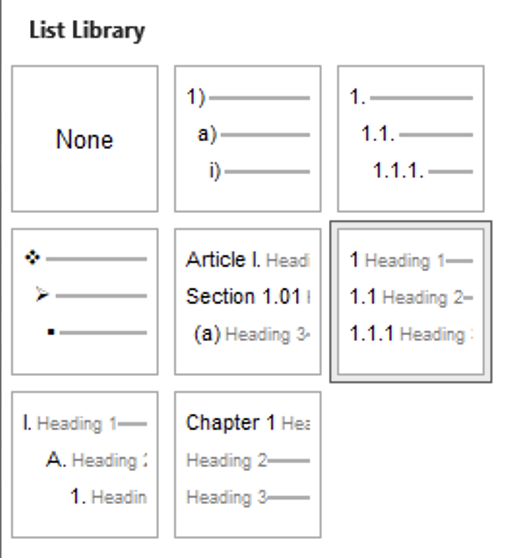
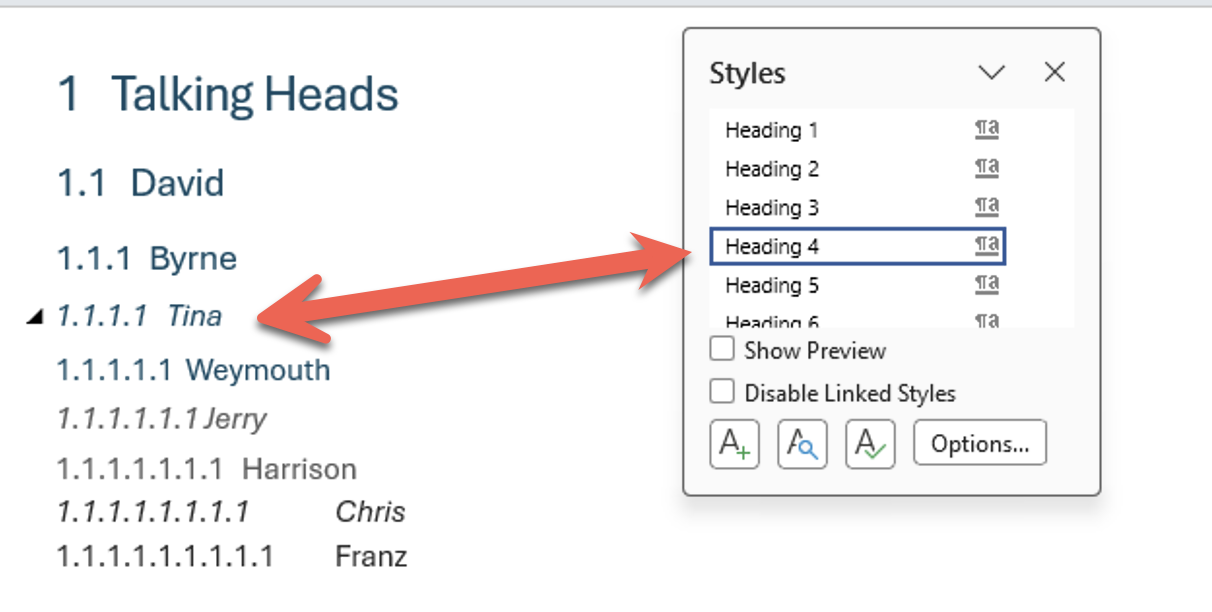
Each numbering scheme has a Heading style linked to it, you can see that by selecting a numbered line and seeing the Style attached to it. Use either the Style Gallery on the Home tab or the floating Style pane.
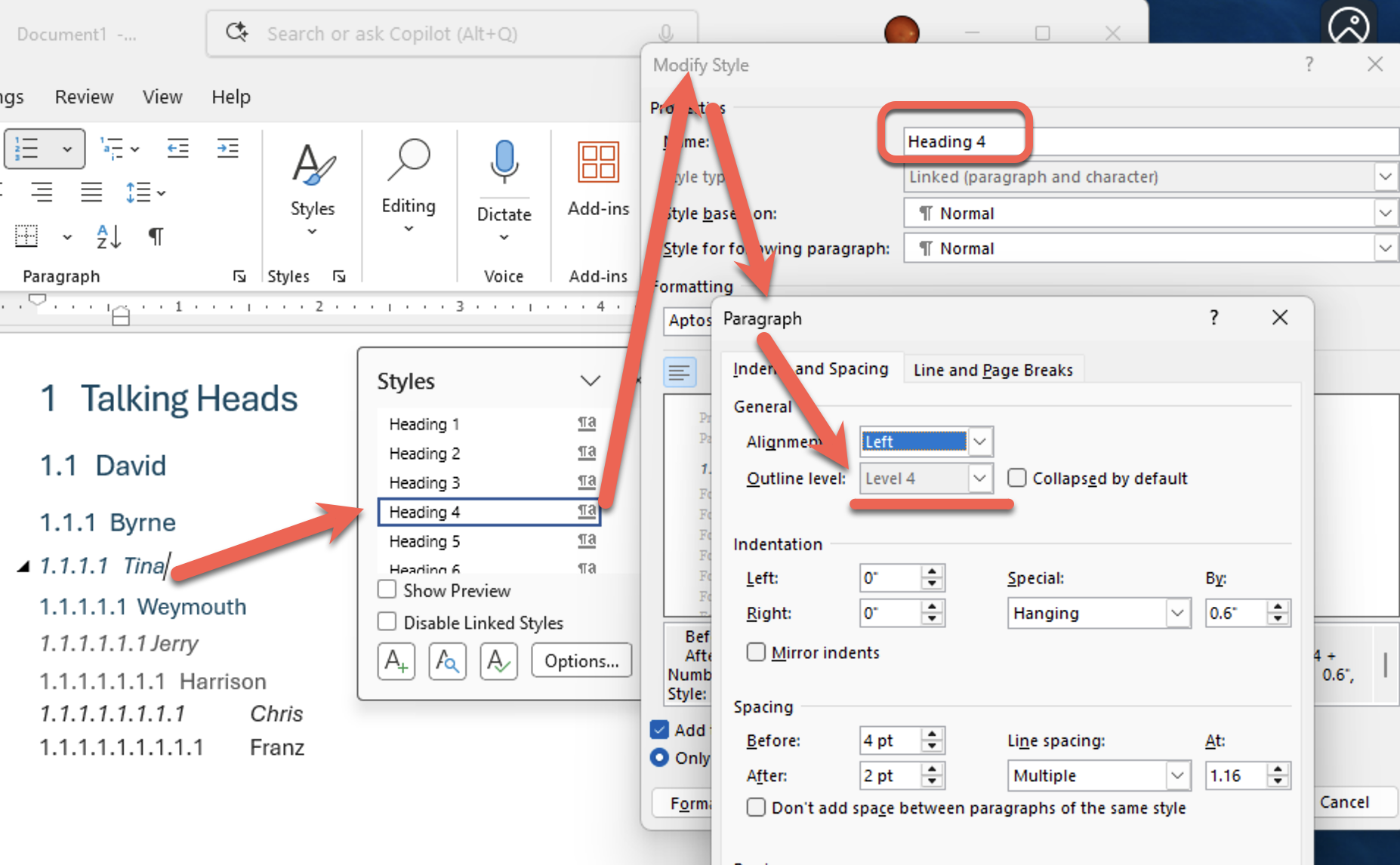
In each Heading Style has an Outline Level that you can see in the Style settings under Paragraph | Indents and Spacing.
What “Linking” Means
When you link a list level to a Heading style, you are telling Word:
- Whenever this Heading style is applied, use this list level’s numbering
Usually, but not necessarily:
- Level 1 of the list connects to Heading 1
- Level 2 connects to Heading 2
- Level 3 connects to Heading 3, and so on
Setting a list level automatically shows “1.” or “Chapter 1” or whatever format you defined.
A Heading 2 underneath it becomes say “1.1” or “Chapter 2” and the numbers update automatically throughout the whole document.
How to Set Up the Link
This is where Word makes things unnecessarily difficult. The option is buried:
- Click into any paragraph (it does not need to be a heading)
- Go to Home tab and click the Multilevel List button (the icon with three indented lines and numbers)
- Click Define New Multilevel List at the bottom of the gallery
- In the dialog box, click More in the bottom left corner to expand it (if you do not do this, you will miss the critical option)
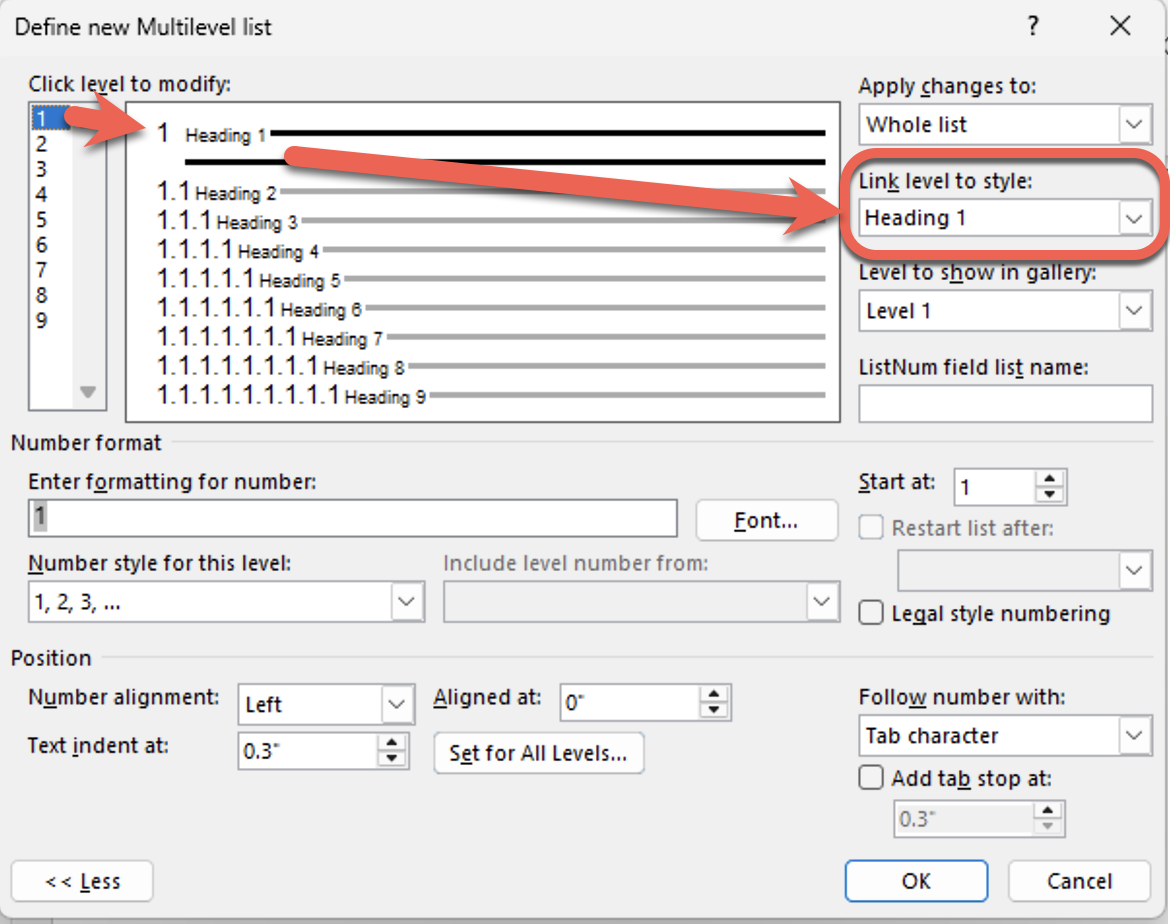
- Select Level 1 in the left panel
- Find the “Link level to style” dropdown on the right and choose Heading 1 or whatever style you want/
- Repeat for each level: Level 2 links to Heading 2, Level 3 to Heading 3, etc.
- Also set the “Level to show in gallery” to Level 1 for the top level
In the middle preview pane, Word shows both the numbering pattern and linked Heading style.
The “More” Button Matters
The “Link level to style” dropdown only appears after you click More. Microsoft hides it in the collapsed view. This is probably why so many people end up with broken numbering: they set up a list but never actually connected it to their Heading styles.
What Goes Wrong Without the Link
If your Heading styles and multi-level list are not properly linked, you get classic Word numbering nightmares:
- Numbers restart unexpectedly in the middle of a document
- Copying content from another document breaks all the numbering
- The Navigation Pane shows headings correctly but numbering is wrong
- Numbers refuse to continue from a previous section
These problems happen because Word is treating the list numbering and the heading formatting as two separate, unrelated things.
Heading styles optional
While List Levels are usually linked to Heading styles, they don’t have to be.
You could create your own styles and link those to the list levels. Usually those custom styles would have Outline Levels setup.
If these custom styles don’t have Outline Levels, they won’t appear in the Navigation Pane.
The “List Number” Style Trap
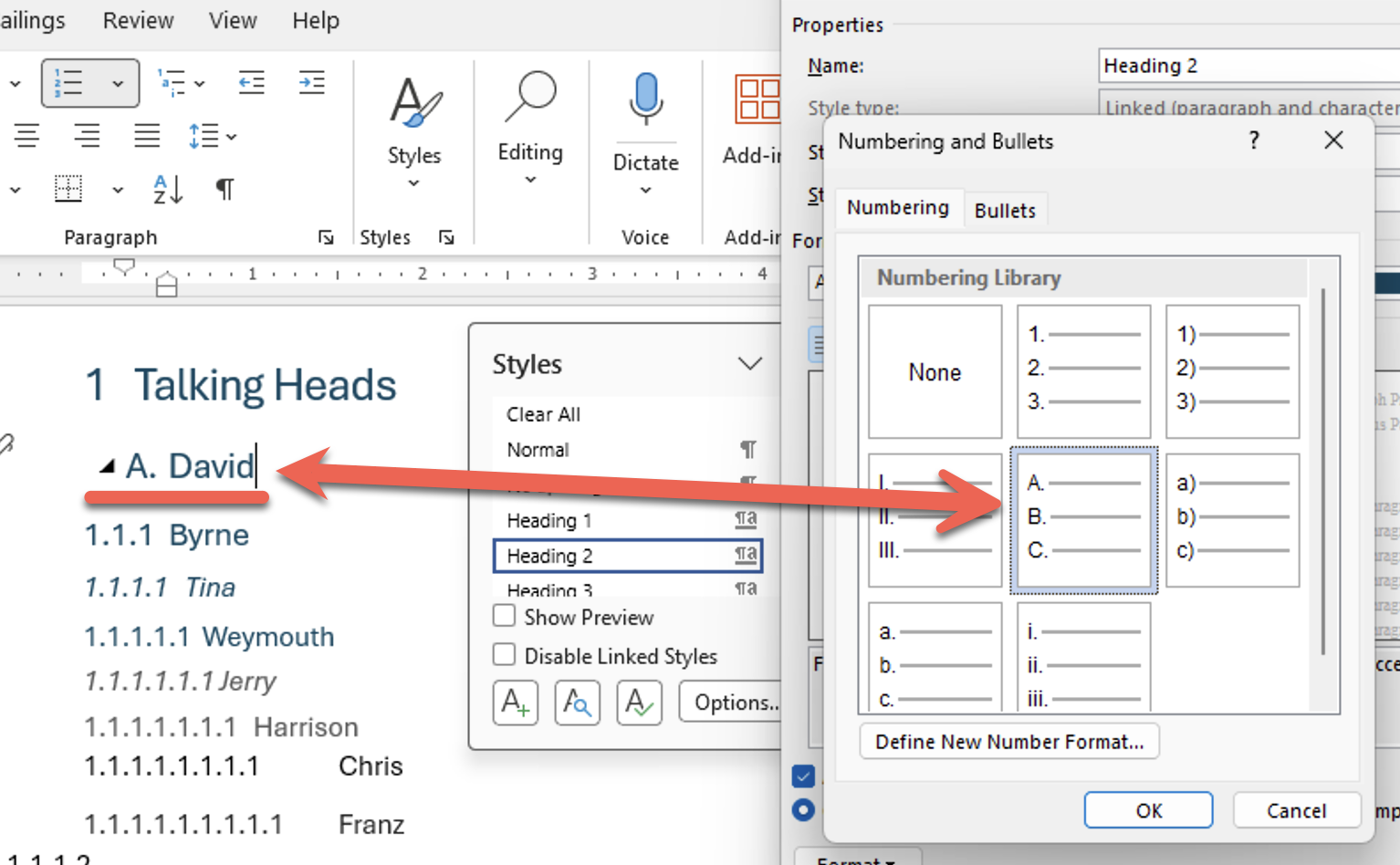
In short: Make sure the linked styles in multi-level list do NOT have their own numbering!
Word Styles have their own numbering settings under Modify Style | Format | Numbering. This is a different thing to Multi-Level lists.
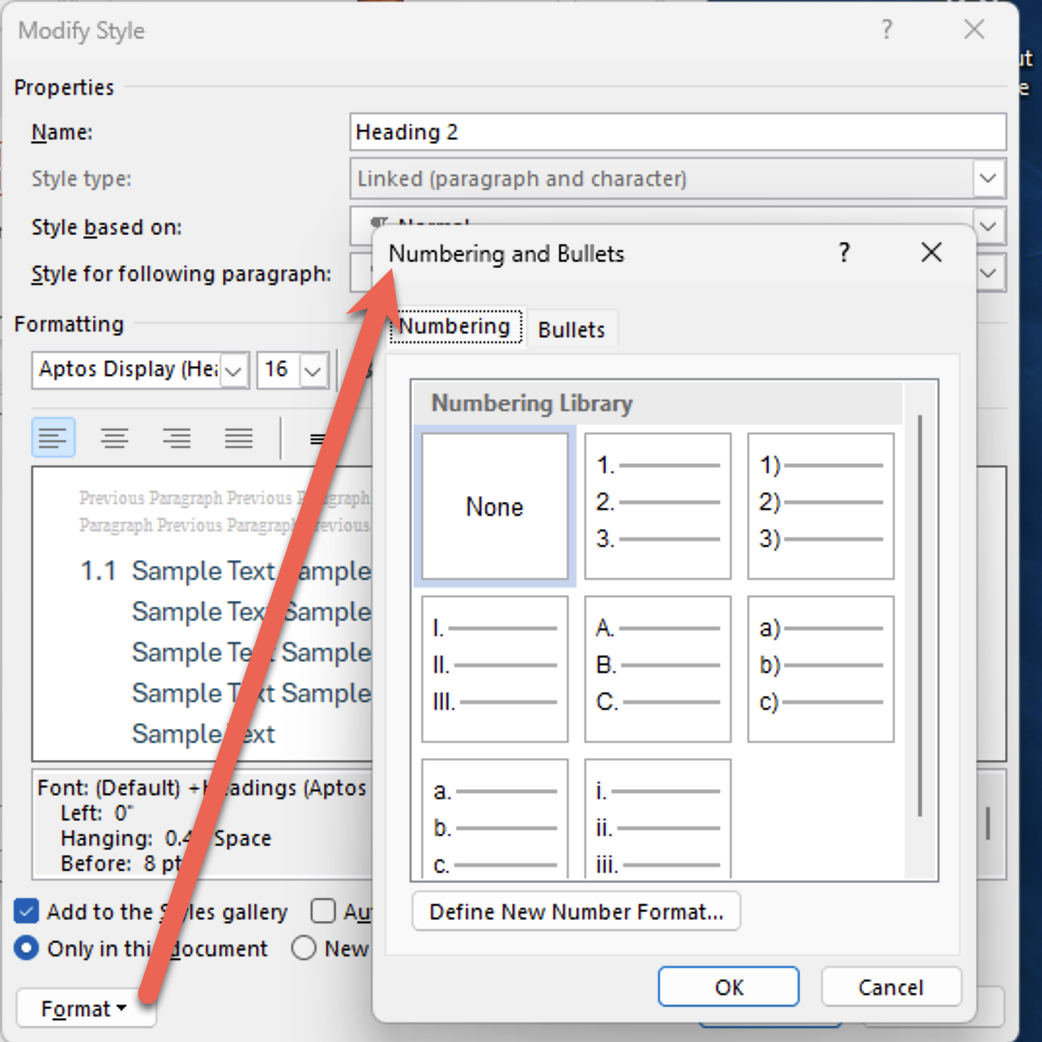
Some users accidentally apply the built-in List Number style instead of linking their Heading styles to a multi-level list. This gives you sequential numbering, but it is completely disconnected from your document hierarchy. Your headings will not be numbered, and features like the Table of Contents and Navigation Pane will not reflect any numbering at all.
If you do setup numbering in a style used in a multi-level list, the style numbering will override the list level formatting. In this example the 1.1. multi-level setting is replaced with the A. style numbering.
Multilevel Numbering: A Step-by-Step Guide in Word
Troubleshooting Multi-level list problems in Word
Troubleshooting Word List Problems: Simplified Tips
Word multi-level lists, new list, reset numbering and more
Faster Numbered and Multi-Level Level changes
Hidden Numbering options in Word
Seven different numbering options in Word
How to Easily Create Numbered or Bullet list in Word without indents
Why Microsoft Word Headings Often Don’t Work the Way You Think