Copilot Can Now Edit Your Word Documents Directly on iPhone
Copilot can now make direct edits to your documents in the Word for iPhone/iOS appwithout you ever leaving the app. No more copying text back and forth between Word and a separate AI chat window. Open a document in Word for iPhone, tap the Copilot icon, type what you want done, and Copilot rewrites, restructures, or expands your content right there on the page. There are real limits to know about, and you will need a Microsoft 365 Copilot license to use this logical extension of what’s already available in Word 365 for Windows and Mac.
Microsoft has quietly rolled out another upgrade for Word on iPhone: Copilot can now work as a co-creator directly inside your Word document on iOS, letting you create, refine, and format content in place without switching between apps.
Copilot is actually reaching into your document and making changes, not just suggesting text you copy and paste.
This is the same as the “Allow editing” or “Edit with Copilot” option in Word 365 for Windows/Mac with Copilot. Now it’s the default for Copilot inside Word.
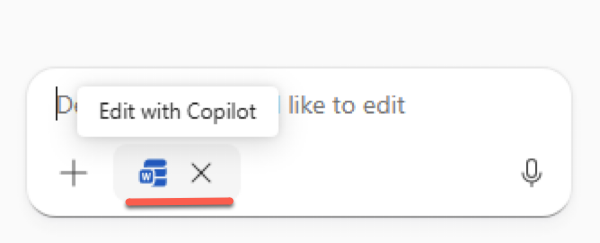
The feature was originally called “Vibe Coding” or “Taste-Driven Development” then the “Word Agent” option.
What It Does
Ask Copilot to change a document and it’ll do that, instead of making suggestions in a sidebar. Here’s a short but unusually informative Microsoft video.
Copilot uses Word’s built-in styles when it edits, so your document stays structured and consistent. You stay in Word the entire time, no jumping over to the Copilot app and back again.
You can point Copilot at other files and emails as sources. Type / followed by the name of a document, email, or meeting, and Copilot can pull from that content when making edits. So if you want to update a table using numbers from last month’s sales email, you can ask Copilot to do exactly that.
How to Get Started
Open Word on your iPhone, sign in with your Copilot-enabled account, then open or create a document and tap Edit document. Tap the Copilot icon to open chat, and type your request.
If the edit icon isn’t showing up in the chat window, check that you are actually in Edit view — look for the Edit icon in the top bar of the document.
In the Copilot window, look for the pen icon with X, that indicates that Copilot will directly edit the document. Tap the close X to revert to non-editing Copilot.
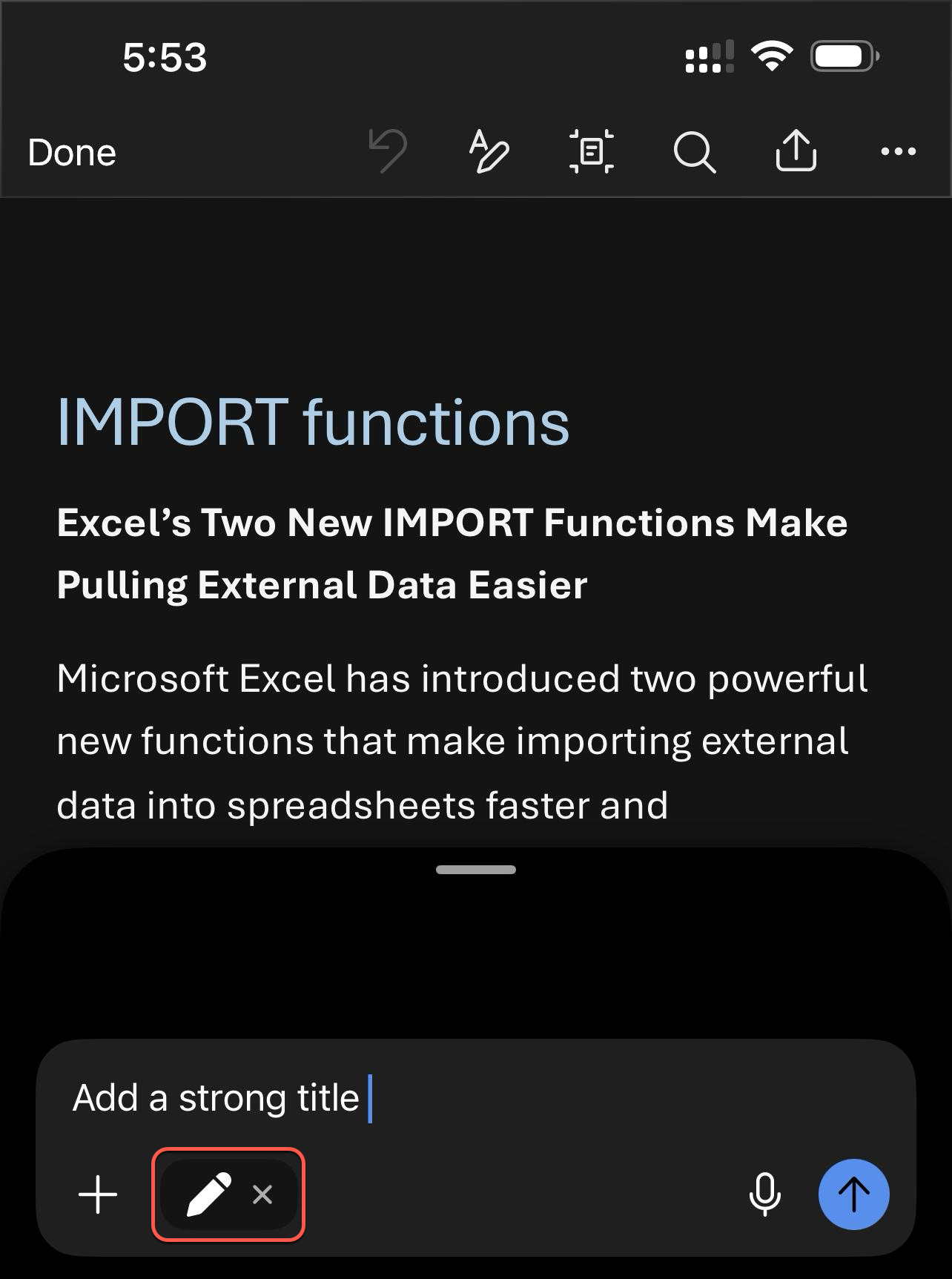
We could not find any way to turn Copilot editing back on. Only closing the document and reopening it would restore Copilot “Allow Editing”. Go figure.
What It Cannot Do (Yet)
As usual there’s some gaps you should know about upfront:
- Copilot cannot generate or insert images. To generate an image, you have to turn off the edit function first by tapping the Word icon in the chat field, then prompt as normal.
- Copilot cannot add or modify comments, and if it edits a paragraph that has a comment attached, that comment may be deleted.
- Copilot cannot turn Track Changes on or off, or accept and reject tracked changes, though it will respect Track Changes if it’s already enabled.
- Copilot can only work within the currently open document. It cannot create new files. But you can open a blank document and ask Copilot to write into it.
The Key Warning: It Makes Real Changes
Copilot makes direct changes to your Word documents, so be careful when working with sensitive or shared files. If something goes wrong, you can undo changes or use version history to roll back.
There is one safeguard worth knowing: when you are working in a shared document, Copilot always shows a preview of its suggested changes in chat first, and you must confirm before they are applied. That prevents an AI edit from accidentally going out to collaborators before you’ve reviewed it.
Who Gets it?
According to Microsoft, the feature is available to all Word for iOS users with a Microsoft 365 Copilot license. However the announcement was made under the “Insiders” test banner so it might only be available to people who have joined “Insiders”. Make sure your Word app is up to date.
Insiders only or now, you need the paid Copilot add-on or a Microsoft 365 plan with a Copilot component. Owners of Microsoft 365 Personal or Family plans with AI credits or the owner of a Premium plan.
Word Agent: Microsoft Word Editor Makes Editing Effortless
Copilot Chat in Word, Excel and PowerPoint: A Practical Guide for Microsoft 365 Users
Word Voice Notes on iPhone Is Worth a Look
Microsoft 365 Copilot Explained: Features, Limitations and Your Choices
Copilot On or Off in Microsoft 365: Complete Guide
Agent vs Agents vs Actions: Understanding Microsoft Copilot’s Confusing AI Names
What’s the Difference? Microsoft 365 Copilot App or the Copilot App
What You’ll Need to Use Copilot with Microsoft Office
Dealing with the Annoying Copilot Icon in Word 365
Microsoft 365 Adds Vibe Working Copilot Agent for Word, Excel and Office