Quick Parts in New Outlook: Reuse Email Text in Two Clicks
Quick Parts in New Outlook for Windows and web lets you save reusable chunks of text, complete with formatting, images and tables, then drop them into any email in two clicks. Standard replies, disclaimers, directions to your office or a greeting you type fifty times a week: save it once and reuse it forever. Best of all, it works for every mailbox, not just Microsoft hosted ones. Here’s how to make, insert and edit Quick Parts, plus the gaps Microsoft still needs to fix.
Quick Parts store reusable text blocks like signatures, greetings, and standard paragraphs while keeping formatting. Standard replies, disclaimers, directions to your office, an FAQ answer, a greeting you type fifty times a week: save it once, reuse it forever. That makes it a lot more practical and useful than the plain text “My Template” feature.
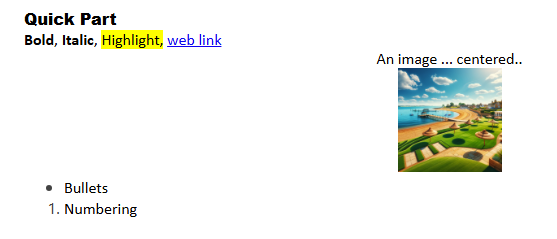
Classic Outlook also has a feature called “Quick Parts” but it’s VERY different. “Classic” Quick Parts is the Word feature grafted into Outlook.
Requirements for Quick Parts
Quick Parts is available for all Outlook (new) for Windows users across all mailboxes. Also Outlook on the web for Microsoft hosted mailboxes.
That’s a pleasant surprise. Too many new Outlook features have ‘fine print’ limitations such as only Microsoft hosted mailboxes or a Microsoft 365 plan requirement. See What’s going on with reusable content features in Outlook?
Quick Parts hasn’t appeared in Outlook for Mac or mobile devices … not yet anyway … paying customers can only hope.
One catch worth knowing if you juggle mailboxes: entries are mailbox specific. You can’t share a Quick Part across multiple accounts.
And a small relief for power users: there appears to be no limit to how many Quick Parts you can create. However, the feature becomes unwieldy when there are too many Parts available.
How Quick Parts work
Make a Quick Part:
- Open a new message and type the text or other content that you want to save.
- Select the content.
- Go to the Insert tab, click Quick Parts, then choose Save. Or right-click and choose Save Selection to Quick Parts.
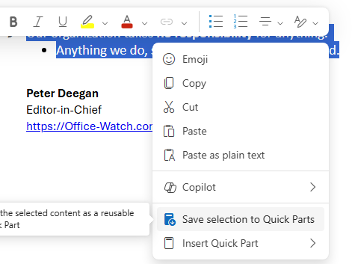
- Name it and save.
Insert a Quick Part:
- Click in the message body where the text should go.
- Go to Insert, click Quick Parts, and pick your entry. Or right-click in the message and choose Insert Quick Part.
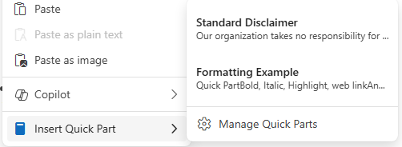
Edit a Quick Part
Changing the content of a Quick Part is possible but hardly obvious.
At Settings | Mail | Quick Parts there is a list. Click the Edit icon to change the label only, not the content.
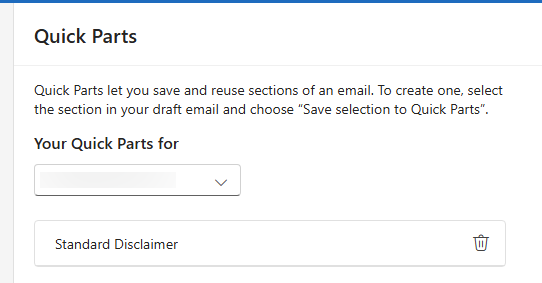
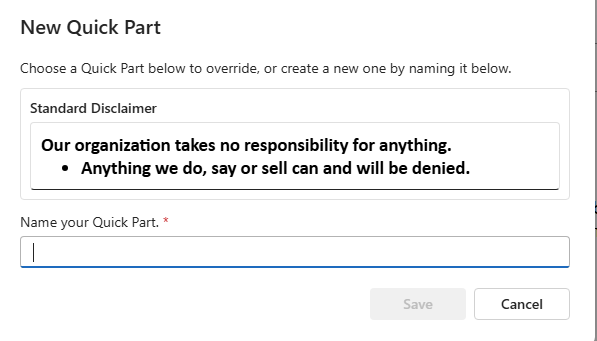
To change the text or other content, open up a new message, select the new content then, Save Selection to Quick Parts.
To overwrite an existing Quick Part, select its name. To create a new one, type a new label.
What is still missing
Quick Parts is OK but needs a lot more work to be truly useful for individuals and especially organizations.
- Cope with many Quick Parts. When there’s more than a handful of Parts, the current menu system is difficult to manage. The Quick Parts list needs a fast search option to find one Part from a long list. The Part previews should be optional, leaving only the Part name/label visible, allowing more Parts to appear on the screen. Part grouping would be nice, however a search function might make that less necessary.
- Shared Parts. Many organizations could make good use of Quick Parts if Microsoft supported many more Parts and there was a way to share them across mailboxes.
- No calendar support. At this time, Quick Parts is unsupported in New Outlook calendar.
- No migration from Classic Outlook. Classic Quick Parts will not appear in New Outlook. New Outlook Quick Parts will not appear in Classic. If you are moving over from Classic, you must rebuild every snippet by hand. The easiest way to do that is by making a draft email with the classic Quick Parts. Then open the same mailbox in new Outlook and look in the Draft folder to open the same email.
What’s going on with reusable content features in Outlook?
Save Reusable Email Snippets in Outlook: 5 Real Workarounds
Why Outlook’s Two Email Template Tools Are Almost Useless
New Outlook’s 5 “Productivity” Features: What Microsoft Isn’t Telling You
New Outlook Is Slow and a Memory Hog: More Reasons to Avoid It