Outlook Reusable Content: Templates and Quick Parts Explained (and Why It’s a Mess)
Reusable content in Outlook should be simple, but Microsoft has turned it into a confusing tangle of overlapping tools with near identical names. Mail Templates, My Templates and two completely different features both called Quick Parts all promise to save you retyping the same email text, yet each one works differently depending on whether you use Classic Outlook, New Outlook, the web or Mac. Office Watch ran tests across many machines to cut through the mess, so here is exactly what each feature does, what to use and what to avoid.
It’s a horrible mess of incomplete features and incredibly poor naming. Office Watch has dug into the details and run tests on many machines to try making sense of Microsoft’s mess.
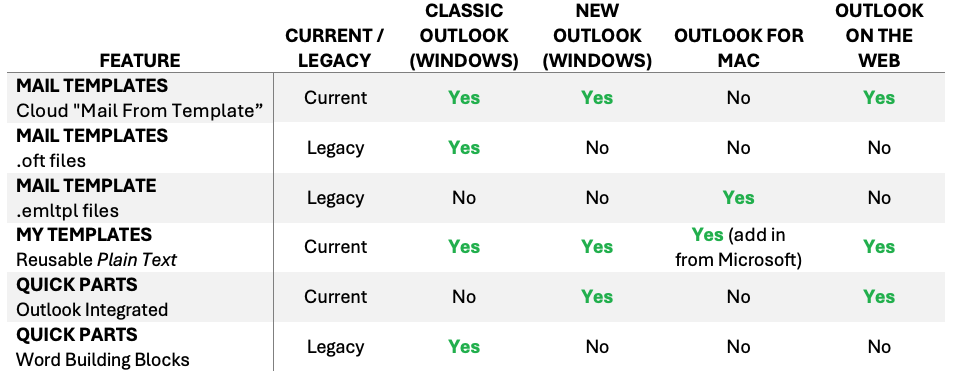
- Mail Templates are whole reusable emails, the body and subject. The same name is used for quite different implementations in various Outlooks. “Mail from template” / “Email From Template” feature.
- My Templates is the little add-in that drops a block of reusable but plain text into the body of a message. It’s the only reusable content feature supported across all the desktop Outlooks but is plain text only, making it of limited practical use.
- Quick Parts is the same name for two different features.
Outlook Mobile is a dead zone. In the iOS and Android Outlook apps you are stuck pasting text manually or using a third party tool. Not even Quick Parts is supported.
Current vs Legacy features
In our table we’ve labeled each Outlook feature as either Current or Legacy. This is our judgment since Microsoft hasn’t made that distinction for their paying customers.
Some parts of Outlook are what techies call “Legacy Features” meaning they are old features which are still in the software but superseded by newer features. The old style email templates (as separate files) are clearly being replaced with a cloud based system. Classic Outlook’s Quick Parts is really a Word feature grafted on and that’s not possible (or desirable) in modern Outlook.
If you’re looking for an ongoing and supported solution, avoid Legacy features.
What to choose?
It’s hard for Microsoft’s customers to choose from this mashup of options for reusable email content. We generally recommend:
Mail Templates (cloud “Mail from Template”) – for complete emails with body, subject and settings. The older .oft and .emltpl options are on the way out.
Quick Parts (Outlook Integrated) – insert blocks of plain or formatted content into emails. Alas not supported on Outlook Classic or Mac.
My Templates – avoid. While it has the widest compatibility, the plain text limitation makes it almost useless for anything except the most humble needs.
Keep in mind
Mail Templates split into many systems. Classic Outlook for Windows still uses the old local .oft files but those files can be imported into the newer cloud based “Mail from template” feature that works in New Outlook and on the web. The cloud templates are shared between new and classic Outlook, but in new Outlook they only work with Microsoft 365 mailboxes.
Mac does its own thing. Outlook for Mac has built in template controls (File | Save As Template, then File | New | Email From Template), saving files that end in .emltpl. It is a separate system from the Windows .oft files. There’s no import option to put .emltpl files into the newer Mail from Template feature.
Quick Parts x 2. Both Classic and New Outlook for Windows have a feature called “Quick Parts” but the two are very different. Your classic Quick Parts live in a local NormalEmail.dotm and is part of the Word feature of the same name. New Outlook and on the web store them in the cloud as part of the mailbox so the newer Quick Parts follow you across devices, which the local Classic feature never did.
What should Microsoft do?
Quick Parts, the newer version, is the best of the current mix of reusable content features. It could do with some improvements, most importantly support in Outlook for Mac.
If Microsoft added Quick Parts to their macOS Outlook there would, at long last, be one ‘template’ like rich-text feature that works across all their current Outlook desktop apps.
My Templates – If the company must persist with this feature, at the very least allow basic text formatting (bold, italics and especially web links). Though really My Templates should be dumped in favor of Quick Parts, which are more powerful and practical.
Mail from Template is good for complete emails and is saved in the cloud. But again, it is notably missing from Outlook for Mac.
Quick Parts in New Outlook: Reuse Email Text in Two Clicks
Why Outlook’s Two Email Template Tools Are Almost Useless
Save Reusable Email Snippets in Outlook: 5 Real Workarounds
New Outlook’s 5 “Productivity” Features: What Microsoft Isn’t Telling You
New Outlook Is Slow and a Memory Hog: More Reasons to Avoid It
Microsoft Kills Office 2019 for Mac: Apps Stop Working July 13, 2026