Don’t be a Fauci – how to keep a private diary, private
If you keep a digital diary or any kind of personal notes, recent headlines are a reminder that where you save it, and whether it is password protected, really matters. An unprotected diary saved in the wrong place can be read, copied, or leaked without your knowledge. Here is how to keep your private notes actually private, using tools already built into Word and OneNote.
The events of the last few weeks have shown the dangers of writing a digital diary. Saving it in the wrong place or without a password leaves it open for others to read and misinterpret.
On the other hand, an online diary is a lot more convenient. You can open it wherever you are and jot down some notes.”
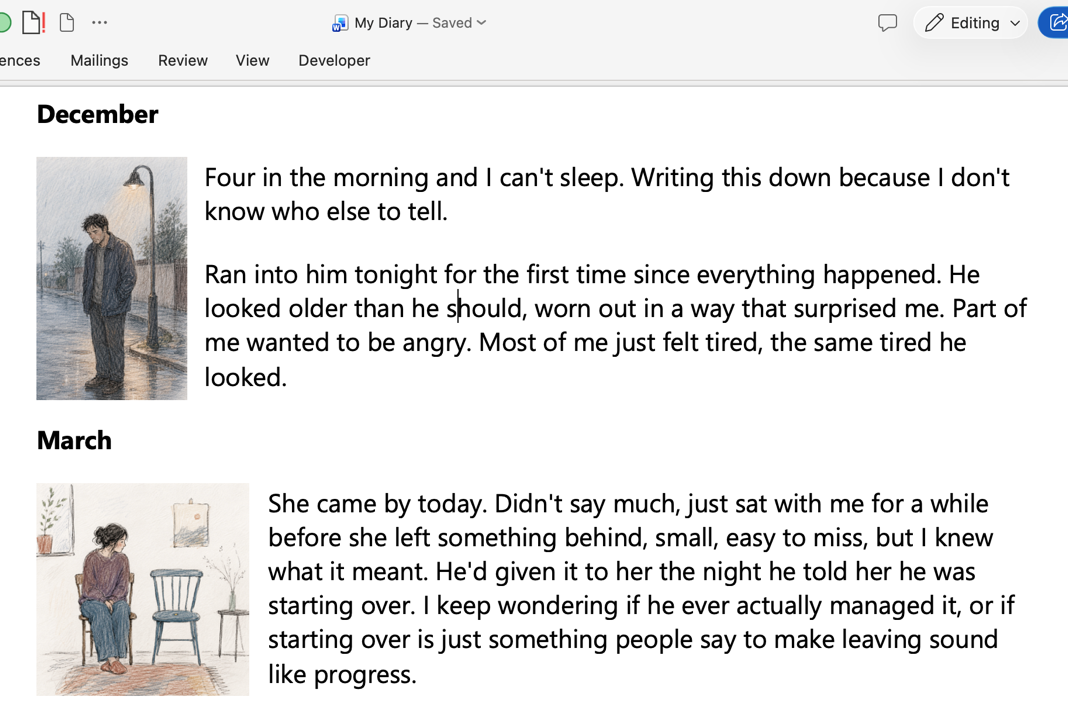
An online diary can save more than writing. Add photos, drawings, audio or video into the document.
Here’s how to keep a secure but accessible private diary or any other kind of personal or confidential info.
Where to save your diary
Save your digital diary on a computer or online service that you, and you alone, control. That means either a single computer or on a cloud service (like OneDrive).
Saving on a single computer is very safe but also inconvenient. A document on a cloud service can be available on many devices, which means you can write in your diary from a smartphone or laptop wherever you are.
Don’t save it on a company or organization’s servers.
For heaven’s sake, do NOT save your diary on a service run by the government, any government.
Password protect your diary
Add a password to your diary so only you can read it.
Both of our diary suggestions have password protection with good encryption.
Word documents and OneNote sections with a password have AES-128 level encryption. It’s not just the entry password, but proper encryption of the content.
While AES-128 isn’t technically the most secure option available, with a good, strong password, it’s more than enough to keep your diary away from prying eyes.
Opening an encrypted diary
Password protected OneNote sections can be opened by any OneNote app, including the online (in a browser) version.
Word documents with a password can be opened in any Word app (Windows, Mac, iOS or Android) but not Word in a browser.
Word document as a diary
Make a Word document, then add a password. In Word for Windows go to File | Info | Protect Document | Encrypt with Password.
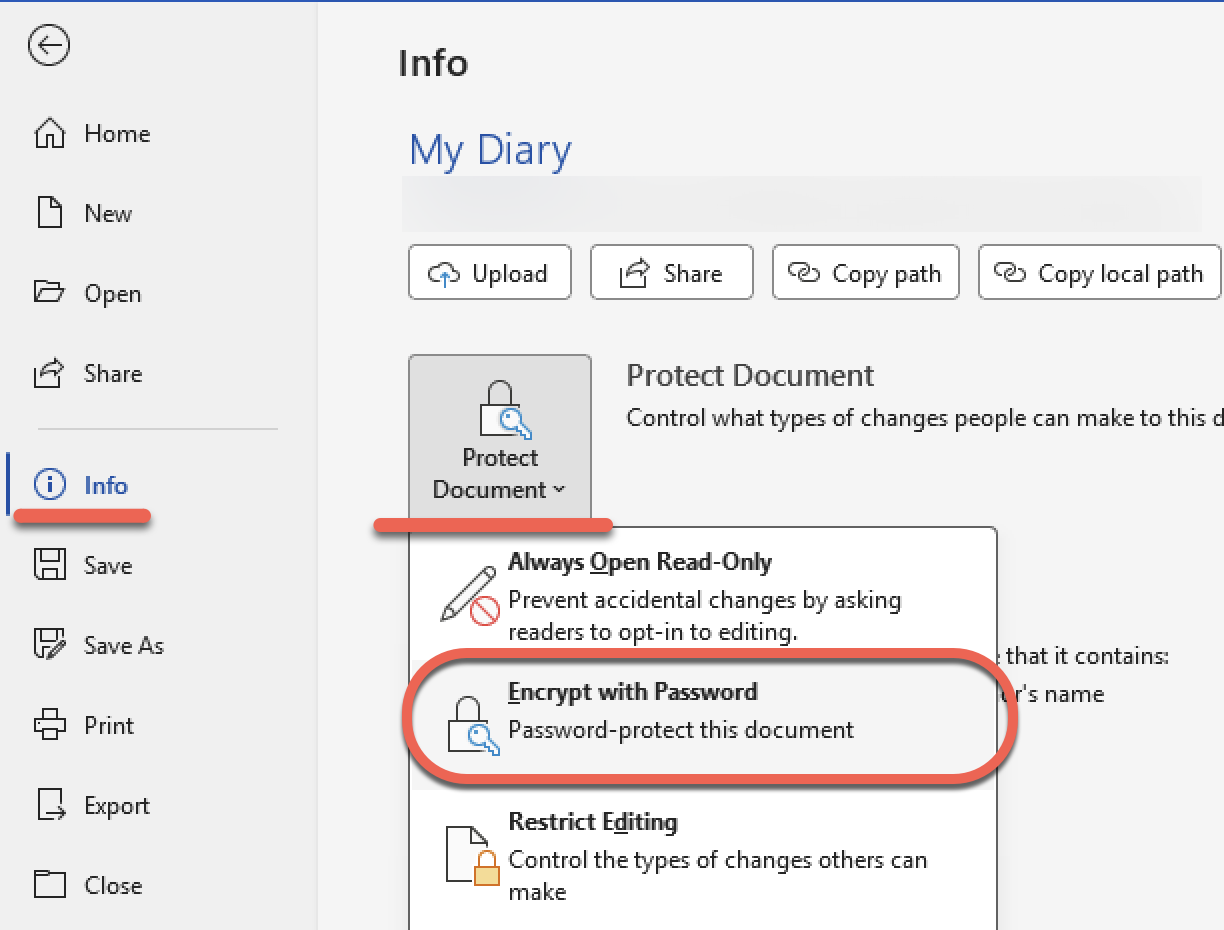
In Word for Mac, go to Tools | Protect Document.
OneNote notebook with password
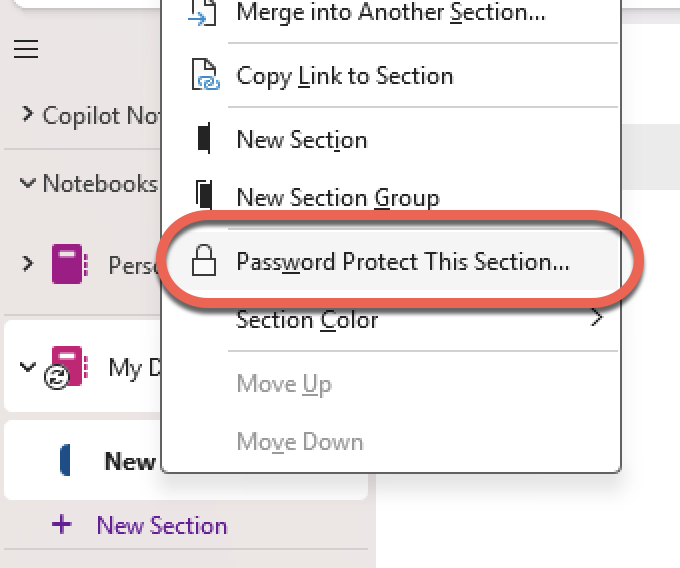
The other diary option is in OneNote. Any section within a Notebook can be secured with a password. Right-click on a section and choose “Password Protect this section”.
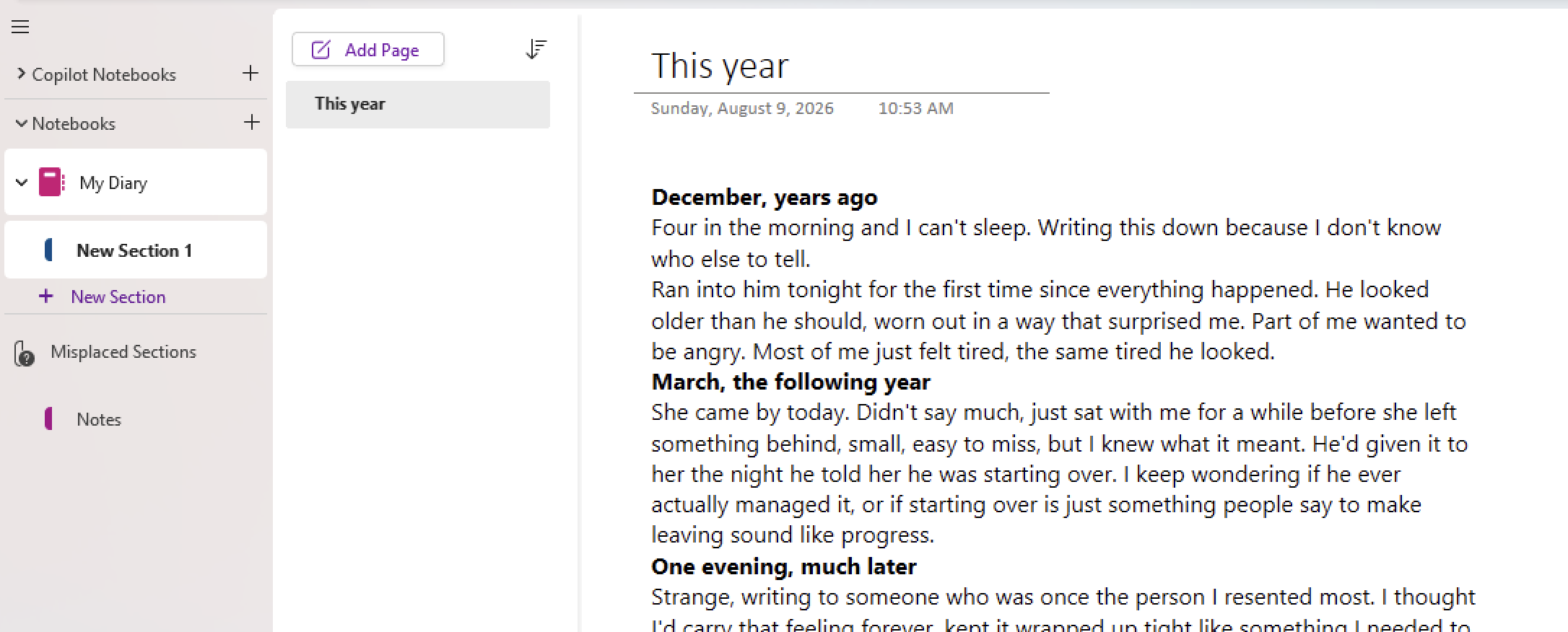
Just like a Word document, a OneNote page can contain images, links and other files. It’s the modern version of the commonplace book.
Three ways to stop people changing your Word document
Safely storing passwords in Word or Excel
OneNote as a Digital Commonplace Book: A Simple Way to Save Ideas
Saving OneNote notebooks be saved locally and not in the cloud