Copilot on the Quick Access Toolbar: The Hidden Trick That Works (Sort Of)
Tired of the Copilot button floating over your document? There is a way to park it on the Quick Access Toolbar in Microsoft 365 Word, Excel and PowerPoint for Windows, but Microsoft has buried the option and what you get is not quite a Copilot button at all. Here is exactly how to do it, what the button really does when you click it, and why Mac users are out of luck.
The current way Copilot appears is via the DAB or Dynamic Action Button, which is not part of the regular ribbon and Quick Access Toolbar setup. You won’t find Copilot in the list of buttons available in the long list of commands under Customize the Ribbon or Customize Quick Access Toolbar.
Copilot Dynamic Action Button
In Microsoft 365 apps, Copilot first appears as a floating button in the document, sheet or slide. Right-click on that to “Move to Top” which moves the button to the top-right of the Home tab.
Moving Copilot to Quick Access Toolbar
This only works in Microsoft 365 apps for Windows.
Right-click on the Home | Copilot button and choose “Add Group to Quick Access Toolbar”. Note the word “Group”.
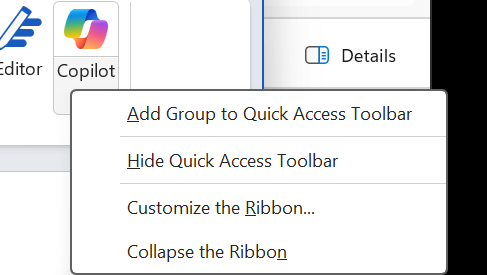
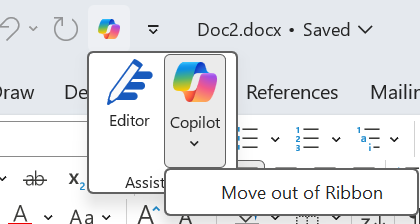
The Copilot button appears on the QAT but it’s not what you might expect.

It’s not really a Copilot button, despite the icon. It’s really a menu for both elements of the Home | Assistance group, as you can see when the Copilot QAT button is pressed.
Mac desktop Microsoft 365 apps
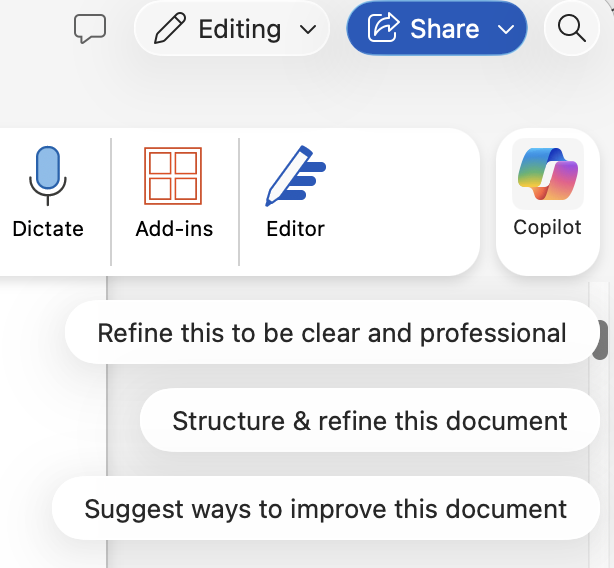
In the Mac desktop apps, the Home tab is as far as you can go. There’s no way to get Copilot onto the Quick Access Toolbar because the button exists in its own little world, separate from the Home ribbon.
Microsoft’s Copilot ‘Move to Ribbon’ Arrives, But Not as Promised
Microsoft buries the Copilot button and floats a nag in its place
How to make the Microsoft Office Ribbon Work the Way You Do
Putting a Command on the Quick Access Toolbar
Quick Access Toolbar nasty surprises in the new look Office
Changing text and icons on Office Quick Access Toolbar
Make a custom Quick Access Toolbar for special documents in Word
Make and customize your own tab on Office Ribbon