PowerPoint AI Images Tested: Which Copilot Model Actually Works
PowerPoint 365 has the best AI image making anywhere in Microsoft 365, with GPT and Flux models you would normally pay extra to use directly. We ran the same prompt through every model to see which ones deliver and which ones just throw errors. Here is what each model is actually good for and why you should make your images in PowerPoint even when the picture is headed for a Word document, an email or a chat message.
Once you’ve made an image in PowerPoint 365 with its better options, copy it to wherever you really want to use it: a document, sheet, email or instant message.
That’s why we’ve decided to go in-depth with image making in PowerPoint.
PowerPoint 365 has the most powerful image making available with Copilot. There are model options not available in other Microsoft products like Word, Outlook or even Designer.
You can choose GPT and Flux models that you’d normally pay extra to use directly from the makers. Instead, it comes as part of the Copilot fee.
Who get image model selection in PowerPoint?
You need a commercial Microsoft 365 Copilot subscription for model selection in PowerPoint.
Copilot in Microsoft 365 consumer plans don’t get this advantage. However you can make images in any AI service then paste them into PowerPoint.
The downsides of model selection
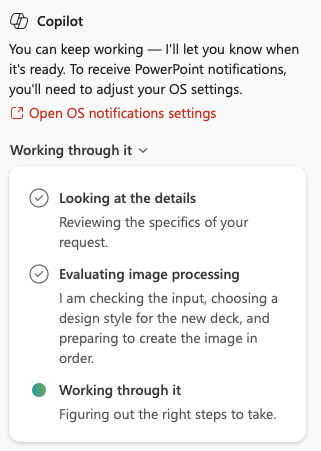
We had a lot of trouble getting any image at all from the MAI models and it took many attempts to get anything from Flux. Errors included Please try again later and The image creation service isn’t responding right now. Both attempts came back with an error on their end.“. That’s presumably because of resource limitations on Microsoft’s servers, though it was surprising with the company’s own, supposedly more efficient, MAI model.
You can get better results using the same or similar AI model but directly from the source rather than via Microsoft’s Copilot. Below you’ll see the big difference between the GPT option inside Copilot and an image made by ChatGPT directly.
Copilot’s model choices change often so the exact models available are likely to be different when you look.
Image Generation model choices
To make or edit images, Copilot has a separate selection of models including two that are a little less expected.
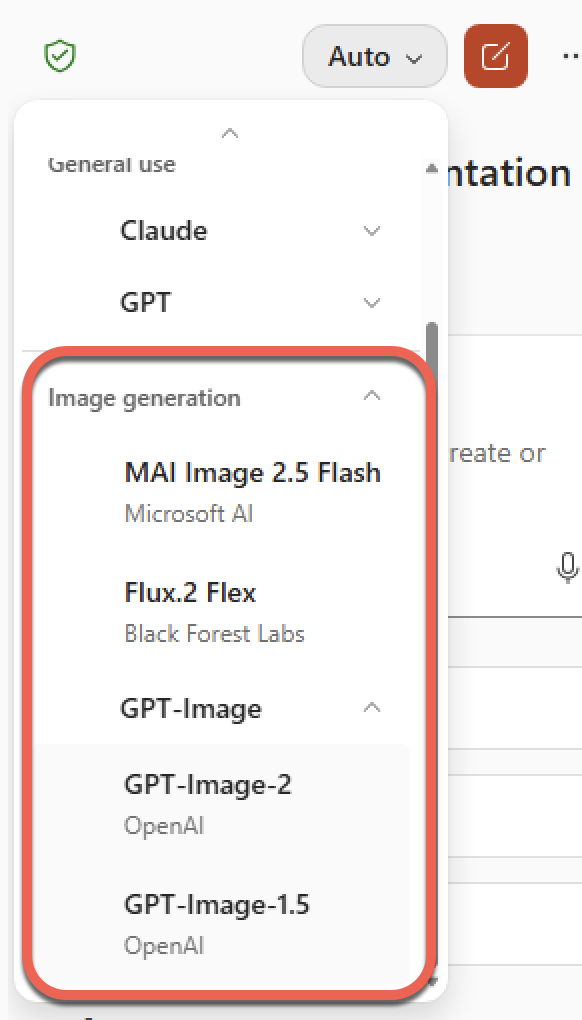
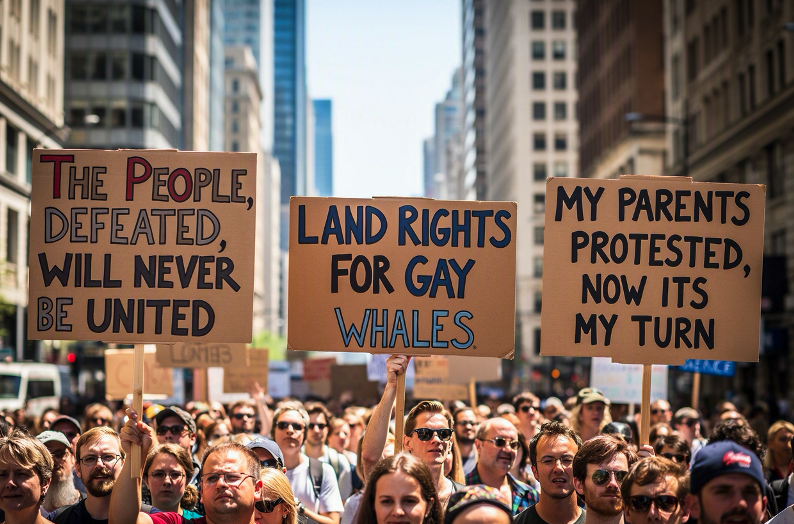
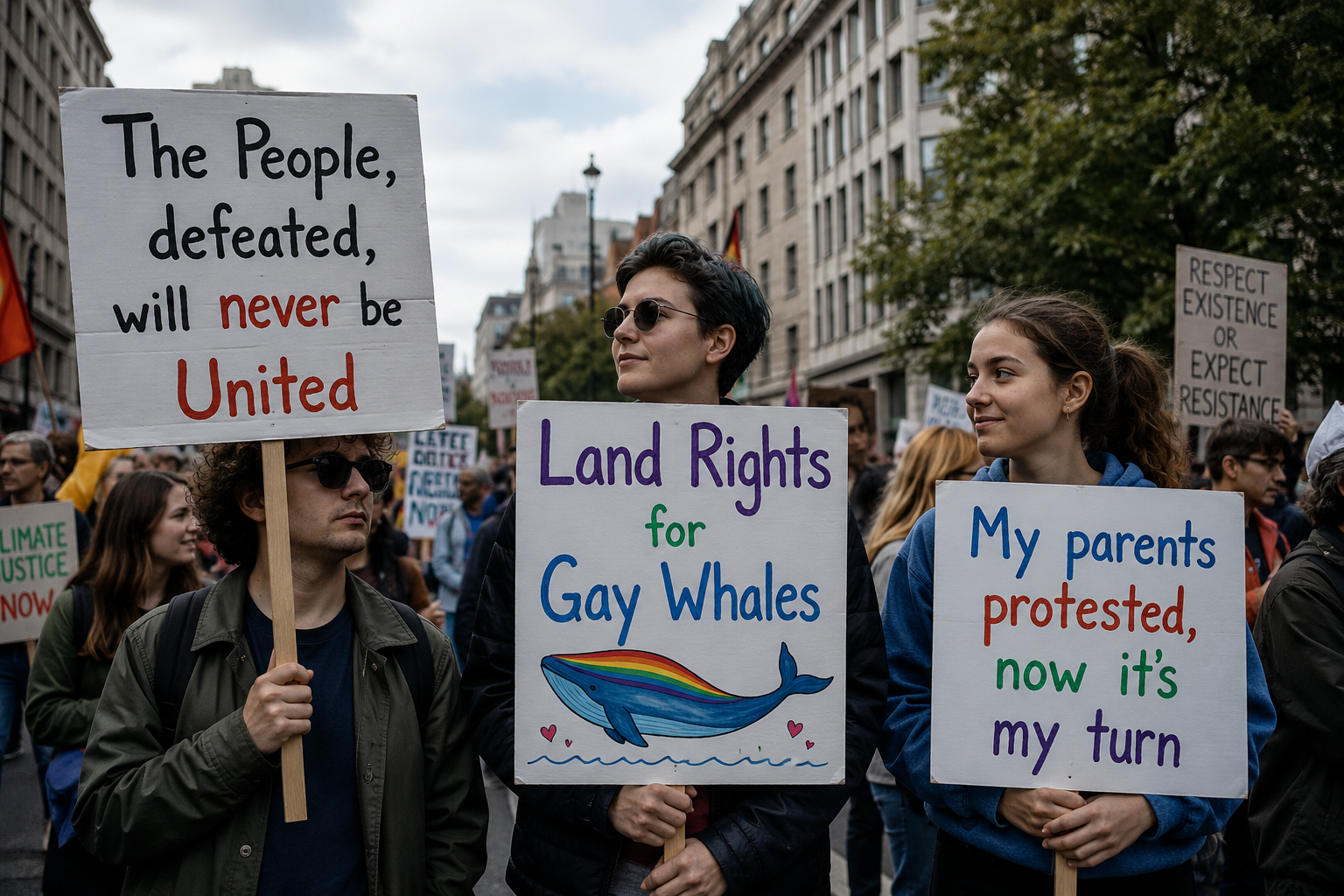
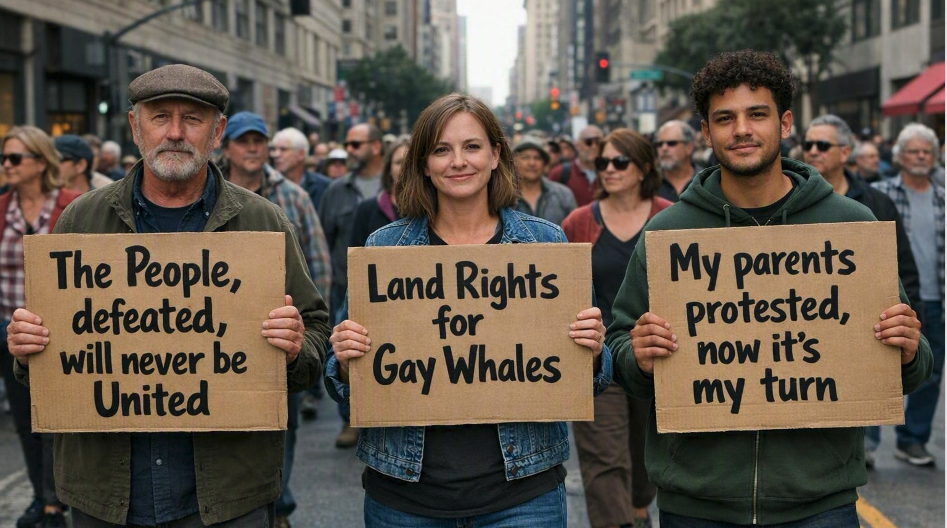
To test each model, we used this fun little prompt which tests text rendering and spelling. It doesn’t specify a style, to see what the AI chooses itself.
A street protest scene with three signs, each showing different short phrases
“The People, defeated, will never be United “
“Land Rights for Gay Whales”
“My parents protested, now it’s my turn”
See the results below.
Creating or editing an image can take some time, but you can keep working on other things while waiting.
Quick model selection guide
- Auto for quick and simple tasks
- GPT-Image-2 for text heavy slides
- Flux.2 Flex for brand precise artwork
- GPT-Image-1.5 for fast edits
- MAI Image 2.5 Flash for the simple stuff
Auto
The Auto default is generally good at matching a model to your prompt. If you don’t want to think about any of this, leave it on Auto. However, we do have a concern that Microsoft will skew automatic selection to their own cheaper MAI models instead of the best model for the task.

MAI Image 2.5 Flash
Microsoft’s own homegrown model, under the MAI banner, built to keep your image generation inside the Microsoft ecosystem rather than the company having to spend money on OpenAI or Black Forest Labs. Microsoft claims MAI Image 2.5 cuts GPU costs by up to 84 percent versus GPT-Image-2, which tells you exactly why Microsoft wants you using it.
In practice it does a decent job on inanimate corporate objects, clean product shots and simple slide backgrounds, but it is still a work in progress. Ask it to render a complex multi layered diagram or a dense paragraph of text and it will choke and drop details. It also still occasionally gives people a terrifying eleventh finger.
What this means for you: fine for quick, simple, three word slide headings or plain backgrounds, but don’t trust it with anything intricate yet.
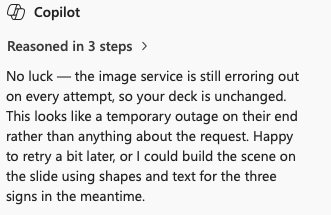
We tried and tried again. Microsoft’s own MAI model kept failing.
Flux.2 Flex
This is the control freak’s model, made by Black Forest Labs and aimed at people who treat a slide like a real graphic design job. It is the slowest of the four and unashamedly a time hog, but you pay that price for precision. The standout feature is that it accepts HEX color codes, so you can force your exact corporate branding colors instead of settling for a vague approximation of your brand blue. It also lets you adjust the actual generation steps to trade speed for surgical accuracy, and it is very strong on photo realistic images.
What this means for you: reach for this when you need a pixel perfect infographic or brand accurate artwork and you can afford to wait for it.
This cartoonish image is what Flux.2 Flex produced from the original prompt.

AI offered to “regenerate in a more photographic style” and this was the much better result.
GPT-Image-2
This is OpenAI’s newer, more capable image model and the one that behaves like a focused graphic designer. It reads prompt nuance extremely well, so you can hand it a messy rough sketch of a flow chart and get back a clean slide background. It is unashamedly built for corporate marketing banners and tidy presentation layouts rather than fine art, and crucially it can spell words correctly on the first try.
What this means for you: this is your best pick for slide titles, text overlays and multi word diagrams where the text has to be readable, and it is fast too.

Image from ChatGPT direct
For comparison, here’s the result for the same prompt from ChatGPT directly using an older GPT-4o model. As you can see, the result is significantly better than the same prompt via Copilot with GPT-Image-2 selected.
GPT-Image-1.5
This is the older, lighter OpenAI model and a solid, predictable workhorse. It is faster than GPT-Image-2 and, importantly, it understands targeted edits. Ask it to change one icon or recolor an executive’s tie and it will do just that, rather than mutating the whole image into something unrecognizable. The tradeoff is that its output can look a little too stock photography generic unless you write a detailed prompt.
What this means for you: best for simple visuals, standard slide backgrounds and quick edits to an existing image, where reliability and speed matter more than flair.
Copilot’s workaround
After repeated errors, Copilot offered to make a version of the prompt from the shapes and text features in PowerPoint. It seems image making errors are common enough that Microsoft added in this lame workaround.
“I could mock the scene up directly on the slide using shapes and text for the three signs as a stand-in.”
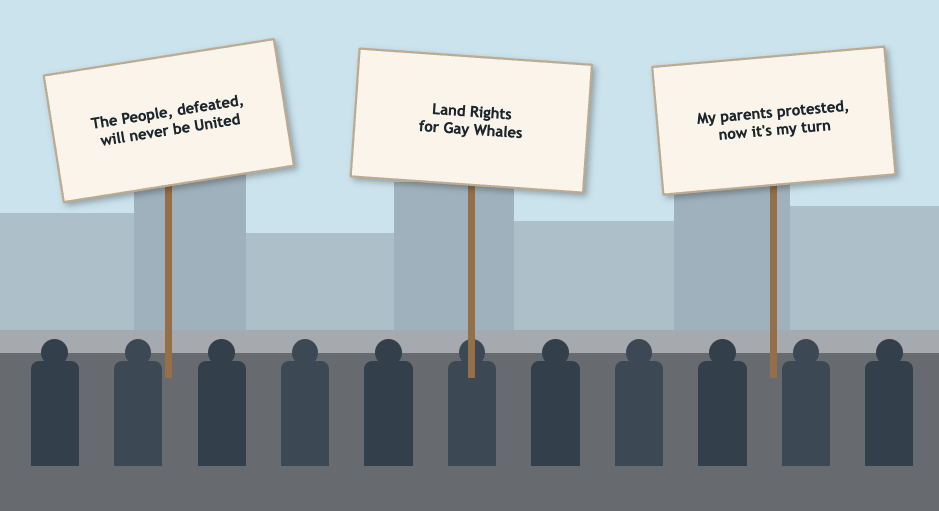
“The image generator was still erroring out, so I built the scene directly on your last slide instead — a city street rally with a marching crowd and three raised placards carrying your exact phrases.”
Dig Deeper: AI Models, Credits and Image Generation
The model picker in PowerPoint is just one piece of a bigger puzzle. If you want to understand what each model actually does across all of Microsoft 365, our Copilot Model Choices Explained: Which One to Pick and Why breaks down every option, and Copilot Access Levels in Microsoft 365 Consumer Plans Explained spells out exactly what you get (and don’t get) on consumer versus commercial plans.
The same model choice shows up in spreadsheets too, and it matters just as much there. Which Copilot Model Should You Use in Excel? Auto, GPT or Claude walks through the tradeoffs, while Best AI for Spreadsheets: Why Claude and ChatGPT Beat Gemini and Copilot puts Copilot’s number crunching up against the competition.
Microsoft is quietly slotting its own MAI models into more apps than just PowerPoint. Microsoft quietly swaps the AI inside Excel and Outlook explains that shift, and you can try the models yourself at Microsoft’s MAI Playground: Test Microsoft’s Own AI Models Free.
If you want better image results than Copilot delivered in our tests, skip the middleman. ChatGPT Images 2.0: New AI Image Generator That Thinks Before It Draws shows what the same GPT model can do when you use it directly.
Every AI image you make eats into a credit balance you might not even know you have. Copilot AI Credits: How Many Do I Have Left? shows you how to check, and Microsoft 365 Copilot Explained: Features, Limitations and Your Choices puts the whole subscription picture in one place.