How to Pause Microsoft Office Updates After September’s Patch Bugs
Microsoft’s October 2026 Patch Tuesday arrives today, and after September’s rough round of updates including an Excel copy-paste bug that took two weeks to fix and other troubles, be cautious. Here’s how to temporarily pause Office updates on Windows and Mac so you can let others test first, without leaving your system exposed long-term.
The worst problem was the Excel Copy Paste Bug that stopped a standard paste feature with Microsoft taking two weeks to fix.
Other troubles in September included Word Save As PDF Bug Silently Saves Files to Wrong Folder, How to Fix It and KB5002907 Broke Office 2016 and 2019 licenses.
With serious bugs like these with slow responses, cautious Microsoft Office customers are understandably wary.
This isn’t new territory. Last month’s August 2026 Patch Tuesday: Office Bugs That Fire From the Preview Pane showed that even previewing a file could trigger a critical bug. If you’re weighing whether to update at all, Microsoft Office Updates: A No-Win Scenario and How to Stay Safe lays out why there’s no perfect answer.
Why You Should Pause Microsoft Office Updates This Month
After last month’s debacle, we suggest pausing Office updates until any bugs are found and fixed.
To put it bluntly, let other people be Microsoft’s ‘guinea pigs’, doing public testing of their software patches.
Delay Office updates but don’t stop completely
Turning off updates is sensible when a recent update broke something, or you’re in the middle of a deadline and can’t afford surprises. It is not a good long-term setting.
Every month you skip leaves known holes open, and Office documents are a favorite way for attackers to get into a computer. Pause or delay Office patches but don’t stop updating completely.
Ideally there’d be a ‘snooze’ button for Office updates so you could pause updates and let them automatically resume some days/weeks later.
What Microsoft gives you is an off switch: updates stop completely until you remember to turn them back on yourself.
Use it as a pause, but set yourself a reminder to switch it back on.
Windows: turn off Office updates
This works for Microsoft 365, Office 2024, 2021, 2019 and most 2016. The same steps cover both the Microsoft 365 subscription and the standalone versions, and the setting applies to all Office apps at once.
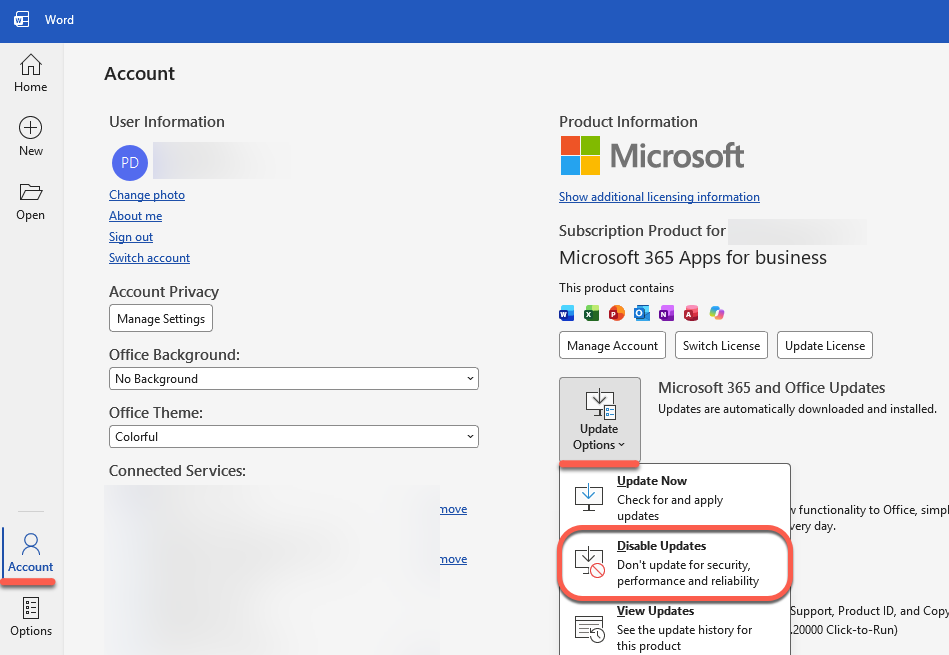
- Open Word, Excel or PowerPoint
- Go to File | Account (in classic Outlook it’s File | Office Account)
- Under Product Information, click Update Options
- Choose Disable Updates
Once it’s done, the Office Updates section will read “This product will not be updated,” and the change takes effect immediately.
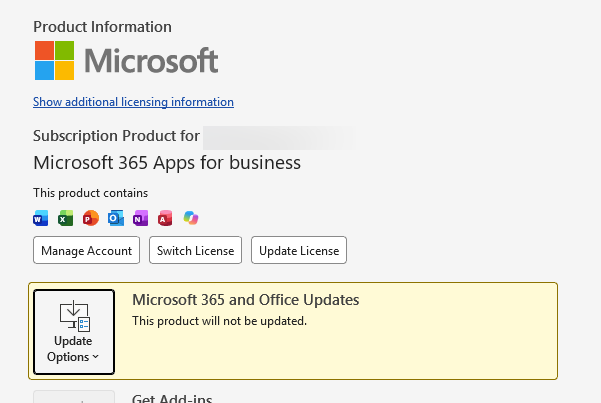
To turn updates back on, go to the same place and choose Update Options | Enable Updates, then Update Now to catch up.
If Update Options is missing
If you only see an About button and no Update Options, you either have a volume license install or your company manages Office updates through Group Policy.
In plain terms: your IT department controls updates, not you. Ask them.
Don’t bother with the Windows Update setting
Some guides tell you to untick “Receive updates for other Microsoft products” in Windows Update. That does nothing for most Office installs. That Windows setting has no effect on Office, because Office updates are handled separately. The rare exception are some Office 2026/2019 “MSI” installs.
The exception is the rare Microsoft Store version of Office, which updates through the Store. Turning off automatic app updates there affects every Store app on your PC, not just Office.
Mac Office: turn off Microsoft AutoUpdate
Office for Mac patches are generally less buggy than their Windows counterparts, but you might still want to be extra cautious about updates.
Office for Mac updates through a separate helper program called Microsoft AutoUpdate (MAU).
- Open Word, Excel or PowerPoint
- From the menu bar choose Help | Check for Updates
- In the Microsoft AutoUpdate window, switch off Automatically keep Microsoft apps up to date
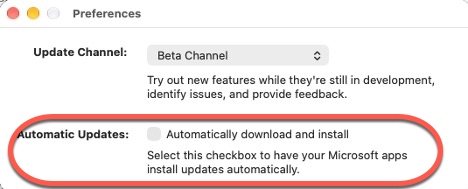
That’s it. Updates stay off until you switch it back on. To update manually later, use the same Help | Check for Updates menu and click Update.
If you installed Office from the Mac App Store
App Store copies of Office update through Apple, not Microsoft AutoUpdate. Open the App Store | Settings and turn off Automatic Updates.
However this stops automatic updates for all App Store apps on your Mac.
If the AutoUpdate switch is grayed out
On a work Mac, that almost always means your IT department has locked the update setting. Leave it alone.
Related Reading
September’s patches caused real damage, and the details matter if you were hit. Excel Copy and Paste Broken by Microsoft’s Own Security Update — How to Fix It explains the original bug that started the mess, Excel Copy Paste Bug: Is Your Office Version Fixed Yet? tracks which builds finally have the fix, and KB5002907 Broke Office 2016 and 2019: How to Get Office Back walks you through recovering a license that disappeared overnight.
Word had its own troubles: Word Save As PDF Bug Silently Saves Files to Wrong Folder, How to Fix It shows how to check whether your PDFs actually landed where you expected, and Word 365 Crashes When Third-Party Apps Fill Templates, How to Fix It covers a separate crash that hit document-automation users the same month.
If you want the bigger picture on why this keeps happening, Microsoft Office Updates: A No-Win Scenario and How to Stay Safe lays out the impossible choice between buggy patches and unpatched security holes, and September 2026 Patch Tuesday: 20 Critical Office Bugs to Fix Now details the security fixes that make skipping updates risky.
Mac users who hit errors after updating should check Office for Mac Won’t Open? Fix “Unknown Error 0x0” and “License Not Found” in Two Minutes — it covers the most common post-update failures and how to clear them without reinstalling.
Still on Office 2016? Office 2016 Still Gets Security Updates: Check If Yours Qualifies explains which 2016 builds are still being patched and which have been quietly left behind, and October 2026 Office Changes: Publisher Dies, Office 2021 Support Ends flags the end-of-support deadlines coming this month.