New Outlook’s Classic Style Setting: What It Changes (and What It Doesn’t)
New Outlook for Windows now has a ‘classic style’ setting that makes it look like the Outlook you remember. The ribbon, icons, and folder layout all switch to the familiar design. But don’t be fooled — it’s purely cosmetic. Features missing from new Outlook stay missing, and performance is unchanged. Here’s how to turn it on and what to watch out for.
Be clear about what this is: a skin, not a fix. Underneath, new Outlook is still the same web app running inside an Edge browser container. Features that only exist in classic Outlook don’t come back, and the app is no faster or lighter on memory.
It’s a well-made costume but it’s just a costume and should not fool anyone.
How to turn on classic Outlook style
- Open new Outlook for Windows.
- Click Settings (the gear icon, top right).
- Go to General, then Appearance.
- Tick Enable classic Outlook style.
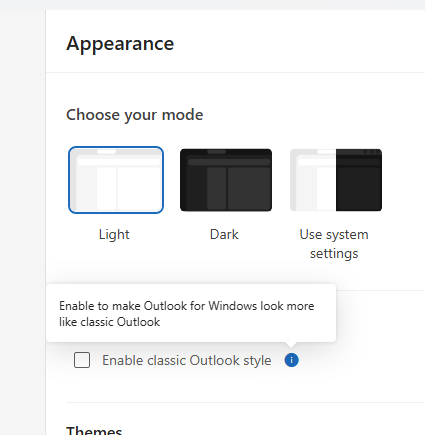
The change is immediate and you can untick it at any time. If the option isn’t there yet, the rollout hasn’t reached your PC. Wait a few days or weeks and check again.
What Classic Outlook looks like in New Outlook
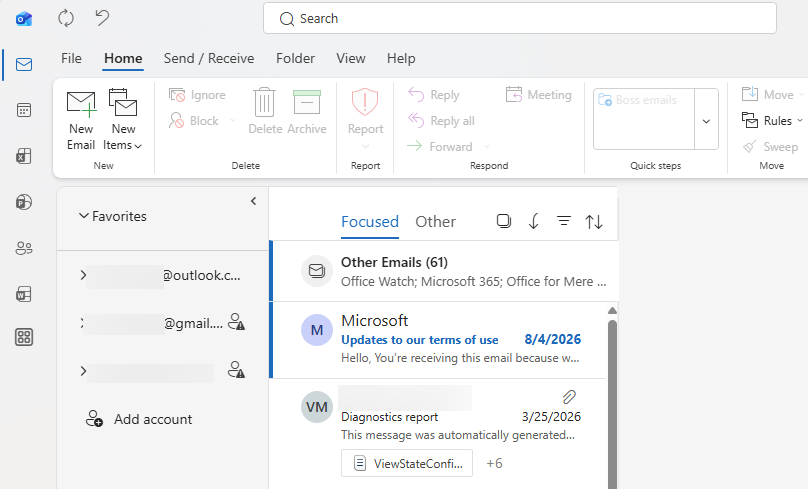
Here’s new Outlook with the “Enable classic Outlook style” option on.
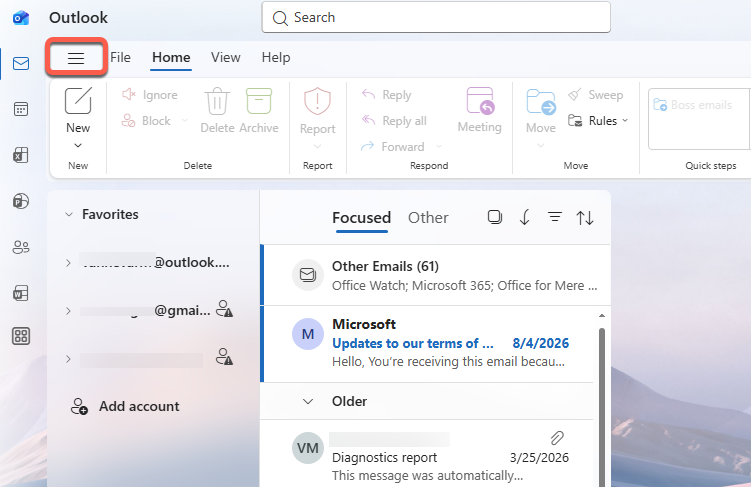
The File menu is now on the far-left. That’s the quick way to see if the classic Outlook look is on.
Compare that to the standard new Outlook interface with the “three-bars” menu (toggles the navigation pane), next to the File tab
Title bar and ribbon changes
- The blue patterned title bar is gone, replaced by a plain background in light mode.
- The old multicolor Outlook logo returns.
- Two small buttons, Send/Receive and Undo, appear top left, mimicking classic Outlook’s Quick Access Toolbar. But no more than imitate, there’s no proper QAT.
- The ribbon gains Send/Receive and Folder tabs alongside File, Home, View and Help.
- The blue “New mail” button becomes a plain New Email button with a separate New Items dropdown.
- The Home tab gets a Groups section and a Send to OneNote button.
- The View tab adds Use Tighter Spacing, Conversation Settings and a To Do Bar option.
Folders and message list
- The folder list is more compact, with smaller text and no icons next to Inbox, Drafts, Sent Items and so on.
- Favorites shows the full account name next to each Inbox instead of cutting it off.
- A Shared with me section lists shared mailboxes you can access, just like classic.
- Emails are grouped the classic way: Yesterday, Wednesday, Last Week, Two Weeks Ago, Last Month, instead of by month. Each email shows the day with the date, such as “Wed 9/30/2026”.
Calendar and compose
- The Calendar ribbon gets Today and Next 7 Days buttons and an Add button under Manage Calendars, replacing Filter, Split view and Print.
- The compose window uses classic tabs: Message, Insert, Format Text, Draw, Options.
No custom themes
Turn on classic style and the entire Themes section is grayed out. That includes Copilot themes, image backgrounds and accent colors. You get the classic look or your custom theme, not both. Most people won’t care, but if you’ve set up a personalized theme, it goes away while classic style is on.
Classic Outlook on the surface only
This is all cosmetic. Rather than address the legitimate concerns about new Outlook, Microsoft is resorting to superficial changes.
The best description of this feature is “Lipstick on a Pig”.
It’s worth spelling out because the familiar Classic look could easily fool you into thinking you’re back in the real thing.
- It’s still a web app. It still uses the same memory and has the same offline limitations as before.
- The Send/Receive tab is mostly decoration. It has just two buttons: Send/Receive All Folders and Work offline. Don’t assume the Work offline button behaves like classic Outlook’s offline mode.
- Classic only features stay missing. If you rely on VBA macros or older COM plugins, those still only work in classic Outlook.
- Beware help instructions. Any help for new Outlook will be based on the default interface and might not be correct when the Classic look is on.
What to do
If you’ve already been moved to new Outlook and hate it: turn this on. It costs nothing, it’s reversible, and it will save you time hunting for buttons that moved. Your muscle memory will thank you. However, this option won’t restore wanted classic Outlook features because it’s just a superficial change.
If you’re still on classic Outlook: this is not a reason to switch. Microsoft wants everyone on new Outlook and this skin is clearly bait for holdouts. Stay on classic for as long as it does what you need, especially if you depend on macros, plugins, reliable offline access and better privacy.
If you’re the unofficial IT person in your office: this is a cheap way to reduce complaints when staff get moved over. Show them the checkbox on day one.
More about new Outlook
If you’re not sure whether new Outlook is ready for you, Outlook (New) for Windows: What Microsoft Isn’t Telling You is the full independent guide to what’s missing, what’s changed, and what the privacy concerns are. For the latest on Microsoft’s forced migration timeline, Microsoft Delays Forced New Outlook to March 2027 explains what “opt-out phase” actually means and how long classic Outlook will be supported.
Rules are one of the classic Outlook features that work very differently in new Outlook, even with the classic style skin on. Which New Outlook Rules Features Are Missing (And What That Means for You) lists every action that’s been dropped or changed so you can check before you switch.
Microsoft keeps removing free Outlook features and nudging you toward paid replacements. Microsoft Kills Free Meeting Insights: What Outlook Users Lose in September 2026 covers the latest example, and Copilot in Outlook Is Changing This Month: Here’s What Moves walks through the Copilot layout redesign landing at the same time.