Microsoft 365 went down? How to claim your SLA credit
When Microsoft 365 goes down, Microsoft owes paying business customers a credit of 25%, 50% or even 100% of that service’s monthly fee. But you get nothing unless you ask. Microsoft doesn’t apply SLA credits automatically, the deadline is the end of the following month, and a claim without the right evidence gets rejected. Here’s how to make a Microsoft 365 SLA claim that sticks: what to collect, who to send it to and the exact wording to use including
To make a Service Level Agreement (SLA) claim, you have to ask, with evidence, by a deadline. Even if the outage is well-known and acknowledged by Microsoft, they still make paying customers go through the hoops to get some money back.
This guide covers what to collect, where to send it, the wording to use and what happens next.
For the November 2026 major outage (over 30 hours) we have a special guide: 30 hour Microsoft 365 outage: what you can claim and how. This page is a more general guide to SLA claims.
Before you start: four quick checks
Spend a few minutes on these before you collect anything. If any answer is no, stop: the claim will fail.
- Is your plan covered? Paid business, enterprise, education and government plans can make SLA claims.
- Consumer plans (Personal, Family, Premium and Pro), free plans (including donated nonprofit Business Basic seats), trials and preview features are not.
- Was it real SLA downtime? It has to be Microsoft’s fault, and it has to match the SLA’s strict definition for that service.
- For Exchange Online, that means users couldn’t send or receive email in Outlook on the web. Trouble with Outlook desktop or mobile app connections doesn’t count.
- Did it cross the 99.9% line? Microsoft counts downtime in user minutes, for each service, over the whole calendar month. Do the math first (step 1 below).
- Are you inside the deadline? Microsoft must receive the claim by the end of the calendar month after the outage. An outage on February 15 must be claimed by March 31.
You also need to be a Microsoft 365 admin for your organization. Ordinary users can’t open a support request with Microsoft.
The information Microsoft needs
The SLA says a claim must include everything Microsoft needs to check, even if the trouble was widespread and publicly acknowledged by the company.
Submit a detailed description of the incident, the time and duration of the downtime, the number and location of affected users, and what you did to try to fix it. Claims that leave these out get rejected.
Some of the required details are things that Microsoft should know from their own systems because the claim is made via an administrator login for a specific organization. Still, the company demands details like Organization, Tenant ID and subscription in the SLA claim.
Keep in mind that most of the SLA claims process is likely done by AI, so it’s best to be specific.
| What to collect | Where to find it |
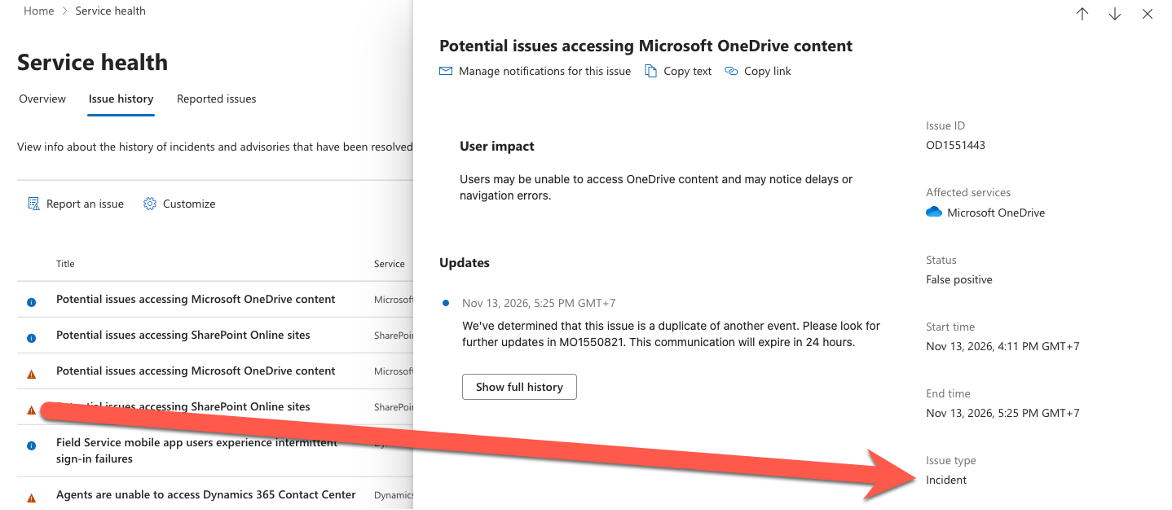
| Incident ID, such as EX12345 for Exchange Online | Admin center, Health | Service health, then the Issue history tab |
| Microsoft’s own start and end times, and root cause | The incident’s closure summary or Post Incident Report (PIR) in Service health |
| What your users couldn’t do, in the SLA’s terms | Your helpdesk notes, user emails, error messages |
| When it started and ended for your users | Helpdesk tickets, emails with timestamps, your own notes |
| How many users were affected, and where | Your user list and office locations |
| What you did to try to fix it | Your notes, plus any Microsoft support request numbers |
| Screenshots and error messages | Users’ screens, your own testing |
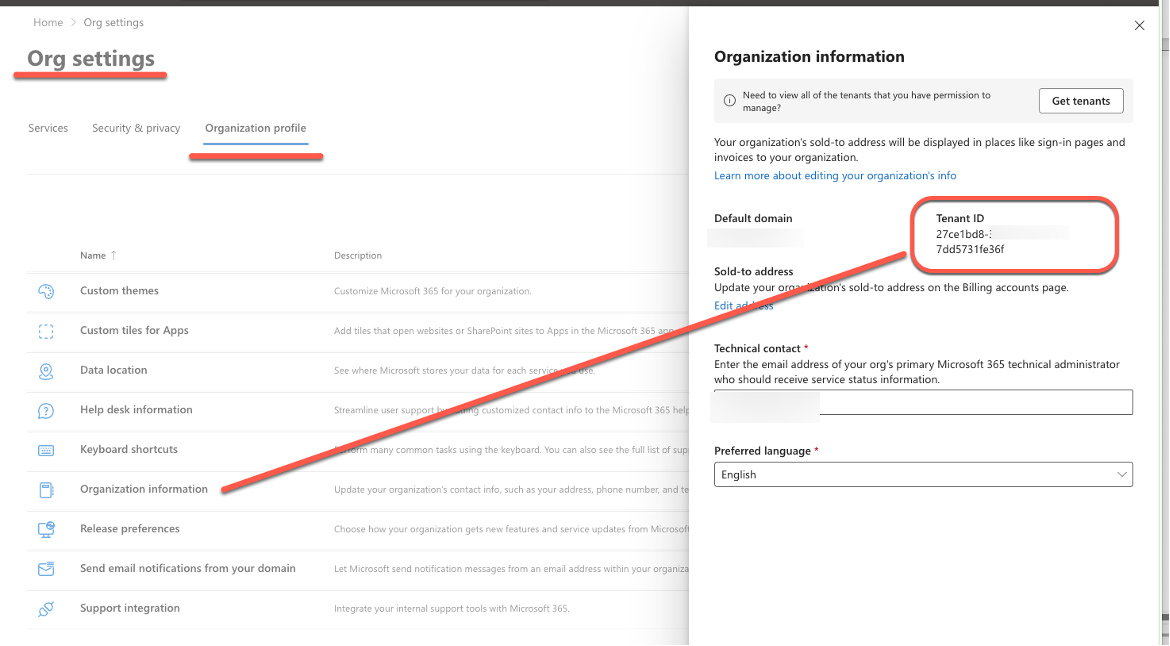
| Your tenant ID (a long code of letters and numbers) | Admin center, Settings | Org settings | Organization profile | Organization Information, or the Overview page of the Microsoft Entra admin center |
| Your uptime calculation | Your own math (step 1 below) |
Where to find the Tenant ID
Most admins don’t even know there is a “Tenant ID” for each organization. It’s a detail that Microsoft requires in an SLA claim even though the company can get it from its own records linked to the service request process.
Find the Tenant ID at Admin center, Settings | Org settings | Organization profile | Organization Information. It’s a 36 character GUID including the dashes e.g. 5bd7c76f-c512-4ef3-84d3-dfc3ce29a101
Save copies now
Service health only shows incidents from the past 30 days, but your deadline can be nearly two months after the outage. Screenshot or print to PDF the incident page and the PIR.
For big outages, Microsoft posts a preliminary PIR within 48 hours of the fix and a final one within five business days. Smaller incidents get a closure summary with the start and end times instead.
A Service health post isn’t proof on its own
Microsoft says an incident posted there means your organization might be affected. It’s the best information Microsoft had when it posted, and it describes the service in general; the effect on individual organizations varies.
On the other hand, Microsoft often uses the word “might” (as in “might be affected”) when the company knows that most or all customers are affected.
Check the final incident post and the PIR, then show the impact on your organization and users. That’s required even for widespread and publicly acknowledged breakdowns.
Advisories don’t qualify for a credit. Only Incidents do, so check how Service health labels the problem before you claim. In the Service health list, look for an orange triangle in the list or open the issue to see Issue type: Incident.
Where to send the claim
Whoever sends you the bill handles the claim. Check who that is before you start.
| How you bought Microsoft 365 | How to tell | Who files the claim |
| Direct from Microsoft | Your invoices appear in the admin center under Billing | Bills & payments | You, with a support request in the Microsoft 365 admin center |
| Through a reseller: an IT provider, MSP or your domain host | Your bill comes from that company. The admin center may not show a Billing page at all | Your reseller. Microsoft won’t take the claim from you |
| Volume licensing agreement | You have an agreement with Microsoft, often through a licensing partner | You, with a support request in the admin center |
If you bought every subscription through a reseller, Microsoft’s own support desk will send you back to them.
If you bought through a reseller
Your reseller makes the claim with Microsoft, not you. Send them:
- Your tenant ID
- The incident ID from Service health
- When the problem started and ended for your users, and how long it lasted
- How many users were affected, and where
- What you did at the time to try to fix it
- Screenshots and error messages
- An email asking for the credit, sent from an organization email address. Microsoft insists on seeing a request from the end-customer. They won’t accept a reseller’s claim without proof that the customer requested the SLA claim because Microsoft doesn’t want resellers automatically making claims on behalf of customers.
- The ticket number of your support call to the reseller, if you contacted them during the outage
Use the claim template below but send the message to the reseller, not Microsoft.
Contact your reseller’s support during the outage, not just afterwards. That ticket and your emails become part of the evidence.
Ask your reseller for their deadline. It will be earlier than Microsoft’s, because they need time to file.
Step by step: making a Microsoft 365 SLA claim
These steps are for organizations that bought direct from Microsoft. If a reseller files for you, do the first two steps, then send it all to them from an organization email with a specific request for an SLA claim.
- Do the math. For each service, work out your uptime for the month:
- User minutes = days in the month × 1,440 × your total licensed users
- Downtime = minutes of the outage × users affected (add up every outage that month)
- Uptime % = (User minutes − Downtime) ÷ User minutes × 100
- Below 99.9% earns 25%, below 99% earns 50%, below 95% earns 100%. If you’re above 99.9%, stop here.
- Collect the evidence on the information list above, and save copies of the Service health pages.
- Write up the SLA claim request.
- There’s not much room in the online claim form, so it’s best to write up the long and detailed SLA claim separately (in Word or OneNote) then paste into the online form.
- Sign in to the Microsoft 365 admin center at admin.cloud.microsoft (or admin.microsoft.com) with an admin account.
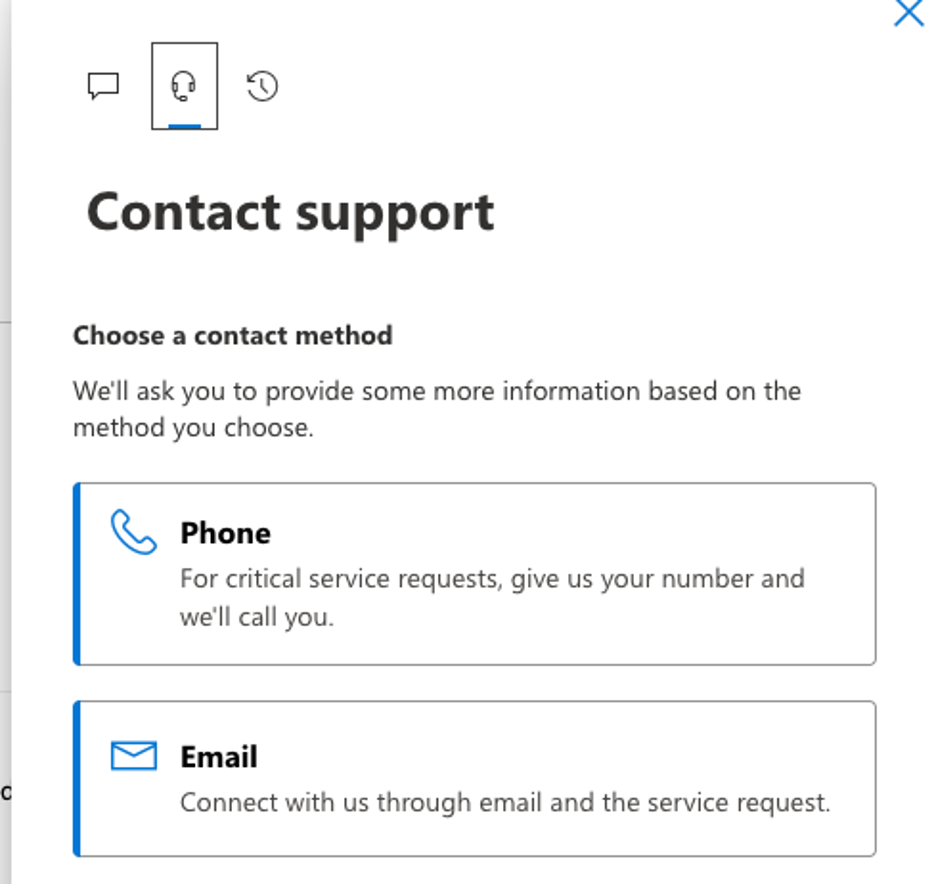
- Open Support | Help & support (bottom right of the page). Type something like “SLA service credit claim” into the Support Assistant. It won’t solve this, so select Contact Support (the headset icon) then Email.
- Write the request. Paste in the claim template below, filled in. Make one request per service and incident, as Microsoft asks for a separate request for each issue.
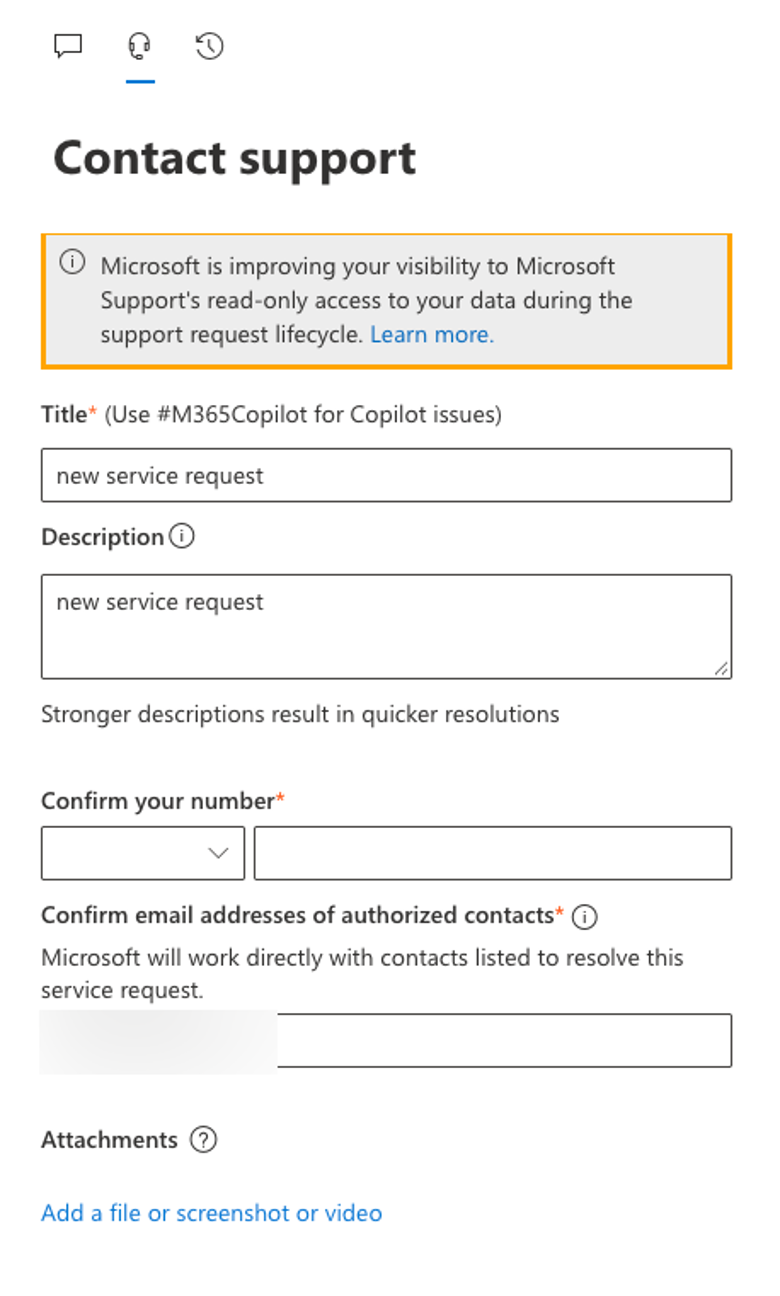
- Choose how Microsoft contacts you. Pick phone or email, confirm your details, then select Contact me. We suggest email, so you have the whole exchange in writing.
- Attach your evidence if the form allows it. If not, reply to Microsoft’s first email with the screenshots, PIR copy and your calculation.
- Write down the service request number. File it with your evidence and set a reminder to chase it in 45 days.
Claim template
Microsoft has no special claim form for customers who buy direct. A clear, numbered request that follows the SLA’s own list is the best format. Copy this, replace everything in [square brackets], and delete what doesn’t apply.
Subject: SLA service credit claim: [Exchange Online], incident [EX12345]

We are claiming a service credit under the Service Level Agreement for Microsoft Online Services for the incident below.

Organization: [company name]
Tenant ID: [tenant ID]
Subscription: [Microsoft 365 Business Standard], [2] licenses, bought direct from Microsoft
Service affected: [Exchange Online]
Incident ID: [EX12345], as shown in Service health

1. Description of the incident
Our users could not [send or receive email in Outlook on the web]. They saw this error: [error message].

2. Time and duration
Start: [date, time and time zone]
End: [date, time and time zone]
Duration: [480] minutes

3. Users affected
[2] of our [2] licensed users, at [office location].

4. Our attempts to resolve the incident
[We checked Service health, restarted devices, tried another network and another browser. We opened support request number ...]

5. Uptime calculation for [month and year]
User minutes: [30] days x 1,440 x [2] users = [86,400]
Downtime: [480] minutes x [2] users = [960] user minutes
Monthly uptime: ([86,400] minus [960]) divided by [86,400] x 100 = [98.89]%

This is below [99%], so we request a [50%] service credit for [Exchange Online] for [month and year].

Attached: [screenshots, error messages, copy of the Service health incident report]

Contact: [name, role, email, phone]
The numbers in the brackets are a worked example: two Business Standard users who both lost Outlook on the web for 8 hours in a 30 day month. That earns a 50% Exchange credit, worth at most $14 off a $28 monthly bill.
If you bought through a reseller, send the filled in template to them instead, from your company email address. Add the ticket number of your support call to them, if you have one.
After you claim: what happens next
Expect a decision within about 45 days, and a credit on a later invoice, not a refund.
- First contact. Microsoft support gets in touch by the method you chose, phone or email. The Contact support pane shows the expected wait time when you submit.
- Questions. Support may ask for more detail or evidence. Answer in the same request, so everything stays in one thread.
- The decision. The SLA says Microsoft will use “commercially reasonable efforts” to process claims during the month after it gets them, and within 45 days. That’s a target, not a guarantee. After a big outage, with thousands of claims arriving at once, expect the full 45 days.
- How the answer arrives. It comes back through your support request, to the email address or phone number you gave. If you bought through a reseller, the answer comes from them.
- The credit. An approved credit covers only the service that went down, prorated by that service and how long the outage lasted. If you have a Microsoft 365 suite but only SharePoint failed, only SharePoint is credited, not the whole plan. The credit comes off a future invoice. No money is paid back, and the credit can’t be more than that month’s fee for the service.
Where to see the credit
- Bought direct: check the invoices in the admin center under Billing | Bills & payments, on the Invoices tab. Microsoft emails you each billing period when a new invoice is ready.
- Bought from a reseller: The credit goes to your reseller first. Ask them how and when it will show up on your bill.
If you paid for the year upfront
You get the same credit as someone paying monthly, but it can take longer to show up.
The SLA works out the credit on the fees “applied to the month” of the outage, not your whole annual payment. For an annual subscription, that’s about one twelfth of the year’s price. Microsoft’s own billing uses a daily rate: the annual price divided by 365.
For example, two Business Standard users prepaid for a year pay $336. One month’s share is $28, so a 25% credit is worth at most $7, and 50% at most $14. That’s exactly what a monthly payer gets.
The catch is timing. Credits come off a future invoice. On monthly billing, that’s next month. If you prepaid, there may be no new invoice until you add licenses or renew, so the credit can sit unused for months.
- Ask how it will be applied. Add a line to your claim saying you pay annually upfront, and ask whether the credit goes against your next invoice, your renewal or a credit balance. Get the answer in writing.
- Check your invoices. Microsoft Customer Agreement invoices have a Charges/Credits line showing the amount after credits and refunds.
- Don’t deduct it yourself. The SLA says you can’t offset your fees on your own. Pay invoices in full while a claim is pending.
- Reseller customers: ask your reseller to apply the credit to your next bill, whatever it’s for.
- Planning to cancel or switch? A credit only has value against future bills from the same provider. Check what happens to it before you move.
If Microsoft refuses an SLA claim
Ask for the reason in writing. The usual ones are:
- Your organization’s uptime for that service stayed above 99.9%
- The problem didn’t match the SLA definition, such as desktop Outlook failing while Outlook on the web worked
- The claim arrived after the deadline
- The licenses were free, a trial or a preview
- The Service health post was an advisory, not an incident
If you think Microsoft got it wrong, reply in the same request with the missing evidence or a corrected calculation. Be polite but firm.
Don’t Get Caught Out by the Next Microsoft 365 Outage
If the November 2026 breakdown hit your organization, 30 hour Microsoft 365 outage: what you can claim and how applies these steps to that incident. Microsoft 365 outage credits: what you can really claim explains why the payout is often much smaller than people expect.
The best time to plan for downtime is before it happens. Three ways to prepare for a Microsoft 365 email outage shows how to keep mail moving when Exchange Online stops.
Proving there really was an outage can be the hardest part of a claim. Was Microsoft 365 email down or not? shows how Microsoft’s version of events can differ from what your users saw, and Microsoft outages hurt lots of paying 365 customers looks at what those failures cost businesses.