Google has improved their Gemini AI system for better images with their Imagen3. Here’s how it works and how it’s changed from earlier Google AI systems. Use these AI images for Word, Excel or PowerPoint documents.
All these images are made with the free version of Google Gemini. There’s a paid Pro version too.

Shop around for the AI image you want
There are many, many AI image makers out there and a lot of free options. If your preferred AI system isn’t making an image you like, try the same prompt with another service.
Microsoft Copilot or its offshoots like Designer Image Creator
Dall-E is the source of Microsoft AI tech but still can make quite different images and isn’t as restricted as Microsoft’s version.
Meta AI – still US only but a VPN will bypass that limitation.

Add text for a fresh image.
Like other AI systems, you can adjust an image by simply asking for changes instead of rewriting the entire prompt. For example, after the above image we just said “make it nighttime”.
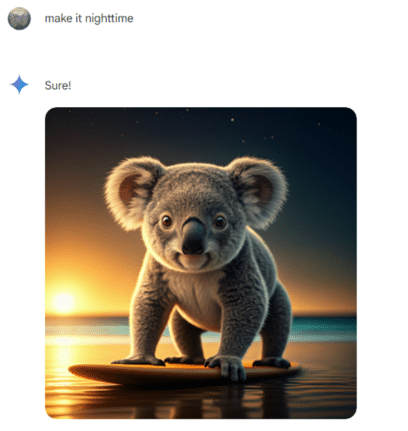
The new image isn’t a version of the original, as you can see, it’s an entirely new picture of a different koala!
Just like other AI systems, Gemini doesn’t really change the original image. Instead the original text prompt is copied, the requested change added to the text then the AI makes a fresh image.
Downloading the picture
Gemini makes full size images as 2048×2048 JPG 24-bit 96dpi. Compared to the 1024 square or 1792×1024 options in Microsoft Designer.

There’s a ‘Download full size’ button at top-right but it’s often quicker to right-click in the browser and choose “Copy image” (or similar wording) which puts the image into the clipboard ready for pasting into a document, email or slide.
Gemini pictures then and now
Out of interest, here’s some Gemini images from last year and the same prompt now.
“image of a teddy bear smiling, walking down a tree-lined street, sunny day”.

Now we get a single image only but much nicer.

Image restyling in Copilot
AI images coming to PowerPoint plus more CoPilot news
