There’s a new feature in Microsoft 365 Word, Excel, and PowerPoint for the web to request elevated permissions directly within the application. Anyone with view-only access can ask for higher editing or reviewing rights without leaving the document.
Microsoft, as usual, buries an important condition deep in their promotional blurb so we’ll put it up-front . ..
- Enterprise license users only.
Consumers, business and education license holders aren’t getting this option, at least not for now.
- Only the web/browser versions of Word, Excel or PowerPoint
- And the file must be stored in the organization’s OneDrive or SharePoint.
Of course, anyone with View/Read Only access can ask for raised privileges in other ways like email, instant messaging or standing over the persons desk until they do it <g>.
How It Works
- Open the desired file in Word, Excel, or PowerPoint for the web.
- Click on “Viewing” in the upper right-hand corner and select “Request more access.”
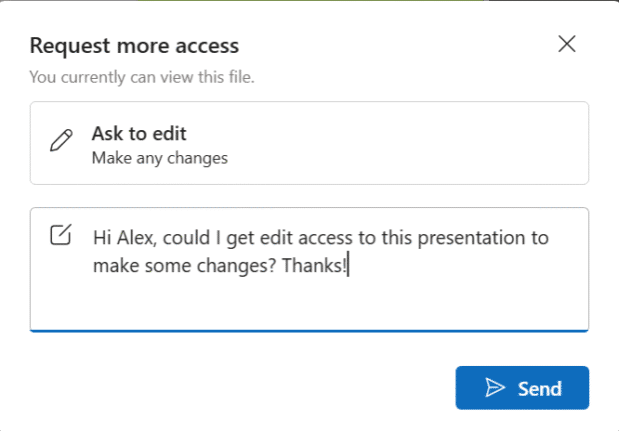
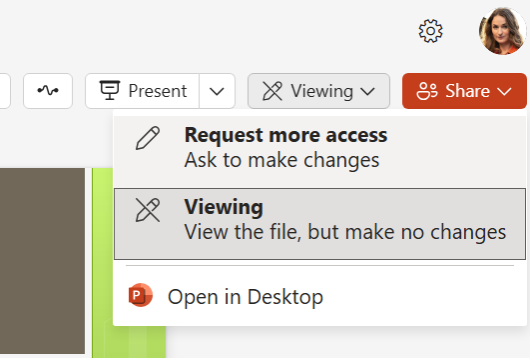
- Choose the needed permission level—either “Ask to edit” or “Ask to review.”
- Optionally, add a note to the file owner explaining the request.
- Click “Send.” You’ll receive an email notification once the file owner responds.
Upon approval, refreshing the file will reflect the updated permissions. File owners receive an email detailing the request, including the requester’s current permissions, the access level requested, and any accompanying note, along with options to “Change access” or “Decline” the request.

Extra Tips:
- If your browser is zoomed in, the “Request more access” option may be hidden behind an ellipsis. An Office for web / browser problem
- To update a pending request or add a new note, select “Resend request.” again.
- Permission changes might take longer to load in large or complex documents with multiple co-authors.
- This feature isn’t supported in Classic View mode in Word for the web.
