Many Word users struggle with navigation panes and Table of Contents features — not because Word is broken, but because what Word calls “Headings” aren’t always true structural headings. In Microsoft Word, built-in heading styles like Heading 1, Heading 2 and so on are tied to outline levels, which Word uses to build Navigation Panes, TOCs, and PDF bookmarks. Understanding the difference between visual heading styles and proper outline levels unlocks reliable document navigation and indexing in Word.
Confusion is understandable. ‘Headings’ are different from ‘Outline Levels’ but sometimes Microsoft and others use the term ‘Headings’ and ignore ‘Outline Levels’ entirely.
Have a look at this Table of Contents. It’s a genuine TOC made by Word … but look at the Navigation Pane on left.

Normally the Table of Contents and Navigation Pane are almost the same. This one is blank! Why?
The document has headings, you can see them in the Table of Contents on right. So they should also appear in the Navigation Pane too?
No. A Table of Contents can be built from Outline Levels while the Navigation Pane shows Headings.
Usually Heading styles have matching Outline Levels but they don’t have to.
This problem is most likely to happen if you’ve created custom heading styles and by-passed the in-built ‘Heading n’ styles. Or imported from another format which didn’t include a heading/outline view structure.
When making the custom heading styles, setting the Outline Level is often (and understandably) overlooked.
According to Microsoft you can apply ‘Heading’ styles to fill in the Navigation Pane – but that’s not entirely true.
What are Outline Levels?
Outline Levels are Word’s way of organizing a document into the ‘tree’ structure that Microsoft calls an ‘interactive outline’. It’s better known as the Navigation Pane or Outline View.
The in-built Heading styles are linked to matching outline levels. ‘Heading 1’ style has outline level 1, ‘Heading 2’ style has outline level 2 and so on.
But the two can be separate properties.
- Outline Levels don’t have to be headings.
- Headings don’t necessarily have an outline level (but they usually will).
Sometimes Outline Levels matter
Most of the time, Heading styles have matching Outline Levels and it’s a “distinction without a difference”.
But if the Navigation Pane or Outline View don’t make sense, it’s time to check out the Outline Levels settings.
Mixed up terminology
Confusion arises because Microsoft and many others (including us sometimes) uses the term ‘Headings’ when they should say ‘Outline Level’.
One example is the options available when saving to the PDF format. The dialog box talks about creating PDF bookmarks using ‘Headings’.

But that’s not true at all. The PDF bookmarks are created from Outline Levels – not Headings.
We’ve heard from readers who can’t understand why their document with a nice Table of Contents can’t create a PDF bookmark ‘tree’ (similar to Word’s Navigation Pane). In fact, the ‘Headings’ option is greyed out/disabled because there are no outline levels in the document.
Setting Outline Levels
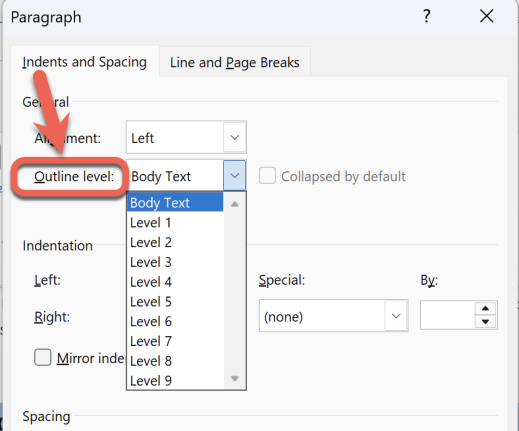
Outline Levels are set in the Paragraph properties.
You can change the Outline Level for an individual paragraph but, more likely, you’ll change it in a style.
In Style settings choose Format | Paragraph and change the Outline Level.
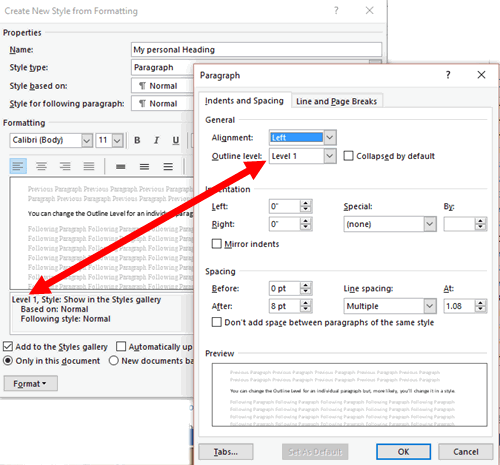
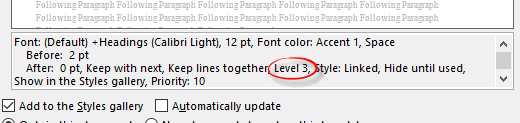
As you can see in the style summary, the term ‘Level 1’ appears. If you look at any of the in-built Heading styles, you’ll see the outline level listed in the style summary. Here’s the default Heading 3 summary:
Body Text
The default Outline Level is ‘Body Text’ – meaning that the paragraph does NOT appear in an outline view, Navigation Pane or Table of Contents based on outline levels. No ‘Level ‘ is shown in the style summary.
The Outline Level ‘Body Text’ has no direct link to the Style of the same name. The ‘Body Text’ style (like ‘Normal’ style) will usually be set to the ‘Body Text’ outline level – but that’s a coincidence of naming, nothing more. You could change the ‘Body Text’ style to have another Outline Level but you’d get a very messy Table of Contents and Navigation Pane!
It may have been better if the ‘Body Text’ outline level was called ‘None’ – but we’re stuck with it now.
