Microsoft now has two different apps both called Copilot, and the naming is genuinely confusing. The Copilot app is a free, standalone AI chatbot built into Windows. The Microsoft 365 Copilot app is something else entirely: the old Microsoft 365 hub for your Word, Excel, and PowerPoint files, now with Copilot’s AI features layered on top. Here’s what each app actually does, which one Microsoft is quietly installing on your PC without asking, and which one you should actually use.
There’s understandable confusion about the two very similarly named apps in addition to the regular rebranding. In short: the Office App begat the Microsoft 365 app which begat two apps, the Microsoft 365 Copilot App and the Copilot app (no “365”)
Both current Copilot apps are a hub or launcher, not a brand new product. It’s largely an app version of the Copilot or Microsoft 365 web pages.
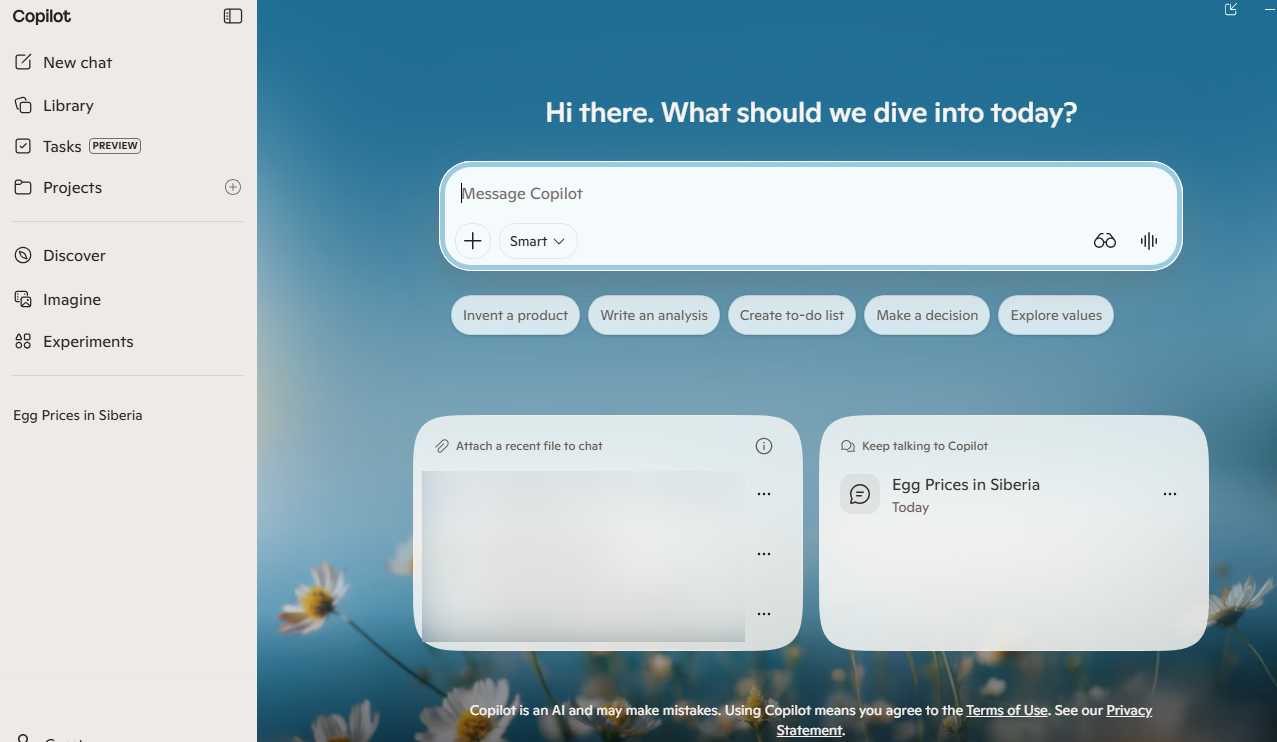
Copilot app
Copilot app is a standalone AI chat app available to everyone with Windows. It’s a general AI assistant for web-style chat, image creation, voice, Windows integration, etc. A personal Microsoft account is recommended but not compulsory.
Microsoft 365 Copilot app
Microsoft 365 Copilot app is the old Microsoft 365 hub with Copilot added. Needs a Microsoft 365 plan (consumer, work, school) plus some kind of Copilot license to use the AI features.
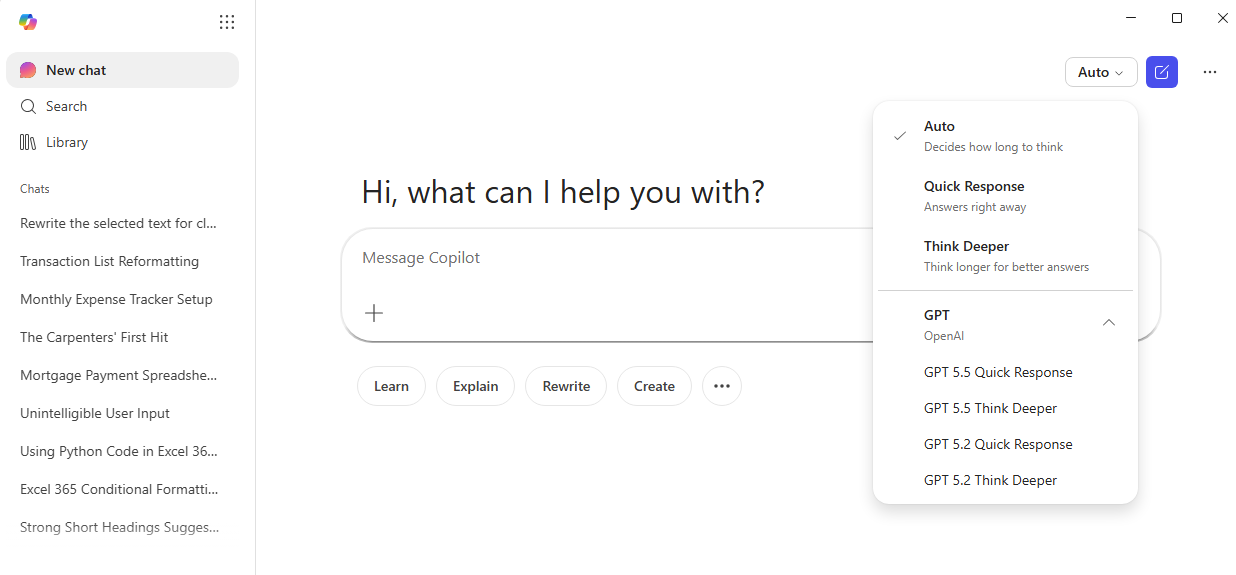
Of course, Microsoft focuses on the AI offering, Copilot. Under the “Auto” button you can choose the AI model to use.
The app remains a place to find, create, share, and collaborate in one place with access to Microsoft 365 apps. You open it to get to your recent files, your Word, Excel, PowerPoint and PDF documents. Look under the Search option.
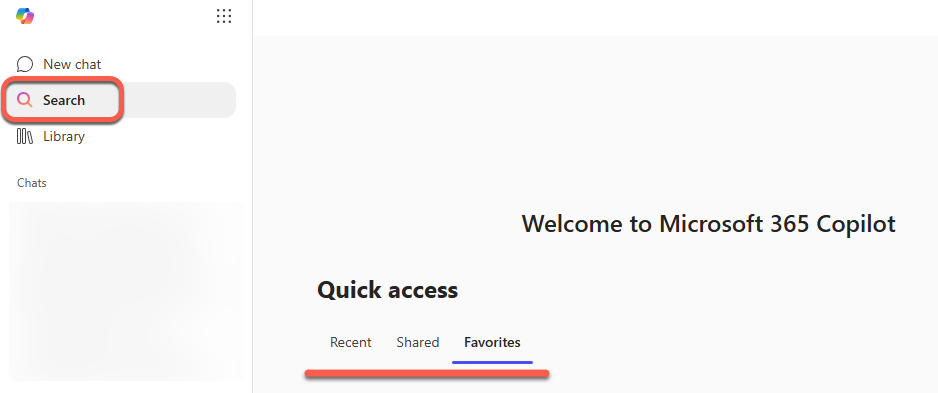
Unfortunately, the main benefits of the Microsoft 365 app (accessing recent files etc.) have been buried in Microsoft’s relentless desire to push their AI. The app should really be called “Microsoft Copilot app with a little Microsoft 365 on the side”.
App Launcher
There’s an App Launcher with Copilot features given top billing (Create, Notebook and the upcoming Office Agent).
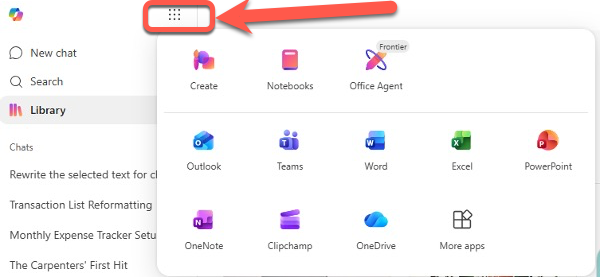
Other Microsoft 365 apps are listed but choosing one opens the web page version, not the desktop app even if that’s installed.
Library
The Library option is more Copilot. It shows Copilot Notebook pages and some images made by Microsoft’s AI.
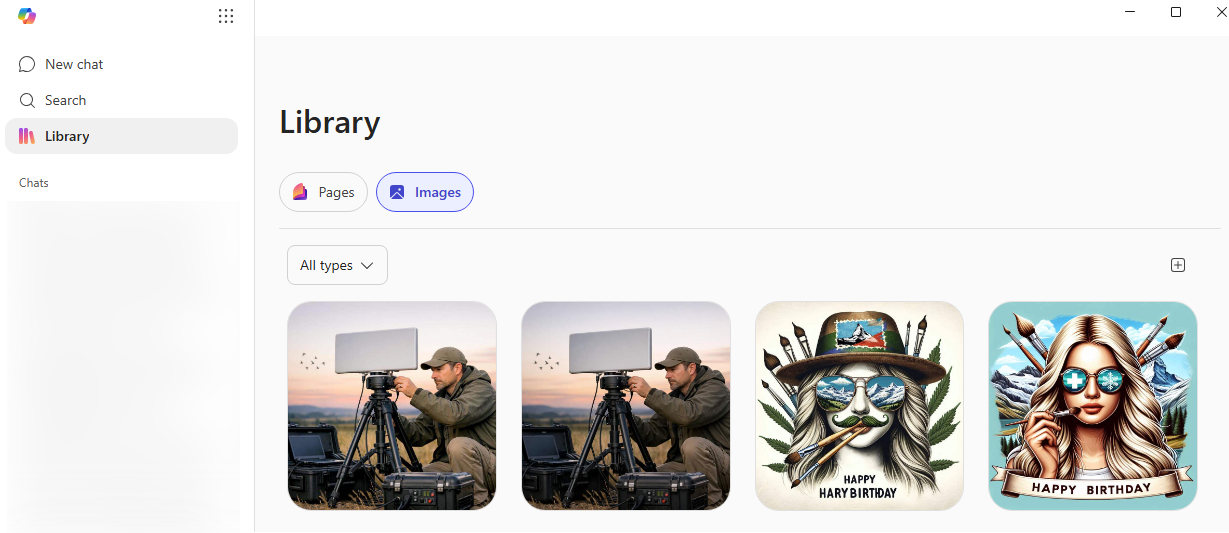
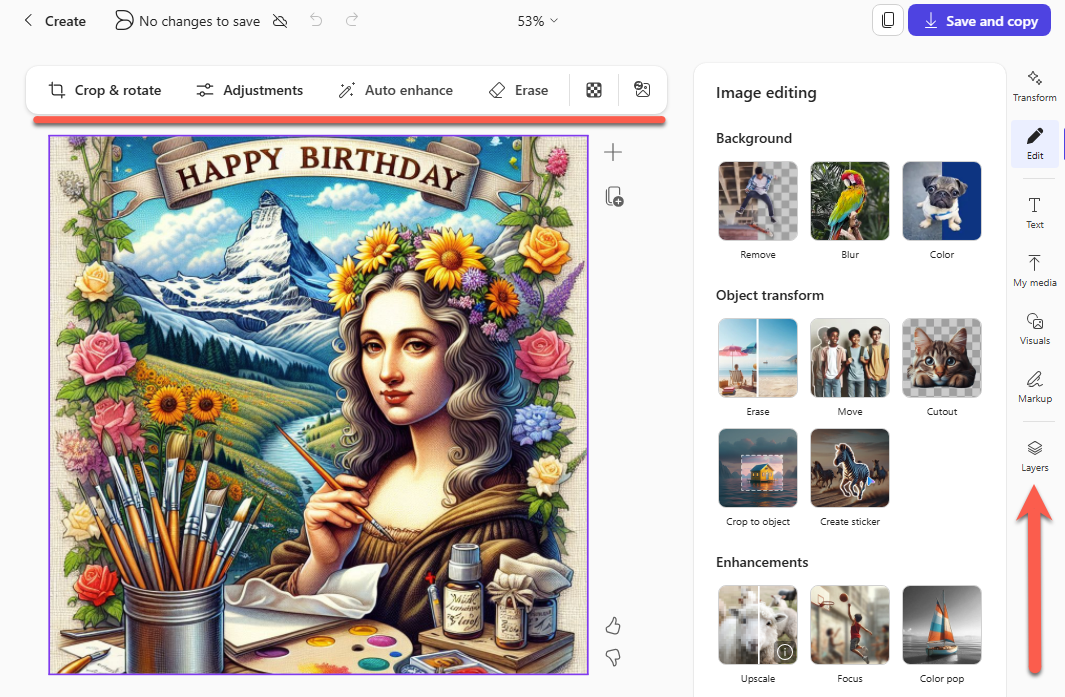
Click on an image to see some useful image editing tools.
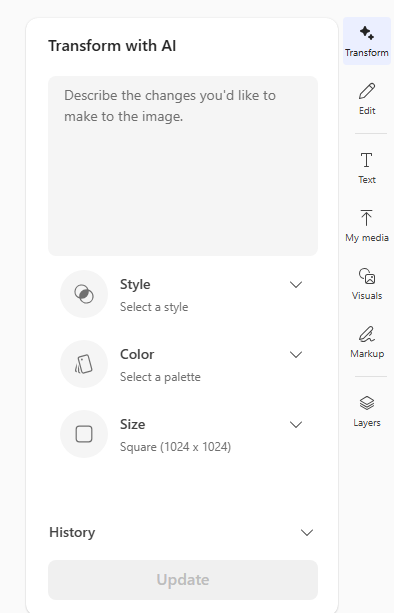
The Transform button lets you change the style, color or size of an image as well as edit by typing an AI prompt.
Which Copilot app to use
Frankly, the Copilot web pages are just as good, if not a little better than the two Copilot apps. The Copilot apps are often quite slow compared to their web page equivalents.
If you just want a free AI chatbot for personal use, you want the Microsoft Copilot app (no “365”).
If you use Office daily on Windows, expect the Microsoft 365 Copilot app to turn up in your Start menu on its own if it has not already. You do not need to do anything, and it will not break your existing Word or Excel. It is a launcher, not a replacement.
You can ignore the Microsoft 365 Copilot app (many do). Using Copilot in the app will use AI credits, meaning that most have to use the app sparingly. Regular Copilot use is really only practical for those with an ‘unlimited’ Copilot plan like Microsoft 365 Premium owners.
Installation
Before installing either Copilot app, see if one or both is already installed on a Windows computer. Press the Windows key and search for “Copilot”, don’t be surprised if both apps appear.
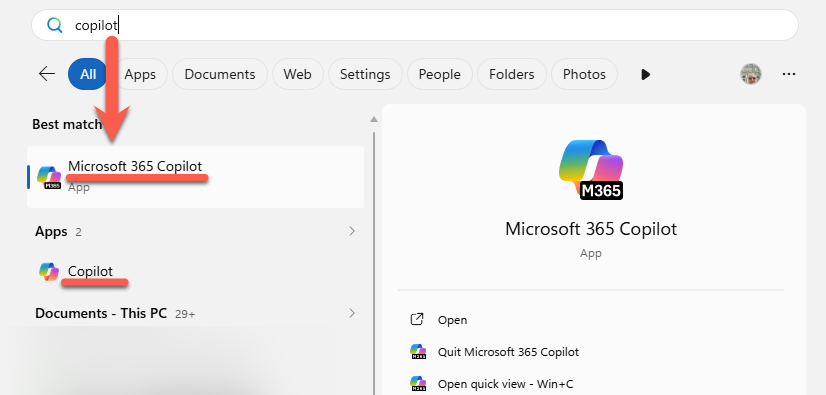
The Copilot app will appear as part of Windows. Search for “Copilot” on the Start Menu. If not, download here for Windows, Mac, iPhone or iPad, Android.
The Microsoft 365 Copilot app is probably also on Windows computer. Download here for Windows, macOS, iOS or Android.
Automatic install
One thing worth flagging for Windows users: The Microsoft 365 Copilot app installs itself automatically, whether you asked for it or not. It’s automatically installed on eligible Windows devices that have commercial Microsoft 365 desktop apps. It shows up as a new Start menu entry. The automatic install does not apply in the European Economic Area, and admins can opt out from the Microsoft 365 Apps admin center.
System requirements
The system requirements are reassuringly boring: if your PC runs Office and Teams happily today, it will run the Microsoft 365 Copilot app.
- No special hardware. No AI supercomputers or GPU/NPU rigs are needed. The heavy AI processing happens in Microsoft’s cloud, not on your local machine.
- A fast, stable internet connection. Because the AI lives online, your devices need reliable, low latency connections to Microsoft cloud servers for Copilot to work in real time.
- Microsoft 365 Apps for the Windows desktop install. The installation requires the device to have Microsoft 365 Apps v2511 (December 2025) or later.
Best Copilot AI Model for Excel: A Plain English Guide
Copilot Model Choices Explained: Which One to Pick and Why
PowerPoint AI Image Models in Copilot: Which One to Choose
Microsoft’s MAI Playground: Test Microsoft’s Own AI Models Free
Outlook Immersive Search: Ask Questions Instead of Typing Keywords
New Outlook Is Slow and a Memory Hog: More Reasons to Avoid It
Installing Microsoft 365 or Office? Do These Two Things
64 bit or 32 bit Office: Which Microsoft 365 Version Should You Choose?
