Microsoft’s MAI Playground: Test Microsoft’s Own AI Models Free
Microsoft now has a free Microsoft AI Playground where you can test its own in-house AI models with no Azure account and no credit card, just a Microsoft login. The MAI Playground opens up three models to try: MAI-Voice-2 for text to speech, MAI-Image-2.5 for text to image, and MAI-Transcribe-1.5 for audio to text. These are the same features heading into PowerPoint, Teams, Word and Copilot over the coming months, so the Playground is your chance to kick the tires before any of it lands in your everyday apps. Nothing you do costs money or touches your work files.
Microsoft has been relying on the AI technology of other companies to power Copilot. Mostly OpenAI’s ChatGPT but also Anthropic’s Claude. In some cases, you can pick the AI model you want to use.
Quietly, Microsoft has been developing their own in-house AI models. That will reduce the company’s reliance on external suppliers and presumably be cheaper too. The quality of these new models remains to be seen.
MAI = Microsoft AI
These Microsoft AI models are presented under the “MAI” label and are already appearing in PowerPoint 365 as one of the AI image creation options.
MAI playground
Microsoft has quietly opened a free public sandbox where anyone can test its own in-house AI models without an Azure account, a credit card, or any developer setup. Just a Microsoft account login (free or Microsoft 365).
It’s called the MAI Playground, and it currently lets you play with three models: MAI-Image-2.5 (text to picture), MAI-Transcribe-1.5 (audio to text), and MAI-Voice-2 (text to speech).
If you use Office daily, these three models are a preview of features heading into PowerPoint, Teams, Copilot, and Word over the coming months. The Playground lets you see today what your software will likely do tomorrow, and decide whether it’s any good. Nothing you do costs money or touches your work files.
The Playground is where you get to kick the tires before any of it reaches your everyday apps. Treat it as a tech demo, not a finished product. Like all AI, it can make mistakes.
MAI-Voice-2
The most interesting of the MAI play area. It turns text into spoken audio (“Text to Speech”), nothing new there, but MAI-Voice-2 has some interesting tricks.
Microsoft calls it the most expressive, natural-sounding text-to-speech model they’ve built to date. They claim in a listening test, people couldn’t reliably tell the fake from the real. Across 11 tested languages and roughly 2,222 responses, 45.5% of listeners preferred the generated speech, 44% preferred the real human recording, and 10.5% called it a tie.
That’s effectively a coin flip between synthetic and human. Mind you, we’re quoting promotional statistics from Microsoft so the phrase “a pinch of salt” springs to mind.
Here’s what it can do:
- 15 languages, including English (US and Aussie), Italian, French, German, Hindi, Spanish, Portuguese, Korean, Chinese, Turkish, Russian, Thai, Dutch, Romanian, and Hungarian.
- Emotion control through tags. You can request registers like sad, whispered, excited, and more, so the same voice can shift tone to match the moment. A support bot delivering bad news no longer has to sound cheerful about it.
- Code-switching. For Hindi-English and Spanish-English, it mixes languages mid-sentence the way bilingual speakers naturally do.
- Stable identity for long content. It holds a consistent speaker identity across audiobooks, podcasts, and lectures, so a narrated chapter doesn’t drift into a different-sounding voice halfway through.
The Playground demo defaults to a voice called en-US-Harper in a whispering style, reading an atmospheric “field note” about a wet forest trail. You can swap voices and styles to hear the range.
Choose a voice and style from the menu.
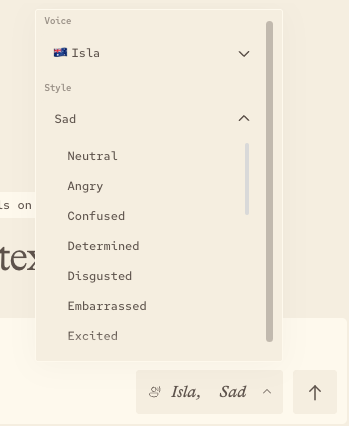
There’s a lot more to MAI-Voice-2 available for Azure and advanced users in Microsoft Foundry.
The voice cloning catch
Developers can create a custom voice in Microsoft Foundry. MAI-Voice-2 can clone a voice from just 5 to 60 seconds of audio. That’s powerful and obviously open to abuse, so Microsoft has built in a hard gate.
This is a kill switch on unauthorized cloning, and Microsoft means it. Consent is enforced at the system level: only authorized, licensed voices can be synthesized in production. No unlicensed voice cloning is possible. To create a custom voice, you apply for limited access approval through Azure’s review process and upload consent audio before you can build a voice profile.
So no, you can’t drop in a clip of a celebrity or your boss and make them say anything. That’s a deliberate design choice, and a sensible one.
MAI-Image-2.5
Microsoft’s text to image generator. Type a description, get a picture. The Playground also offers a faster, lighter sibling called MAI-Image-2.5 Flash for when you want speed over polish.
At the moment, only “Flash” is available.
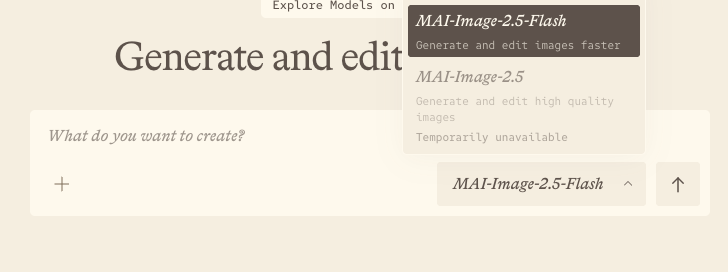
Two things make version 2.5 worth a look:
- Image editing, finally. Earlier MAI image models could only generate from scratch. MAI-Image-2.5 adds image-to-image editing and a suite of “control with preservation” capabilities. In plain English, you can feed it a picture and ask for changes while keeping the parts you want untouched. That’s the capability Google and OpenAI already had and means the MAI model can be taken seriously.
- Readable text in images. The model has improved text rendering. Again a ‘catch up’ to what OpenAI and Google already have.
On the public LM Arena leaderboard, MAI-Image-2.5 debuted at No. 2 for image generation model families in Microsoft’s framing, though independent trackers placed it at No. 3 with a score of 1,254, behind OpenAI’s gpt-image-2 and Google’s Nano Banana 2. Either way, it’s now in the top tier, which is new company for Microsoft.
The Playground shows sample prompts to get you started, with throwaway ideas like “bold chip packaging,” “overgrown city garden,” and “laundry in sunlight.” Just click one or type your own.
We tried MAI-Image-2.5 to show you some results. For anything except very short prompts, all we got was an error message “Couldn’t get a response – Image failed”. Maybe you’ll have better luck.
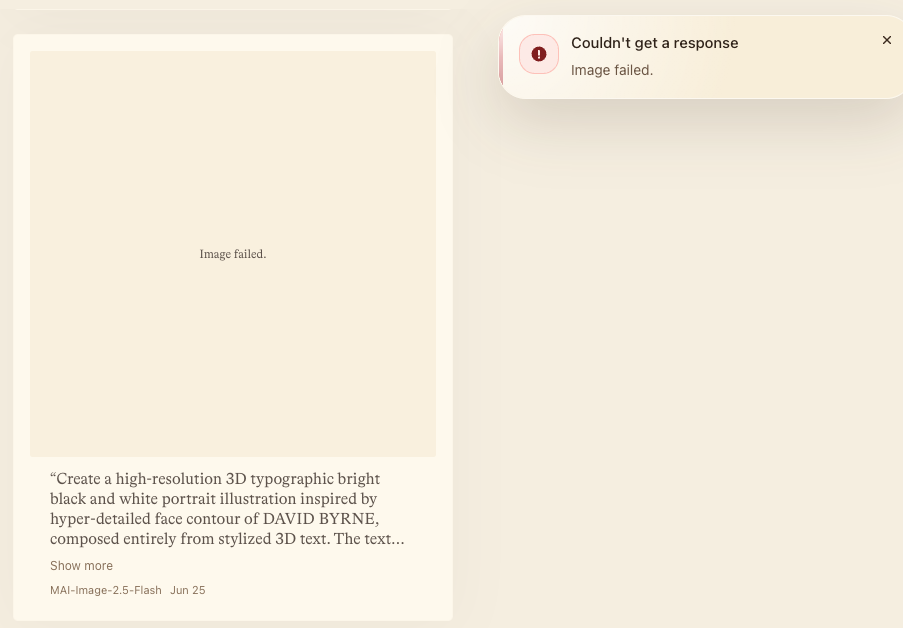
It seems that longer image prompts (common these days on other AI platforms) are too much for the current MAI-Image models. Only short prompts got an image from the Flash model.
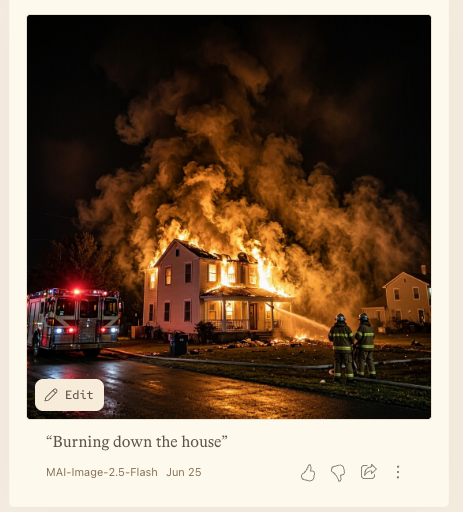
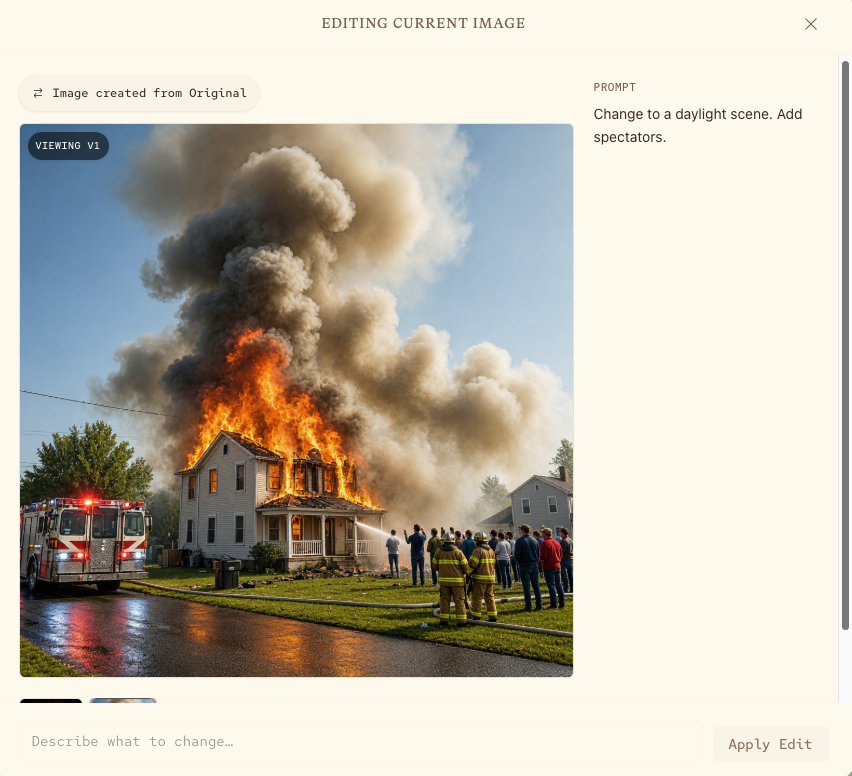
The ‘Edit’ button opens a larger view and option to change the image with follow-up prompts like “Change to a daylight scene. Add spectators.”
MAI-Transcribe-1.5
This is the unglamorous one but probably the most useful for actual office work. You speak, record, or upload audio, and it gives you text back.
Reminder: Word 365 already has a Transcribe feature.
The numbers are genuinely impressive:
- 43 languages, up from 25 in the previous version. Microsoft claims expanded coverage to 18 new languages without compromising accuracy.
- Speedy. MAI-Transcribe can get text from an hour of audio in under 15 seconds.
- A 2.4% word error rate which is very good but still means a human has to check the results.
There’s also a clever feature called keyword biasing. You hand the model a list of unusual names or jargon it’s likely to mangle, and it leans on that list to get them right. Microsoft observes a 30% reduction in word error rate when keyword biasing is used. If you transcribe meetings full of product names, client surnames, or technical terms, this is the difference between a usable transcript and one you have to clean up by hand.
What this means for you: better meeting summaries, captions, and call notes are coming to Copilot, Teams, and GitHub, where Microsoft is integrating this model. The Playground lets you test it on your own awkward audio first.
DuoAI
DuoAI isn’t available in the Playground now, it’s marked as “Temporarily Unavailable”.
When it appears it’ll be a direct way to try MAI‑Voice‑2, MAI‑Transcribe‑1.5, and MAI‑Image‑2.5 models in action together, creating natural, expressive dialogue. It’s practical preview of MAI models working together to build voice agents.
PowerPoint AI Image Models in Copilot: Which One to Choose
Copilot Model Choices Explained: Which One to Pick and Why
Best Copilot AI Model for Excel: A Plain English Guide
Best AI for Spreadsheets: Why Claude and ChatGPT Beat Gemini and Copilot
What Is Microsoft Scout? The AI That Runs Office Tasks Without Being Asked
Microsoft Word’s Transcribe Tool: Instantly Turn Recordings into Text