Excel lets you pick which AI model Copilot uses, and the list keeps growing: various GPT options, two Claude Opus and the heavyweight Claude Fable 5 (maybe). If you do not understand the difference, you are not alone. This plain English guide explains what each Copilot AI model for Excel is actually good at, when to reach for a deeper reasoning model, and why the simple Auto setting is the easiest choice most of the time but sometimes it’s best to choose yourself.
Don’t understand AI models and Copilot choices? Join the club. Copilot Model Choices Explained: Which One to Pick and Why
Excel gives customers many choices. At the moment, the AI model choices in Excel look a bit like this.
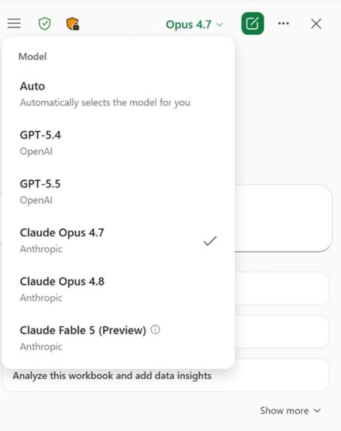
GPT-5.4
If you need to turn a vaguely worded, chaotic request from your manager into a somewhat functioning VBA script or Office Script, GPT-5.4 will do it without complaining. It’s essentially a very polite, highly efficient intern that is great at organizing messy data rows into neat tables, though you’ll still want to make sure it didn’t quietly hallucinate a nested IF statement just to make the formula look pretty.
GPT-5.5
Built for raw speed, meaning it will tear through hundreds of thousands of rows of data cleanup or generate a financial summary before you can even finish sipping your coffee. Just don’t let it do your high-stakes taxes completely unsupervised; it has a habit of being fast but a bit too confident. The math and facts can get slightly unhinged.
Claude Opus 4.7
The “obsessive-compulsive auditor.” It will sweat over your spreadsheet, double-checking its own math until it’s sure it won’t embarrass you in front of others.
Claude Opus 4.8
Opus 4.8 is built to run autonomously, tracking complex accounting pipelines over massive chat sessions without losing its mind. It’s essentially a digital compliance officer that will sit there for hours, hunting down that annoying $0.04 discrepancy in your balance sheet that has been breaking the workbook all week.
Claude Fable 5
Anthropic’s absolute heaviest, slowest, and most expensive model, designed for moments when your Excel workbook is deeply broken. It boasts “spatial intelligence,” meaning it can look at a labyrinth of 50 interconnected, broken sheets and actually figure out where the circular reference is. It’s total overkill for a basic VLOOKUP, but if you need to build a massive, terrifying enterprise data structure from scratch, Fable 5 will do it, just prepare to wait for the output.
At the time of writing Fable 5 has been blocked by the US Government, a decision disputed by Anthropic.
Which AI model to choose?
The Auto default is the easiest and usually the best choice. Microsoft’s system seems pretty good at figuring out which model is ideal for a prompt or chat.
However, keep in mind Microsoft’s self-interest. It seems likely that the “Auto” selection algorithm is skewed towards faster and cheaper (for Microsoft) AI models over the more expensive models. In other words, the company does not want people choosing the more complex and expensive models like GPT 5-5, Opus 4.8 or Fable 5 if they aren’t really necessary.
Our recommendation is to stick with “Auto” most of the time. If you’re not happy with the response or it’s an especially complex task, choose one of the more advanced models.
When asking Copilot to design a workbook, explain a long formula chain, find inconsistencies, or produce a step-by-step analysis, choose a deeper reasoning model like Claude Opus.
Claude is generally better with text. Choose one of the Claude models when your Excel data is mostly text: customer comments, support tickets, survey responses, descriptions, categories, notes, or article-planning tables.
For converting an image into a sheet, AI is better than Excel’s in-built “Data from Picture”. Claude Opus 4.7 is the best for that from the current selection. We have more on how to do that in Spreadsheets better & faster with any AI, look in the chapter “More AI spreadsheet tricks”.
Copilot Model Choices Explained: Which One to Pick and Why
Best AI for Spreadsheets: Why Claude and ChatGPT Beat Gemini and Copilot
Excel SUMIF Function: Add Up Only the Numbers You Want
Why Copilot Doesn’t Know Your Microsoft 365 Version
What Is Microsoft Scout? The AI That Runs Office Tasks Without Being Asked
Copilot “Move to Ribbon” Finally Works in Windows (With One Big Catch)
Windows 11 Can Now Uninstall Copilot, but Only If You Meet 3 Rules
What’s Really Inside a Word, Excel, or PowerPoint File (And How to See It)
