FIFA World Cup 2026: How to Add Matches to Your Outlook Calendar
The FIFA World Cup 2026 runs from June 11 to July 19, spanning 16 host cities across the US, Canada, and Mexico with 104 matches spread across four time zones. Keeping track of every kickoff time is a perfect job for Outlook’s calendar, which automatically converts match times to your local time zone so you never miss a game. This guide shows you how to add the complete World Cup 2026 schedule to Outlook, whether you want a live feed that updates automatically or a one-time download of the full fixture list or just the teams you’re interested in.
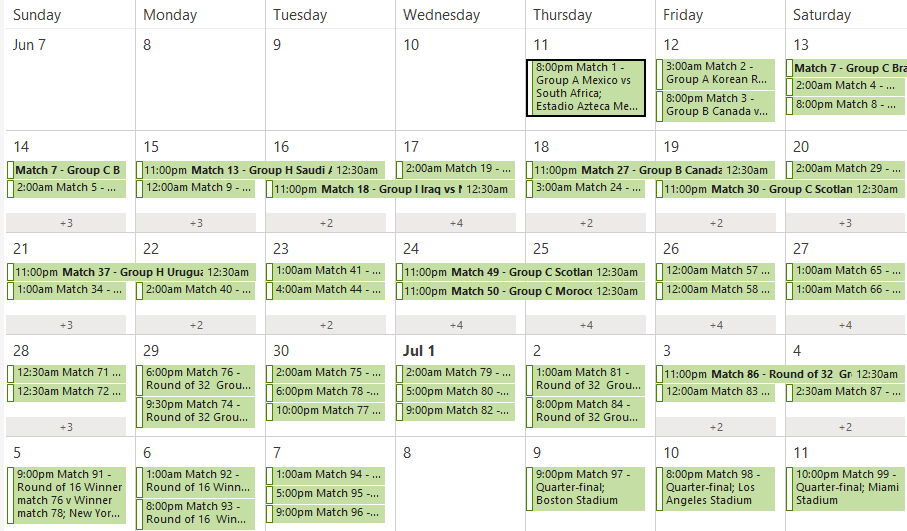
Here’s the June 2026 calendar of all the World Cup 2026 matches showing London times for each match.
We’ve found two sources of World Cup 2026 scheduling data, ready to add into Outlook. Getting all of that into Outlook takes a minute or two.
There are two ways to do it: subscribe (your calendar stays updated automatically if details change) or import (a one-time snapshot). For a tournament that’s still in progress, subscribing is the smarter choice since kickoff times/venues might shift and teams for finals matches can be added when they are known.
Subscribe via URL (Best Choice)
This method links Outlook directly to a live calendar feed. If match details change, your calendar updates automatically. This is the recommended approach for anything still in progress.
Outlook (classic) for Windows (desktop app)
- Open Outlook and go to the Calendar view
- On the Home tab, click Manage Calendars | Add Calendar then From Internet
- Paste the web link to the .ics file into the box:
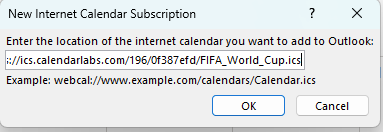
- Click OK, then Yes when Outlook asks to add and subscribe to the calendar
- The calendar appears in your folder list under Other Calendars
Outlook (new) for Windows or on the Web
If subscribing to an online calendar feed, a new calendar is made for you.
If uploading an .ics file – make a new blank calendar first. Otherwise Outlook will merge the events into an existing calendar.
- Go to your Calendar view
- Click Add calendar (left sidebar)
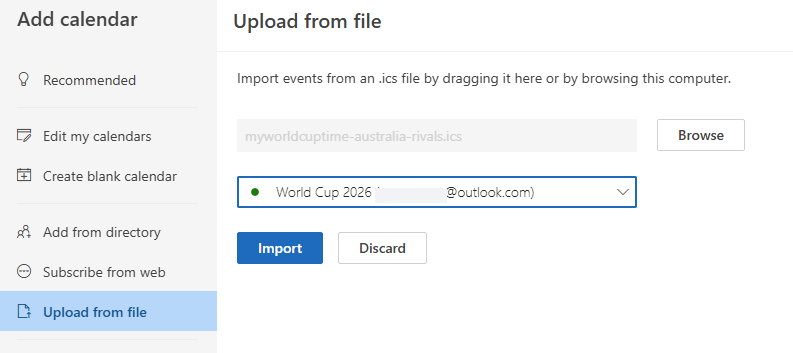
- Choose Subscribe from web or Upload from file
- Paste the subscription URL and give the calendar a name like “FIFA World Cup 2026”
OR
Select the .ics file to upload and choose an existing calendar to import into.
Outlook for Mac
In Outlook for Mac, the matches land in your main calendar, not a separate one, which is messy. Unfortunately Outlook for Mac does not give you a “create new calendar” option during the import step itself. To keep things tidy, create a dedicated calendar first:
- In Calendar view, right-click My Calendars in the left panel
- Choose New Calendar and name it “FIFA World Cup 2026”
Now do the calendar import steps:
- Go to the CalendarLabs FIFA World Cup page and download the .ics file to your Mac (your Downloads folder is fine)
- Open Outlook for Mac and switch to Calendar view
- Go to File | Import
- In the dialog box that appears, select Import events from an ICS file and click Import
- Navigate to the downloaded .ics file and click Open
- Outlook imports all the matches into your default calendar
Download and Import the ICS File (One-Time Snapshot)
Use this if you only want the current schedule locked in and don’t need automatic updates. You get a .ics file (a standard calendar file that every major calendar app understands).
- Get the World Cup calendar as a .ics file
- Download the .ics file to your computer
- In Outlook classic, go to File | Open & Export | Import/Export
- Choose Import an iCalendar (.ics) or vCalendar file, then click Next
- Browse to the downloaded file and click OK
- Outlook will ask whether to Open as New or Import. Choose Import to merge the matches into an existing calendar, or Open as New to keep them in a separate calendar (the better option for tidiness)
Two sources for World Cup 2026 calendars
There are various places offering downloadable calendars for the FIFA World Cup 2026. Strangely, there’s no official calendar download from FIFA or the US organizers.
If you want the full tournament and live updates, use the CalendarLabs subscription URL method.
If you follow one team, use myworldcuptime.com to build a filtered calendar to suit your team or interests.
Either way, keep the World Cup matches in a separate calendar inside Outlook so you can hide them with one click during work hours rather than wading through match reminders in your main calendar.
CalendarLabs
A simple and complete download with instructions for Apple, Google and Outlook calendars.
https://www.calendarlabs.com/ical-calendar/ics/subscribe/196/FIFA_World_Cup
MyWorldCupTime
Want Only Your Team’s Matches? If 104 match notifications sound like too much, the tool at myworldcuptime.com/my-calendar.html lets you pick specific teams or match types (knockouts only, for example), then exports a custom .ics file with just those games converted to your local time. You can select your team from a dropdown, add preset bundles like group rival fixtures, then download a single .ics file containing only the matches you chose.
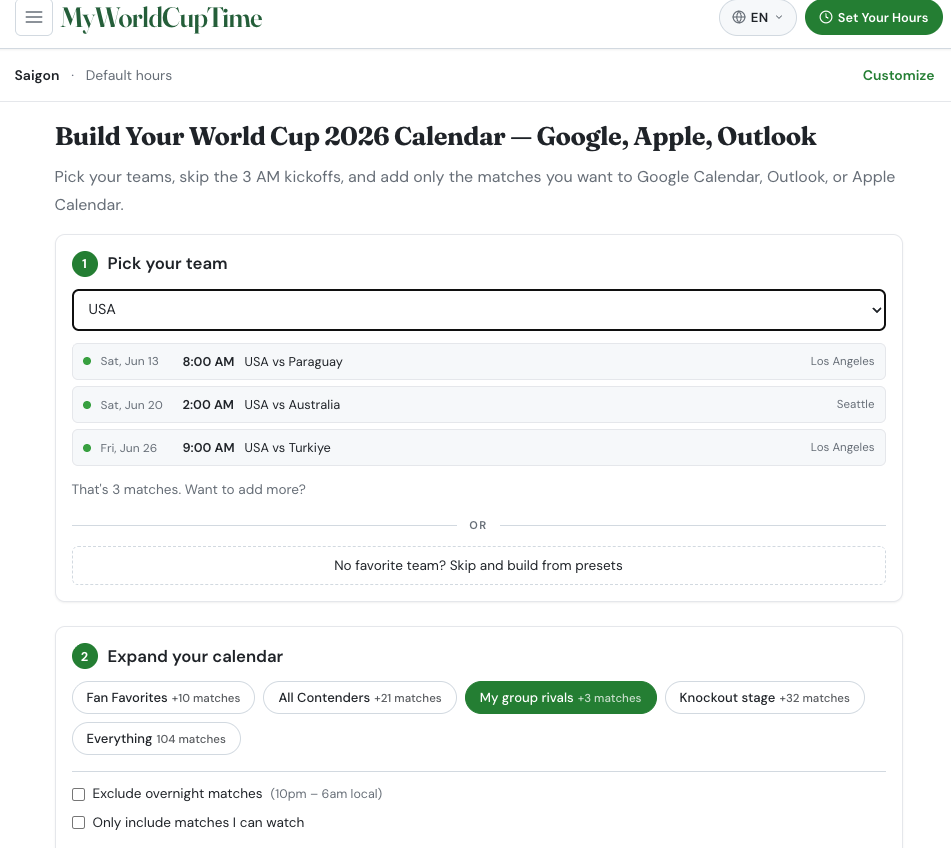
However, that file is a one-time deal with no updates as the tournament progresses.
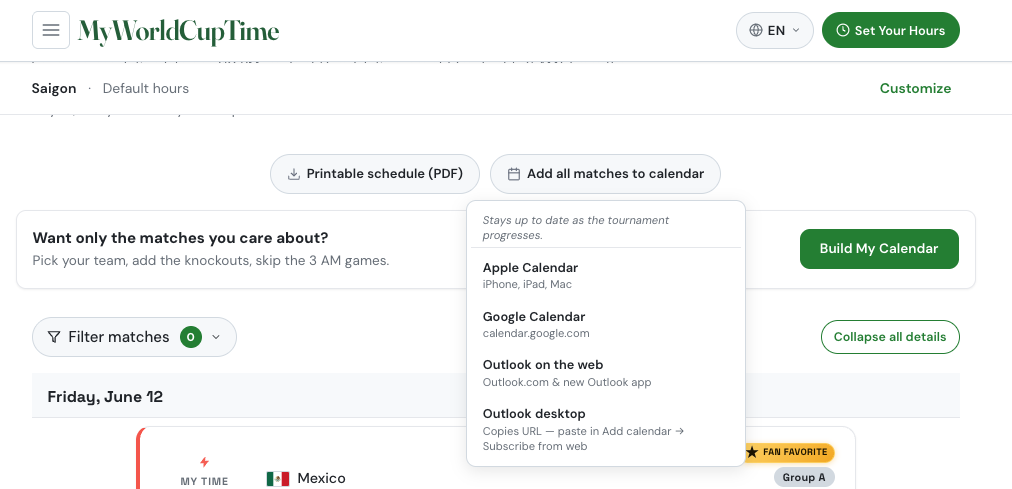
To get a calendar that updates over time, go to the home page https://myworldcuptime.com/ and choose your calendar app from “Add all matches to calendar”
Inside the calendar details
All these calendar details are in a plain text file with a .ics extension, a single match details look like this:
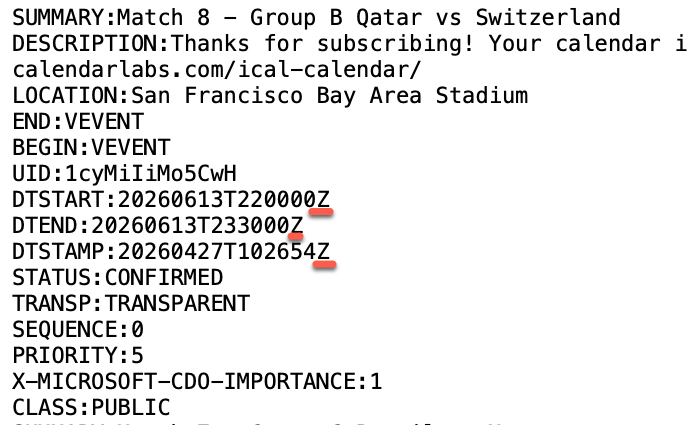
The important thing for any .ics file is for the times (DTSTART and DTEND) to include a time zone. That lets Outlook convert into local times in the calendar you see. Most common way to do that is with a “Z” at the end – meaning UTC/GMT time (“Zulu” in military speak).
Add an Internet Shared Calendar to Outlook
Yes, You Can Add an Online Calendar to Outlook for Mac
Outlook Calendar Tricks and Traps Adding from Links and .ics Files
How to Fix an Imported Appointment in Outlook