Why Excel Formulas Always Work When You Share Files Across Language
Excel formulas translate automatically when you share a workbook across languages, and most users never know it’s happening. Whether a colleague opens your file in French, German, Spanish, or Italian, they see the formula names in their own language. This quiet translation system is why an Excel workbook built in one country opens without errors in another, no conversion needed, no reformatting required. Here is exactly how it works and the multi-lingual traps for the unwary.
Excel speaks many languages on screen but only one under the hood. When you save a workbook in French, German, Spanish, Japanese or any other localized version of Excel, the formulas are stored in English inside the file.
When a workbook is opened, Excel translates the formulas to match the local language of the app to show on the screen. The translation happens on the fly each time the file is opened.
This single design choice is how a French accountant can share a workbook with German, Italian and English colleagues. All see the formulas in their own language without anything breaking.
The whole system has worked quietly since Excel went international decades ago. Most users never notice it exists, which is the point.
Excel across languages
A Frenchman writes a formula like SOMME(B2:B10)
Excel saves that in the .xlsx file as SUM(B2:B10)
Now send that workbook to other people:
A German opens that workbook and sees SUMME(B2:B10)
A Spaniard opens the same workbook to see SUMA(B2:B10)
Someone from Japan opening the workbook sees the English formula SUM(B2:B10)
because only some languages have Excel’s automatic translation.
How Excel stores formulas under the hood
Open any .xlsx file (it’s just a renamed ZIP archive) and look inside the XML. See What’s Really Inside a Word, Excel, or PowerPoint File (And How to See It)
Every formula in every cell is written in English within an XLSX file. SOMME becomes SUM. SUMME becomes SUM. SUMA becomes SUM.
Here’s a sheet open in Deutsch Excel (showing local names in the formula) with the XML version of the sheet below showing the source code with the same formula in English.
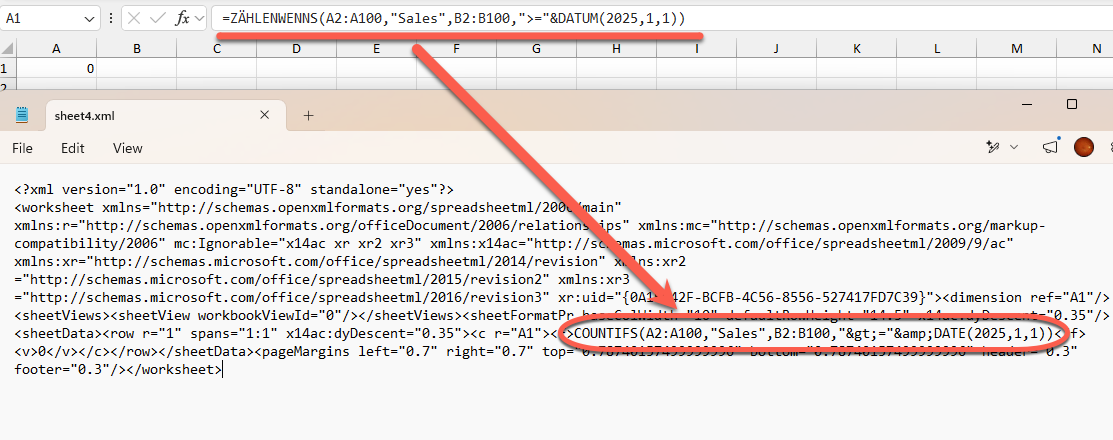
Thanks! I’m greatly obliged to my multi-lingual friend, Udo, for his help crossing language barriers.
In nerd speak – the English name is the canonical form that Excel writes to disk.
The same applied even in the older .xls binary format, except the function names were stored as numeric codes that mapped back to English names.
When you open the file, Excel checks the language settings for your app (in other words, the language used on the ribbon and menus) and swaps each function name into the local language for display in the formula bar.
You never see the ‘original’ stored English version of the formulas unless
– you’re using the English language pack for the Office apps OR
– the language pack doesn’t have Excel formula translation.
Which languages have Excel formula translation
Excel doesn’t translate formulas for all languages supported by Office.
Microsoft has translated (localized) function names only for specific languages. The main ones are: French, German, Spanish, Italian, Portuguese (both Brazil and Portugal), Dutch, Polish, Russian, Czech, Hungarian, Turkish, Swedish, Danish, Norwegian, Finnish, Catalan, Basque, Galician and Simplified Chinese.
Not translated is Excel apps using Arabic, Hebrew, Japanese, Korean, Traditional Chinese, Thai, Vietnamese, Greek and most other non-Latin script languages.
For example, if you open Arabic Excel and type a formula, you still write =SUM(A1:A10) or =VLOOKUP(...). The menus, ribbons, dialog boxes, error messages and help text are all in Arabic, but the function names themselves were never localized.
The difference seems to be mostly about script. Languages written in scripts other than Latin or Cyrillic generally keep English function names. The exception is Russian, which uses Cyrillic but does have translated function names.
The list separator is also different
It’s not just function names that change. Many European countries use the comma as a decimal separator ambiguous (1,5 instead of 1.5). That’s a problem because a comma inside a formula is normally a parameter separator.
In English Excel, separate function arguments with a comma:
=SUM(A1, A2, A3)In French, German, Italian, Spanish and most European versions, the comma is converted into a semicolon:
=SOMME(A1; A2; A3)When Excel saves the file, it normalizes the separator to a comma (along with the English translation). Open the same file in a different language version and Excel swaps the separator to whatever that locale expects. You do not need to do anything.
What’s not translated by Excel
Excel can’t translate everything and in most cases you would not want it to.
Sheet labels – the default sheet names (Sheet1, Sheet2 in English) are made in the current Excel language. For example, these sheets made with the German language version of Excel and appear with Deutsch names in any other Excel.

Defined names and table names you created. A range you named TotalSales stays TotalSales everywhere or a table VentasTotales (Spanish) always has that name.
Cell references and structured references like Table1[Column1] also don’t change because they are labels.
VBA code and macros. The Visual Basic editor only speaks English. All objects and method are in English. Range("A1").Value stays the same in every version of Excel ever made.
Text strings inside formulas. If you write =IF(A1=”SUM”, “Yes”, “No”), the words SUM, Yes and No in quotes just text, not a function name. It will not translate. Keep that in mind if you have data entry in multi-lingual workbooks.
Where this falls down
The system mostly works and most people don’t even notice. But you can hit snags:
Pasted formulas as text. Copy =SUM(A1:A10) from a webpage, paste it into French or Italian Excel, and it won’t be a working formula. Excel only translates when it parses a formula from a cell saved in a .xlsx file, not from clipboard text.
Translate() is no help. The Translate() function converts text between languages. It doesn’t understand or translate Excel formulas.
CSV files. CSV is not Excel’s native format and should only be used for data import or export. When you save as CSV, the field separator and decimal separator depend on your Windows regional settings, not the file itself. Open a French-made CSV in English Excel and you may see one big mangled column.
TEXT function format codes. Codes like “yyyy mm dd” use letters that are partially localized. The letter m for month works in most languages but currency and some date tokens differ.
Custom number formats. Format codes for currency embed a locale code, like [$€ 40C]. They follow the file but may render oddly.
Typing formulas after switching language
If your copy of Excel is set to a display language, you must type formulas in that language. Excel will not accept SUM() if you have the French, German or other language pack active, even though it will save the formula with that name.
There’s nice Excel translator at https://en.excel-translator.de/translator/ if you need to convert Excel formulas.
Microsoft offers a free Function Translator tool from the Office add ins store. It sits in a side panel and lets you look up the equivalent name in any supported language. Install it if you regularly work with files or colleagues across language versions.
What this means for you
If you share Excel files internationally, you can stop worrying about whether your formulas will survive the trip. They will. The practical takeaways:
Send and receive .xlsx files freely across languages. Functions translate on open. No conversion step needed.
Do not paste formulas as plain text between language versions. Paste the cell directly so Excel recognizes it as a formula.
Watch CSV imports from non English sources. Use Power Query (Data tab, From Text/CSV) to specify the separator and decimal style explicitly, rather than relying on Windows regional settings.
Avoid embedding language specific text in formulas. Instead of =IF(A1=”Yes”, …), use a cell reference or a boolean value so the formula works regardless of the user’s language.
VBA stays in English. Worth remembering when you write or copy code from foreign language sources.
What’s Really Inside a Word, Excel, or PowerPoint File (And How to See It)
Inside the New Translation Functions in Excel
Translate an Entire Document in Word with Ease
Google Translate with Office Documents
Language Support in Office for Iceland and Other Languages
Excel Best Practices for Safely Importing CSV and Text
Excel’s Two New IMPORT Functions Make Pulling External Data Easier
Set the Default Translation Language in Word