The bottom row of Microsoft Word holds far more than you might expect: the Word Status Bar, often overlooked, delivers a wealth of live information and quick shortcuts. From basic page and word counts to document editing modes, cloud-sync statuses and accessibility warnings, it can be fully customized to match your workflow. Click them to open dialogs, switch modes or access hidden features.
A lot of useful stuff is hiding along the bottom row of the Microsoft Word window. You can change what appears on the Status Bar and clicking along it can open up more info.

Quick Tour
Before we dig into the details, here’s the “411”:
- Right-click the Status Bar to see the full Customize Status Bar list.
- Click on list items to show/hide them on the Status Bar
- Many Status Bar entries are live controls, click on one to open more information or settings.
- Hover your mouse over parts of the Status Bar to see tooltip help.
Change the Status Bar
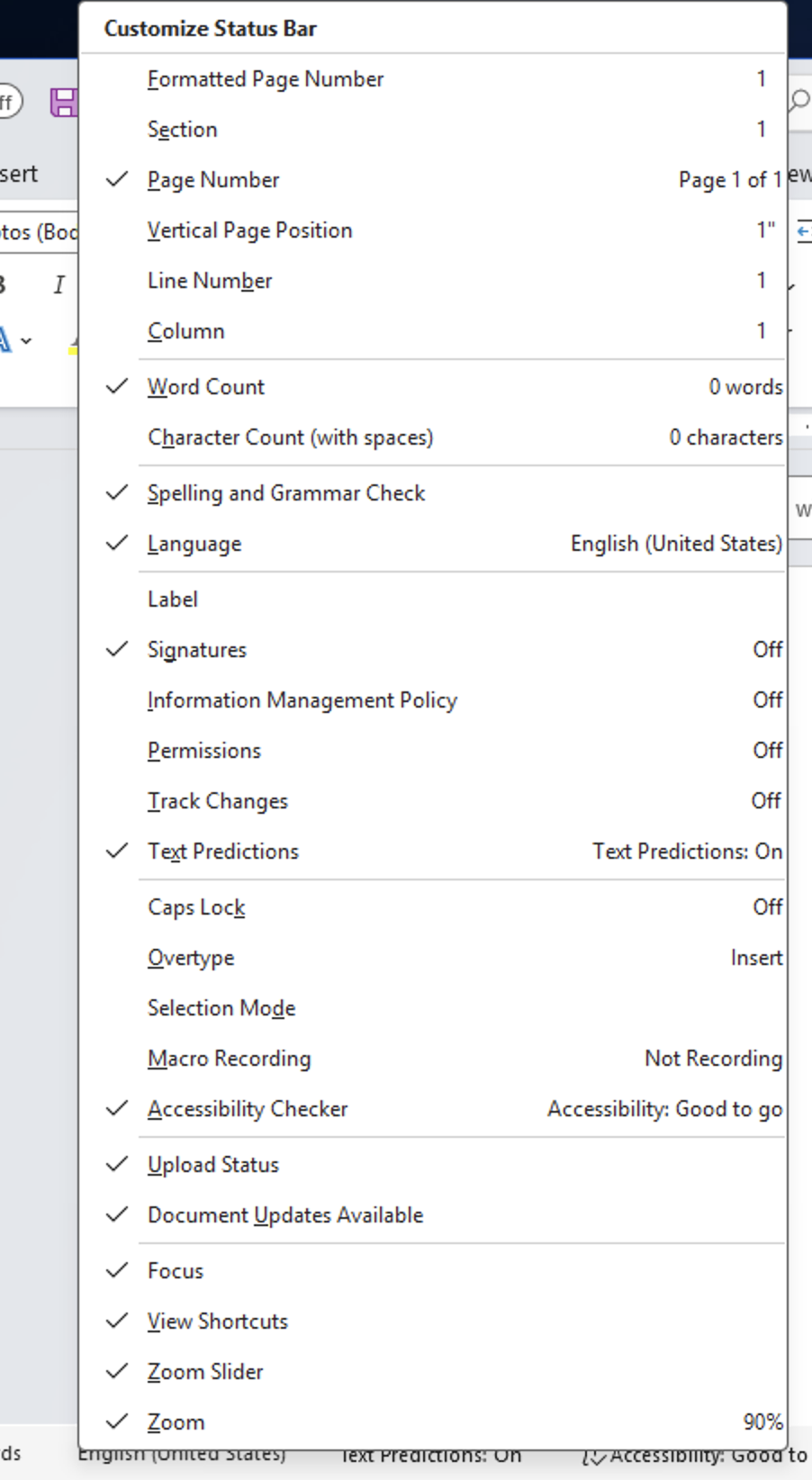
Right clicking on the Word Status Bar doesn’t just show some document info (page number, section, word count) but also lets you show/hide parts of the bottom row.
Each of the check/tick marks is for an item on the Status Bar. Click on each to toggle show or hide for each element.
Make your own choice
Don’t feel that you have to stick with Microsoft’s default selection for the Status Bar. Change to suit yourself, some to consider hiding are:
Language: if you only use one language and dialect, maybe turn this off.
Macro Recording: is still available from the Developer tab, if needed.
Accessibility Checker: if these tests aren’t of interest to you or your organization.
Focus: if you don’t use this feature, don’t show it on the Status Bar.
Zoom: hide the current Zoom percentage, leaving just the Zoom slider.
Formatted Page Number
The page number as printed, respecting section breaks and numbering formats.
Click: open the left-side Navigation Pane
Section
The current document Section.
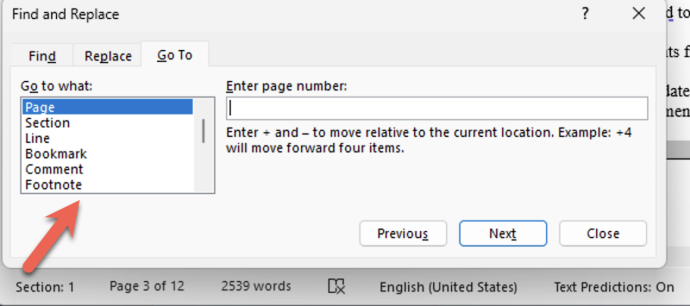
Click: open Go To dialog (with Find and Replace).
Page Number
Shows current and total pages as in “Page n of nn”
Click: open the left-side Navigation Pane
Vertical Page Position
The distance between the current cursor location to the top margin.
The units (inches/centimeters) is controlled by Options | Advanced | Display | Show measurements in units of. But sometimes only changes after Word is restarted.
Click: open Go To dialog (with Find and Replace).
Line Number
The line number from the top of the current page.
Click: open Go To dialog (with Find and Replace).
Column
The column position of the insertion point measured in characters from the left margin. For example Column: 4 means the cursor is between the third and fourth character from the left.

Not related to the multi-column layout feature.
Click: open Go To dialog (with Find and Replace).
Word Count
The number of words in the current document or selection (n of nnn words).
Click: open the full Word Count dialog with statistics galore!

Character Count (with spaces)
Similar to Word Count but shows the number of characters in the document or current selection (nn of nnnn characters).
Click: open the full Word Count dialog.
Spelling and Grammar Check
A little icon that shows the current spelling and grammar state of the document .
Tick – there’s no outstanding issues.
Pen animation – background checking in progress. Might show as “Editor: spelling & grammar”.
X – proofing errors found (see below).

Click: the icon to open the right-side Editor pane.
Language
The language setting for the current selection.
Click: open the full language selection dialog.
Collaboration, security & cloud
The next few Status Bar items apply in corporate environments and only appear when relevant, whether they are selected or not.
Label
The Purview Sensitivity Labels such as Confidential – Finance, Internal, Public
Click: doesn’t do anything.
Signatures
Does the document have any digital signatures attached?
Click: open the Signatures pane or Info to see signature details.
Information Management Policy
Shows IRM / compliance policy (retention, labeling, etc., part of Information Rights Management.\
Click: open policy/permissions details (File | Info).
Permissions
Show any organization restricted permissions (e.g. “Read-only”, “Do Not Forward”, IRM-protected file). Doesn’t show a regular “Read Only” document.
Click: open protection/permissions details (File | Info | Protect Document).
Number of authors
When the doc is on OneDrive/SharePoint and co-authored, you may see something like “3 authors editing”.
Click: see who else is ‘in’ the document.
Upload Status
Shows the sync status when the document is saved to the cloud: uploading, saved, error, working offline, etc,
Click: might show more detail about sync; the OneDrive status window / document location.
Document Updates Available
Appears when there are edits in the cloud copy of a shared document that haven’t yet been shown in your document. Word will usually update the local document automatically or click Save (Ctrl/Cmd + S) to force an update.
Track Changes
Is Track Changes on for this document? May show as TRK.
Click: toggles track changes on/off.
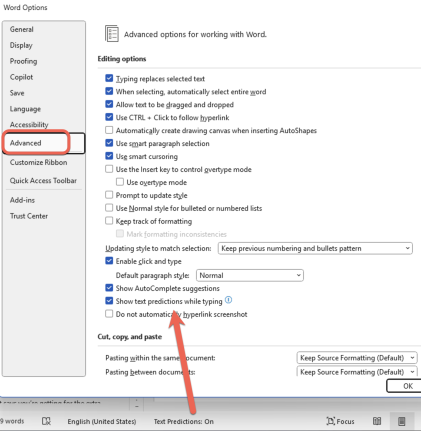
Text Predictions
Is the Text Predictions feature on?
Click: open Options | Advanced | Show text predictions while typing.
Caps Lock
This only appears when Caps Lock key is on and is selected from Status Bar list.

Click: does nothing.
Overtype
What happens when you type text, does it Insert (the usual) or Overtype (replace the current text).
Click: does nothing.
Selection Mode
Appears as ‘Extend Selection’ if extend mode is on (F8), may show as EXT.
Click: exit Extend Selection mode (or press Escape).;
Macro Recording
Is Macro Recording on?
Click: start / stop a macro record session.
Accessibility Checker
Are there Accessibility concerns?

Click: open the right-side Accessibility pane.
Focus
Click: switches to Focus (full screen) mode.
Press Escape to return from Focus mode.
View Shortcuts
Three buttons to change the document view between Read mode, Print layout (the most common view) or Web layout.
Zoom Slider and Zoom
A slider with − and + buttons or drag to change the document view.
Optional zoom level indicator (80%, 100% etc.).
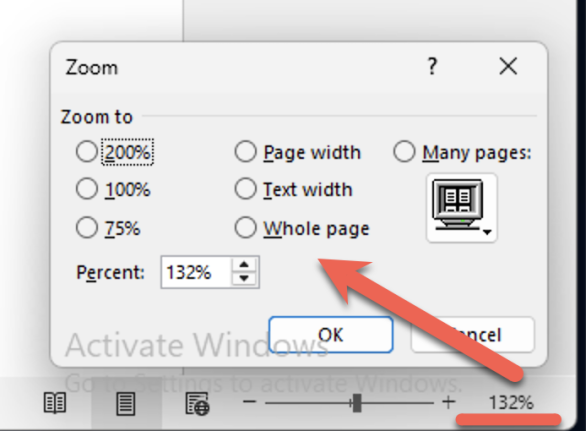
Click: the percentage to open the Zoom dialog options including Page Width, Text Width and Whole Page.