For the first time in more than 20 years, Google is rolling out the ability to change your @gmail.com address without starting over. That means you can keep your existing inbox, Google Drive files, YouTube history, subscriptions, and purchase records, all under a brand new email address. The feature is arriving gradually but is now available to users in the USA. If you use Outlook (classic or new), there are important settings you will need to update manually before your sent mail shows the right address.
For more than two decades, Gmail has let users tweak almost everything about their Google account — except the one thing that really mattered: the email address itself.
Now users can change their @gmail.com address while keeping the same Google account — including all existing emails, files, photos, subscriptions and purchase history. This was originally available in India from December 2025 before a slow rollout around the world.
UPDATE: from 1 April 2026, Gmail address change is available to US customers. According to Google it’s a gradual rollout, people in other countries can try to change and see if it’s working for them.
You could change your display name. You could forward mail, add aliases, even bolt the account onto YouTube, Drive, Photos, Maps and a small universe of Google services.
But if your Google account ended in @gmail.com, the address you chose as a teenager or decades ago was permanent. People have been stuck with choices like FerrisBueller1986@ JessieSpano1989@ or DuranDuran1978@ long after the address was relevant to them, let alone other people.
That lock-in has long irritated users who outgrew their old usernames, changed their names, or simply regretted youthful creativity. Google’s answer was always the same: tough luck, start a new account.
Now Google is making change of address possible, in a gradual, global rollout.
It also means a Gmail ‘land grab’ or rush to get preferred @gmail.com addresses before they are gone, if not already.
Full instructions are on the Google web site.
Does it work in your country?
Google is being cagey about which regions have the ‘change of address’ feature. It was originally tested in India (in Hindi) and now in the USA.
We can’t test availability in other countries. For example, Google says change of address is possible for USA customers – does that include Canada too?
What about UK, Australia, New Zealand, Europe and elsewhere?
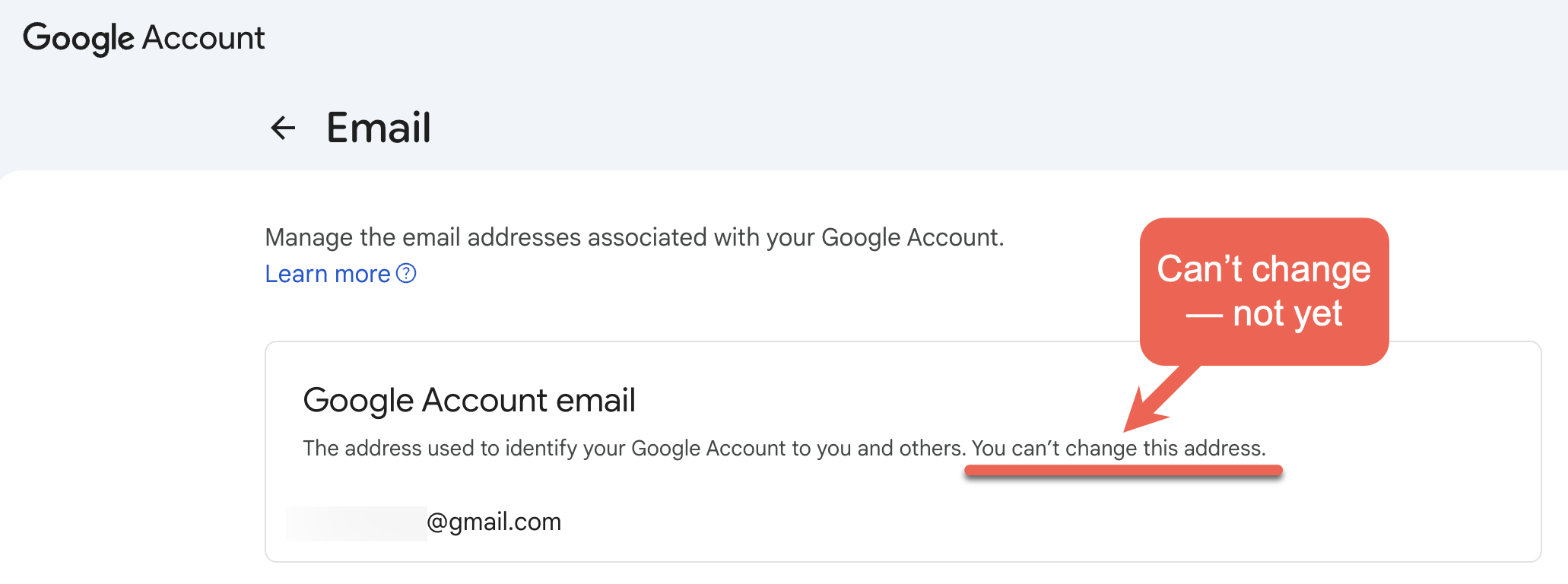
Don’t wait for an announcement from Google, check your account to see what’s offered. It can’t hurt to check:
- Go to myaccount.google.com/google-account-email.
- That should take you to the right page but if not, At the top left, click Personal info | Email | Google Account email
- Under “Google Account email”, click Change Google Account email,if available.
All our Gmail accounts didn’t have the change of address option … not yet.
What actually changes
Under the new system, users can switch to a new @gmail.com address without losing their account history.
Crucially:
- The old Gmail address does not disappear
- The old address becomes an alias or “alternate email address” in Google-speak.
- Emails sent to the old address will still arrive
- Either address can be used to sign in to Google services
That includes Gmail, Drive, YouTube, Google Maps, Google Play and more. From Google’s perspective, it’s still the same account — just with a new primary email label on the front.
Other email providers have offered alias-based address changes for years. Gmail is late to this party.
Limits and fine print (of course)
According to the help page, Google is not giving users unlimited flexibility:
- You can change your Gmail address only once every 12 months
- You can create up to three new addresses, for a lifetime total of four
- You cannot delete the newly created address
- Availability is gradual and not guaranteed yet.
Outlook changes
Since the Gmail login doesn’t change (new and old address can be used for login) no immediate change is necessary to Outlook. Email will continue to arrive and be sent.
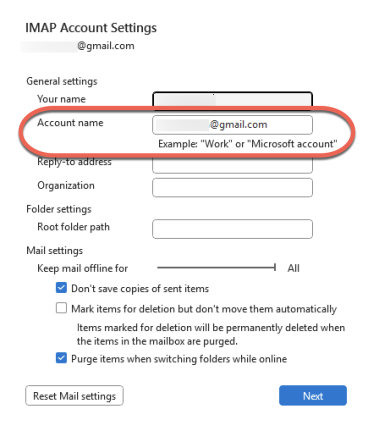
BUT the “From” address in Outlook does NOT change automatically. Check the Outlook account settings to show the new FROM.
Outlook (classic)
Go to File | Account Settings | Account Settings | <select the Gmail account> | Change to open the IMAP Account Settings.
Outlook (new)
New Outlook for Windows won’t let you change the FROM email address. The workaround is to remove the Gmail account from Outlook (new) then add the account again using the new Gmail address login.
Who won’t get it
This appears to apply only to consumer @gmail.com accounts.
Google accounts issued by:
- Employers
- Schools
- Organizations
- Family or group domains
are unlikely to be included. Those addresses are governed by administrators, not end users.
And, naturally, your shiny new address still has to be available. If someone else already grabbed the name you want, you’re out of luck.
Connect Outlook with Google’s Gmail
Outlook Settings You Need to Fix for Gmail Accounts
Outlook Change of Address Troubleshooting Guide
New Outlook Windows Privacy What You Need to Know
Outlook for Mac Vital Tips and Traps with Gmail
How Gmail Labels and Categories Work with Outlook
How Changes in Outlook Login Will Affect You
Understanding Outlook New for Windows
