Zoom options in Microsoft Word control how a document appears on screen without affecting its actual size or layout. This guide explains all zoom settings in Microsoft Word, where to find them, and how each option helps when reading, editing, or reviewing documents in a way that suits you.
By choosing the right Zoom option, you can work faster, reduce eye strain, and review documents more effectively.
Where to Find Zoom Options in Word
On the View tab of the Ribbon, the Zoom group provides options such as Zoom, 100%, OnePage, Multiple Pages, and Page Width.

Page Width
For most work and typing, Page Width, is the best option because it makes the page fit across the current window width with little unused grey space at left or right.

Page Width makes the text a little larger to see and is a better use of available screen space.
There’s no direct shortcut for Page Width (pity that) but Alt, W, I works in both Word for Windows and Mac.
Quickly Zoom In or Out
You can quickly adjust the zoom level using the Zoom slider located on the status bar at the bottom-right corner of the Word window.
Drag the slider to increase or decrease the zoom percentage. Click the plus (+) button to zoom in gradually or the minus (–) button to zoom out in small increments.
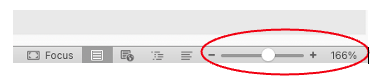
As you slide along, it’s a little ‘sticky’ at the 100% mark to make choose that a bit easier.
Use the slider for fast zoom changes while switching between reading and editing.
Zoom Using Keyboard Shortcuts (Word)
Word also allows you to zoom in and out using simple keyboard shortcuts, which can save time while editing.
For Windows: Ctrl and the Plus sign (+).
Ctrl and the Minus sign (–).
For Mac: To zoom in, press Cmd and the Plus sign (+).
To zoom out, press Cmd and the Minus sign (–).
Zoom (Custom Zoom)
Open the Zoom dialog box, where you can set a specific zoom percentage. Zoom is on the View tab or just click the percentage at right of the zoom slider.
Choose preset values like 75%, 100%, or 200%, or enter a custom percentage. This option works best when you want precise control over how large or small the document appears. If you are reviewing fine formatting details such as tables or alignment, you can set Zoom to 150% to see elements more clearly.

100% Zoom
The 100% option resets the document view to its default size. Word displays the document at what it considers normal reading size. You can use this option if you want to return to a standard view after zooming in or out.
Whole Page
The Whole Page option zooms the document so that an entire page fits within the window. Word adjusts the zoom level automatically based on your screen size. This view helps you understand overall page layout, margins, and spacing.
Use Whole Page when you want to review how text, images, and headings fit together on a single page.
One Page and Multiple Pages
You can use the One Page option to display a single page at a time, like Whole Page but focused on one page only.
The Multiple Pages option displays two or more pages side by side, depending on screen size. You can use Multiple Pages when comparing page layouts or reviewing how content flows across pages.

Page Width
Use the Page Width option to zoom the document so that the width of the page matches the width of the Word window. Word removes extra horizontal space and focuses your attention on left and right margins.
When editing paragraphs or checking margin alignment, Page Width provides a clean and comfortable reading experience.
Text Width
Text Width option is only in Word for Windows and then only on the Zoom dialog box, not the ribbon. It’s mostly ignored which is a shame because Text Width view is a little better than Page Width.
It’s a slightly higher zoom than Page Width, hiding much of the left/right space.

There’s no ‘Alt’ keytip shortcut because Text Width isn’t on the ribbon. And no in-built keyboard shortcut either.
If there’s a Text Width command (to put on the QAT or shortcut) then we can’t find it. It’s certainly not where it should be as ViewTextWidth. Grrrr.
In VBA there’s a Page Fit property wdPageFitTextFit
ActiveWindow.View.Zoom.PageFit = wdPageFitTextFitMicrosoft Word help at Office-Watch.com
All About the Word Status Bar, Hidden Power Tools in Microsoft Word
Fix image placement in Word: use this simple layout shortcut
