Five fast Clear options in Excel
Excel has some nice choices for clearing out cells quickly. You can remove the contents, the formatting only or both contents and formatting plus choices for deleting just notes, comments and cleaning up links.
As you can see the drop-down menu Home | Editing | Clear offers options such as: Clear All, Clear Formats, Clear Contents, Clear Comments and Notes, Clear Hyperlinks and Remove Hyperlinks.

These options provide you with the flexibility in managing the content and formatting of cells in Excel and can save a lot of time wasted in retyping or reapplying formatting.
Clear All
Clear All removes all the contents and formatting from the selected cells, ensuring that it doesn’t affect every value in every cell across the spreadsheet.
To utilize Clear All, start by selecting one or more cells within your workbook. On the right side of the Home tab, in the Editing group, you will find the Clear button’s dropdown menu. Click on this dropdown, select Clear All to proceed.
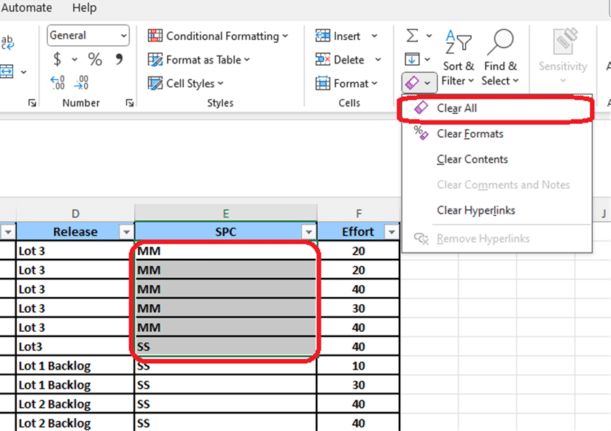
You can see, the chosen cells will be entirely emptied. This action removes any data contained within the cells and any formatting settings that may have been applied.
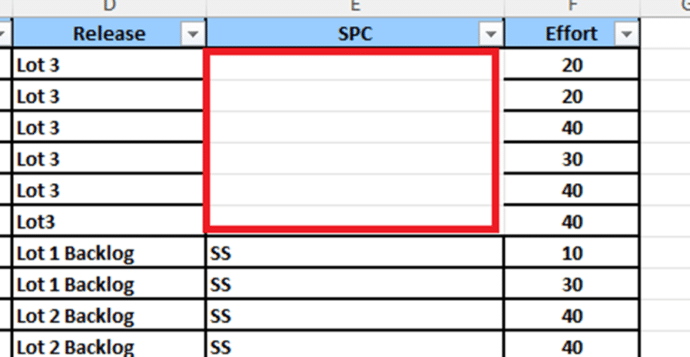
Clearing formatting includes any cell style. Strictly speaking the cell is changed to the Normal cell style.
Clear Formats
To remove all formatting in Excel, start by selecting the cell or range of cells you wish to clear formatting. From the Clear button’s dropdown menu select the Clear Formats option.

This feature will erase all cell formatting, encompassing cell styles, conditional formatting, number formats, fonts, colors, borders, etc., but keeping the cell contents.
Using this feature, you can effortlessly remove formats not only from a single cell but also from an entire row, column, or worksheet by clicking the Select All button.
You can select multiple non-adjacent cells or ranges and clear their formatting simultaneously by selecting the initial cell or range. With the help of the CTRL key, proceed selecting additional cells or ranges.
Clear Contents
Clear only the contents within the selected cells but keep existing formats and comments or notes attached to the cell.
Delete key
The Delete key (Del) is the quick way to Clear Contents.
Clear Comments and Notes
Delete all comments and notes from either the entire sheet or a specific selection, begin by making the desired selection and click on Clear comments and notes option to successfully delete the comments or notes from your spreadsheet.
This applies to both Excel Notes and modern Comments, see Notes vs Comments, understand the difference in Excel
Clear hyperlinks and Remove hyperlinks
Excel by default automatically convert URLs or email addresses into clickable hyperlinks. While this feature can be convenient in some cases, it can indeed become frustrating if you prefer to keep your data clean and organized without hyperlinks.
In Excel, both “Clear Hyperlinks” and “Remove Hyperlinks” options serve to eliminate hyperlinks from selected cells. However, there’s a subtle difference between the two.
Let’s begin the process by selecting the cell containing the link. You can select multiple links as well. Then from the Home tab, in the editing group, click the Clear button and choose Clear Hyperlink or Remove hyperlink from the list.

Clear Hyperlinks
When you click on Clear Hyperlink option, the feature prompts you with 2 options: Clear hyperlink only and Clear Hyperlinks and formats.

Using the Clear hyperlinks only option, you can remove the hyperlink formatting from the selected cells while keeping the text or data intact. Hovering over the link, you will see that it is not clickable anymore. It’s a quick and convenient way to clear hyperlinks without affecting other cell contents.
But if you are looking to remove both the clickable part of the link, as well as its visual formatting, then you probably want to click the Clear Hyperlinks and Formats radio button. This functionality can also be achieved by selecting the Remove hyperlinks, which lies below Clear Hyperlink option.

Removes hyperlinks also removes the hyperlinks from the selected cells and converts them to plain text.
The choice between “Clear Hyperlinks” and “Remove Hyperlinks” depends on the user’s discretion whether you want to keep the text that was previously hyperlinked or keep it as a plain text.
Notes vs Comments, understand the difference in Excel
Print selection, sheets or tables in Excel
Easily compare a series of values with ChiTest() Excel