Letter or A4 in Word: Two Ways to Switch Without Wrecking Your Layout
Get a document formatted for the wrong paper size and Word gives you two very different ways out. One rescales the printout and leaves your document untouched. The other changes the document itself and can shift your margins, headers and images without warning. Which one you pick matters, so here is when to use each, how to do it on Windows and Mac, how to change Word’s default paper size, and how to make a PDF at a different page size.
Print to a different paper size
This is the quick and easy option that many people overlook. If you just need a copy of the document in another paper size, this is the best choice. You can use it to make a paper document in another page size or ‘Print to PDF’ with the PDF pages in another page size.
The option is called ‘Scaling’, meaning that Word resizes the page ‘image’ to fit the paper size. Since A4 and Letter are quite similar, the scaling is barely noticeable.
Word for Windows has a scaling option that will adjust an A4 document to Letter paper for printing, or vice versa. Under the Pages Per Sheet option at the bottom of the Print dialog, there’s Scale to Paper Size.

Automatic resizing to either Letter or A4
In Word for Windows, it’s likely you’ve already used scaling between Letter and A4 paper sizes because Word will do it automatically.
At Options | Advanced | Printing there’s an option called ‘Scale content for A4 or 8.5 x 11 inch paper sizes’, which is ON by default.
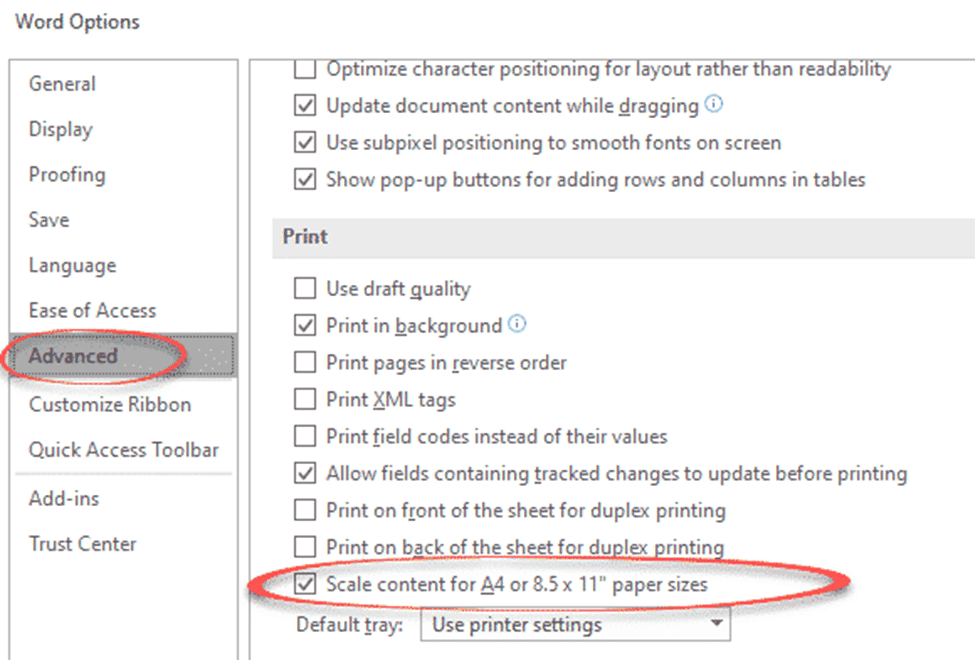
That means Word will automatically rescale an A4 document to print on Letter paper or vice-versa.
There’s no equivalent ‘automatic scaling’ option in Word for Mac but, page scaling is possible for each print job.
Word for Mac
Word for Mac has a similar ‘Scale to Fit Paper Size’ option, but it’s buried deep. Go to File | Print then scroll down to the Paper Handling section and open it up. At the bottom are the scaling options.

Scale to Fit Paper Size: turn on
Destination Paper Size: it will suggest US Letter for an A4 document or vice-versa.
Scale Down Only: prevents scaling to a larger paper size, which can result in blurry text.
Other page resizing / paper options
Printer software can have useful options, including its own scaling option for Letter/A4 paper.
Have a look in your printer options to see what’s available. It’s a handy trick for printing from any program that doesn’t have a paper scaling option.
Printing and PDF: Straight Talk is all about ‘publishing’ or ‘printing’ from your computer, either hard copy, paper printing or making and viewing PDF files. It’s a collection of printing and PDF tips and money saving advice gathered over twenty years of Office Watch.
Resizing the Word document to different paper
The other option is to ‘permanently’ change the Paper Size in Microsoft Word for that document only.
That’s the better option if you’ll be working on that document regularly in a different page size.
In theory, changing Layout | Size between Letter and A4 should happen seamlessly, but that’s not always the case.

After changing Word page size, check the document for formatting problems. That can happen if the document has fixed measurement settings instead of proportional ones.
Making PDF using different paper size
There are two choices to make a PDF – Save or Print but only one lets you change the paper size of the PDF.
Choose ‘Print to PDF’ in either Word for Windows or Word for Mac. That lets you use the same scaling options available for any print job, physical or to a PDF file.
If you want to Export / Save As to a PDF file with a different page format, change the Layout | Size of the document to the page size needed for the PDF.
Word default paper size
When Microsoft Office is installed, it looks at the regional setting in Windows or Mac and creates a default Word template accordingly. For example, a US install will get a blank document with Letter size, but installing the same Office software in Europe or Australia will get an A4 blank document.
You can see which paper size is set up for any document at Layout | Size.
There are two ways to change Word’s opening or default paper size.
About Letter vs A4 paper sizes
In short, A4 paper is a little narrower but taller than Letter or ANSI size.


Differences between A4 and Letter paper sizes
A4 is 6.3% taller. That height difference is roughly two extra lines of 11pt text per page on A4, which is why documents swapped between the two sizes so often gain or lose a page at the end.
Letter is 2.8% wider.
A4 gives you about 3% more page area than Letter. Letter is 93.5 in² / 60,322mm². A4 is 96.68 in² / 62,370mm². The difference is roughly 3.2 in² or 2,050mm².
Paper sizes around the world – Letter vs A4
Most of the world uses Metric paper sizes as shown on this map, at least officially.

In the Real World™ there’s a mix. Some officially metric countries use Letter sized paper. Some branch offices have to use the paper size set by head office even if it’s different from their location. It’s quite possible you’ll receive a document or PDF formatted for the ‘other’ paper size.
More paper size and printing tricks for Microsoft Word
If the scaling trick did not cover your situation, there are more ways to attack the same problem. Paper Sizing tricks in Microsoft Word goes wider than Letter and A4 and covers rescaling between very different page sizes. For the direct approach on a single file, Change the Paper Size in Microsoft Word walks through the Layout | Size route step by step.
Tired of fixing the same document every time you start one? Two Ways to Change Word’s Opening Paper Size shows how to set your default once, including the Normal.dotm method that also lets you change default fonts, margins and styles while you are in there.
Changing page size is the fastest way to break a layout you were happy with. Change Margins in Word explains what Word does to your margins when the page dimensions move, and Why does a document look different on other devices covers the other big cause of documents that look wrong on someone else’s screen.
Since a page size change usually means fewer or more pages, it is worth knowing how to claw them back. Use narrow margins in Word to save paper can cut a 20 page document to 14 with one click, while Shrink One Page or Shrink to Fit in Microsoft Word deals with that annoying orphan page at the end.
For PDFs, the method you choose changes the result more than most people realise. Two choices to make a PDF, Save or Print? explains why links and bookmarks survive one route and vanish down the other, and Make a better PDF from Microsoft Word using the hidden options digs into the export settings Microsoft buries. If it is paper you are dealing with, Printing tricks for Microsoft Word and Office rounds up the rest of the Print pane.